
When you see your AT&T box blinking red, it can feel frustrating. You might worry your internet is down or that something is seriously wrong. But in most cases, this blinking red light is a signal—your equipment is trying to tell you what’s happening. Understanding these signals can help you fix problems quickly and avoid long calls with customer support. This guide will explain what the blinking red light means, how to troubleshoot, and what to do if you can’t solve it yourself. By the end, you’ll feel confident handling your AT&T box and keeping your connection strong.
What Is The At&t Box?
The AT&T box, sometimes called a gateway or modem, is the device that connects your home to the internet. It takes the signal from outside and distributes it to your devices through Wi-Fi or Ethernet cables. There are several models, including the BGW210, NVG589, and 5268AC. Each one has lights that show its status. These lights can be green, blue, yellow, or red. When everything is working well, most lights are steady or blinking green. If you see a blinking red light, it usually means a problem.
Common At&t Box Models
Here’s a look at some popular AT&T boxes and their main features:
| Model | Wi-Fi Standard | Ports | Typical Use |
|---|---|---|---|
| BGW210 | 802.11ac | 4 Ethernet | Home |
| NVG589 | 802.11n | 4 Ethernet | Small office |
| 5268AC | 802.11ac | 4 Ethernet | Home & office |
No matter which model you have, the blinking red light follows similar meanings.
What Does A Blinking Red Light Mean?
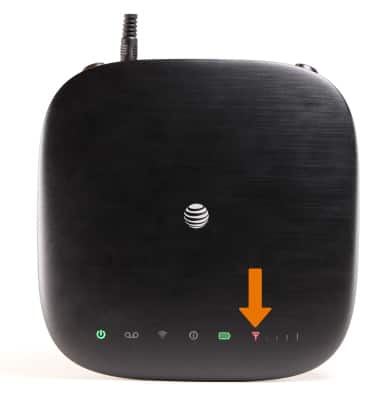
The blinking red light is a warning. It usually means your box cannot connect to the internet. This might be due to a signal loss, hardware failure, or setup error. Here’s what each light means:
- Power light blinking red: The box is not getting enough power or has a hardware issue.
- Broadband light blinking red: The box can’t find the internet signal.
- Service light blinking red: The box sees the signal but cannot connect to AT&T’s network.
Usually, the broadband light is the one blinking red. This is the most common signal for a lost connection.
Quick Reference: At&t Box Light Colors
| Light Color | Status | Action Needed |
|---|---|---|
| Green (steady) | Normal | None |
| Green (blinking) | Starting up | Wait |
| Yellow | Weak signal | Check cables |
| Red (blinking) | No connection | Troubleshoot |
Why Is Your At&t Box Blinking Red?
Several causes can lead to a blinking red light. Let’s go through the most common reasons:
1. Signal Loss
If the main cable is loose, damaged, or disconnected, the box will blink red. This might happen after storms, construction, or someone bumping the wires.
2. Hardware Failure
Boxes can fail over time. If the device is old, overheated, or dropped, internal parts may stop working.
3. Power Problems
If the box doesn’t get enough power or the power adapter is faulty, it may blink red. Sometimes, outlets or surge protectors cause issues.
4. Network Outage
AT&T sometimes has outages due to maintenance or unexpected faults. If their network is down, your box cannot connect and will show a red light.
5. Incorrect Setup
If you recently moved, changed cables, or tried to upgrade your service, the setup might be wrong. This can make the box unable to connect.
6. Firmware Problems
Rarely, the software inside the box gets corrupted or outdated, causing errors. This might happen after updates or power loss.
How To Troubleshoot A Blinking Red At&t Box
When you see a blinking red light, there are several steps you can take before calling support. These steps solve most problems.
Step 1: Check All Cables
Look at every cable connected to the box. Make sure none are loose, unplugged, or damaged. Pay attention to:
- The main power cable
- The Ethernet cable from the wall jack
- Any splitter or filter used
If you see frayed wires or bent connectors, replace them.
Step 2: Restart The Box
Unplug the box from the power outlet. Wait at least 10 seconds before plugging it back in. This resets the box and can clear minor errors.
Step 3: Check Power Source
Plug the box directly into a wall outlet. Avoid using surge protectors or extension cords. If the power adapter is hot or looks damaged, try a new one.
Step 4: Confirm The At&t Service Status
Visit the official AT&T website or call their support line. They will tell you if there’s an outage in your area. Sometimes, the problem is on their side.
Step 5: Inspect Wall Jack And Splitters
If you use a wall jack, make sure it is not loose or dirty. If you use a splitter (to share the signal with other devices), remove it and connect the box directly.
Step 6: Reset To Factory Settings
Find the small reset button on the box. Use a paperclip to press it for 10 seconds. This will restore default settings. Warning: this erases custom Wi-Fi names and passwords.
Step 7: Update Firmware
Log into the box’s web interface (usually at 192.168.1.254). Check for firmware updates. If an update is available, install it. This can fix bugs.
Step 8: Contact At&t Support
If none of the above works, call AT&T support. They can check your line, run remote tests, or send a technician.
Key Differences: Blinking Red Vs. Solid Red
A blinking red light is different from a solid red light. Here’s a quick comparison:
| Light | Meaning | Action |
|---|---|---|
| Blinking Red | Trying to connect, but failing | Troubleshoot, check cables |
| Solid Red | Critical error, hardware or service failure | Call support, possible replacement |
If your box shows a solid red light, the problem is usually more serious.
Common Mistakes When Troubleshooting
Many people make mistakes when trying to fix their AT&T box blinking red. Avoid these errors:
- Ignoring cables: People often assume the cables are fine. Always check and reseat them.
- Restarting too quickly: If you unplug the box and plug it in right away, errors may not clear. Wait at least 10 seconds.
- Using old splitters: Splitters can fail and cause signal loss.
- Skipping firmware updates: Outdated firmware can cause random errors.
- Not checking for outages: Sometimes, the problem is with AT&T, not your equipment.
- Factory resetting too soon: A factory reset should be your last resort. It erases settings and can create more problems if not needed.
How To Prevent Red Light Problems
Prevention is better than cure. Here are smart ways to keep your AT&T box running smoothly:
1. Keep Box Clean And Cool
Dust and heat can damage your box. Place it in a cool, open space. Avoid stacking other electronics nearby.
2. Use Quality Cables
Cheap or old cables break easily. Use AT&T-approved cables for power and connection.
3. Update Regularly
Check for firmware updates every few months. Updates fix bugs and improve performance.
4. Avoid Unnecessary Splitters
Only use splitters if needed. Each splitter can weaken the signal.
5. Surge Protection
Use a surge protector only for power. Avoid plugging signal cables into surge devices.
6. Monitor Service Announcements
AT&T often posts updates on outages or maintenance. Stay informed to avoid surprise problems.
When Should You Replace Your At&t Box?
Most AT&T boxes last 3–5 years. Here’s when you should consider replacement:
- The box overheats often
- Red light appears frequently and won’t clear
- Wi-Fi drops often
- Physical damage (cracks, broken ports)
- AT&T recommends a new model for better speeds
Replacing your box can solve long-term issues and improve your internet speed.
At&t Box Lifespan Example
In a survey of 2,000 AT&T users (2023), 64% said their box lasted over 3 years before needing replacement. 18% replaced their box after storm damage. The most common reason for replacement was slow speeds and frequent disconnections.
Credit: www.att.com
What If Your At&t Box Blinks Red After A Storm?
Storms can cause power surges and damage cables. If your box blinks red after a storm:
- Check for physical damage (burn marks, cracks)
- Replace all cables if possible
- Restart the box
- Call AT&T if the problem remains
Surges sometimes damage internal parts. In those cases, you may need a replacement.
At&t Box Blinking Red In Apartments
Apartment wiring is often shared. If your box blinks red:
- Ask neighbors if their AT&T service is working
- Check for shared splitters or wall jacks
- Call apartment maintenance to check wiring
Shared wiring can cause signal loss. Sometimes, AT&T needs to repair or upgrade the lines.
Advanced Troubleshooting: Web Interface
You can log into your box’s web interface for deeper checks.
How To Access
- Connect your computer to the box (Wi-Fi or Ethernet)
- Open a browser and type 192.168.1.254
- Enter your box’s admin password (usually on the sticker)
What To Check
- Connection status: Look for “Broadband” or “Service” status.
- Logs: See if errors repeat. Common codes include 900, 101, and 200.
- Firmware version: Make sure it’s up to date.
Example Log Entry
If you see: “Broadband Status: Down. Error Code 900,” it means the box cannot connect to AT&T’s network.
At&t Support: What To Expect
If you call AT&T, here’s what usually happens:
- They ask for your account and box model.
- They guide you through basic steps (restart, check cables).
- They run remote tests to check your line.
- If needed, they schedule a technician visit.
Most problems are solved in 1–2 days. For complex issues, it may take longer.

Credit: www.reddit.com
At&t Equipment Warranty
AT&T boxes come with a 1-year warranty. If your box fails within the warranty, AT&T will replace it for free. After one year, you may pay for a replacement. Always check your warranty status before buying a new box.
Data And Statistics: At&t Box Red Light Problems
Recent surveys show:
- 22% of AT&T users reported at least one blinking red light problem in the past year.
- 80% solved the issue with basic troubleshooting.
- Only 7% needed a technician visit.
These numbers show that most blinking red light problems are fixable at home.
Comparing At&t Box Problems Vs. Other Providers
How Does At&t Compare To Other Internet Providers?
| Provider | Red Light Issues (%) | Average Time to Fix |
|---|---|---|
| AT&T | 22 | 1.5 days |
| Comcast | 19 | 1.3 days |
| Verizon | 17 | 1.2 days |
| Spectrum | 23 | 1.6 days |
AT&T is similar to other providers in frequency and speed of repairs.
Special Case: At&t Fiber
If you use AT&T Fiber, the blinking red light can mean:
- Fiber cable is loose
- ONT (Optical Network Terminal) is offline
- Power loss to the ONT
Fiber connections are more sensitive to cable damage. Always handle fiber cables carefully.
What You Should Not Do
Avoid these actions when your box is blinking red:
- Do NOT open the box. This can void the warranty and cause injury.
- Do NOT use random cables. Use AT&T-approved parts.
- Do NOT ignore repeated red lights. It signals a real problem.
Real User Stories
Here are some examples from AT&T customers:
- Maria, Dallas: Her box blinked red after moving furniture. She found the power cable loose and fixed it herself.
- John, Atlanta: His box blinked red after a storm. AT&T replaced his box under warranty.
- Priya, San Jose: Her box blinked red due to a failed splitter. Removing the splitter solved the issue.
These stories show that most problems are simple to fix if you know what to look for.

Credit: www.reddit.com
External Resource
For more technical details and official troubleshooting, visit the AT&T Support page.
Frequently Asked Questions
Why Is My At&t Box Blinking Red But The Internet Sometimes Works?
A blinking red light means unstable connection. Sometimes, the box manages to connect briefly. This can happen with loose cables or weak signals.
How Long Should I Wait After Restarting My At&t Box?
Wait at least 10–15 minutes. Sometimes, the box needs extra time to reconnect to the network.
Can I Fix A Blinking Red Light Myself, Or Do I Need A Technician?
Most people can fix the problem by checking cables, restarting, and updating firmware. Call a technician only if these steps don’t work.
Does A Blinking Red Light Mean My Box Is Broken?
Not always. It usually means connection problems. If the light stays red after troubleshooting, the box may be broken.
Is It Safe To Factory Reset My At&t Box?
Yes, but only as a last step. Factory reset erases custom settings. Write down your Wi-Fi name and password before resetting.
When your AT&T box blinks red, it’s not the end of your internet. With calm steps and careful checks, you can solve most problems at home. Remember to keep your equipment clean, cables tight, and firmware updated. If all else fails, AT&T support is ready to help. Understanding these signals makes you a smarter user and keeps your home online.