
If you have ever noticed the DSL light blinking on your modem or router, you probably wondered what it means, and whether you should worry. That small light can cause a lot of frustration, especially when your internet is down and you need it most. In homes and offices around the world, millions rely on DSL (Digital Subscriber Line) technology for their internet connection. When it works, it’s invisible. But when the DSL light starts blinking instead of staying solid, it’s a clear sign that something is wrong.
Understanding what a blinking DSL light means is important for diagnosing internet problems quickly. This guide will help you learn why the DSL light blinks, what causes it, and how to fix it. You’ll also find helpful tips, real-world examples, and answers to common questions, so you can get your internet back up and running with less stress.
What Does The Dsl Light Indicate?
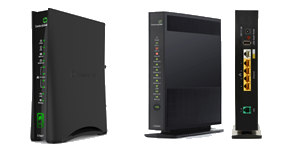
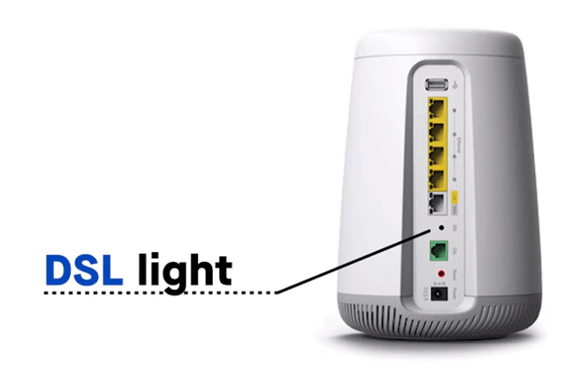
Most modems and routers have several indicator lights on the front. The DSL light is one of the most important if your internet uses a phone line connection. But what does it actually show?
The DSL light tells you about the status of the connection between your modem and your Internet Service Provider (ISP). When the connection is working, the DSL light is usually solid green. If it’s blinking, the modem is trying to establish a link but hasn’t succeeded yet.
Common Dsl Light States
Here’s a quick overview of what the DSL light usually means:
- Off: No signal detected. The modem is not connected to the phone line or there’s a physical problem.
- Blinking: The modem is searching for a signal or trying to establish a connection.
- Solid: The DSL connection is active and ready to use.
Understanding these states can save you time when troubleshooting. If the light is blinking, it’s a sign that the modem and ISP are not communicating properly.
Why Is My Dsl Light Blinking?
A blinking DSL light can have many causes, from simple issues like loose cables to more complex problems with your ISP. Let’s explore the main reasons:
- Physical Connection Problems: Loose or damaged cables are a frequent cause. If the phone line or the connection to the modem is not secure, the modem cannot detect a proper signal.
- Line Noise or Interference: DSL uses your phone lines, so any interference (like static or electrical noise) can disrupt the signal.
- ISP Outages or Maintenance: If your ISP is experiencing technical problems, your modem may not be able to establish a connection.
- Incorrect Modem Settings: Sometimes, changes in settings or incorrect configuration can prevent the modem from syncing.
- Faulty Filters or Splitters: DSL filters keep phone and internet signals separate. If these are faulty or missing, it can cause connection issues.
- Modem or Router Fault: Hardware problems can also make the DSL light blink.
- Weather or Environmental Factors: Heavy rain, flooding, or even construction near your home can damage phone lines and cause problems.
Two Insights Beginners Often Miss
First, even small kinks or bends in the phone cable can create enough interference to cause a blinking DSL light. Second, filters are needed on every device connected to the phone line (phones, fax machines, etc.), not just the modem. Missing even one can create problems.
How Dsl Connections Work
To understand why the DSL light blinks, it helps to know how DSL internet works. DSL technology uses regular telephone lines to send digital data. These lines can carry both voice (for phone calls) and data (for internet) at the same time, thanks to different frequencies.
When you turn on your modem, it tries to communicate with equipment at your ISP’s office, called a DSLAM (Digital Subscriber Line Access Multiplexer). If the modem and the DSLAM can “handshake” successfully, you get a steady, solid DSL light.
But if there’s a problem anywhere between your modem and the ISP—inside your house, on the street, or at the ISP—the handshake fails, and the light keeps blinking.
Here’s a simple comparison table that shows how DSL compares to other types of internet technologies:
| Technology | Speed Range | Connection Type | Common Issues |
|---|---|---|---|
| DSL | 1–100 Mbps | Phone Line | Line noise, distance from ISP |
| Cable | 25–1000 Mbps | Coaxial Cable | Congestion, splitter problems |
| Fiber | 100–5000 Mbps | Fiber Optic | Availability, fiber cuts |
| Satellite | 10–150 Mbps | Satellite Dish | Weather, latency |
This table shows that DSL is more sensitive to line quality compared to cable or fiber. That’s why the DSL light is a key indicator.
Troubleshooting A Blinking Dsl Light
If your DSL light is blinking, you want to fix it fast. Here’s a step-by-step guide to help you pinpoint and solve the issue.
1. Check All Physical Connections
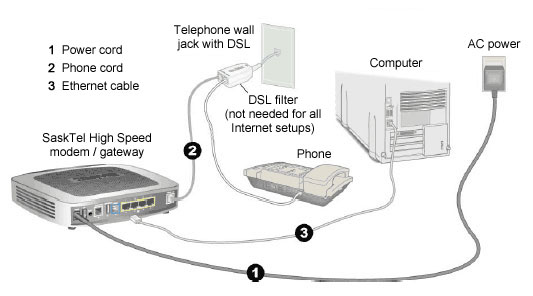
Start with the basics. Make sure all cables are plugged in securely. This includes:
- Phone line to the wall jack
- Phone line to the modem
- Power cable to the modem
- Ethernet cable from modem to your device (if wired)
Try unplugging and plugging back in each cable. Look for any signs of damage, like frayed wires or bent connectors.
2. Inspect Filters And Splitters
DSL filters are small devices that separate internet and voice signals. You need a filter on every phone, fax, or other device connected to the same line as your modem. If you miss one, it can cause interference.
- Remove all devices from the phone line except the modem.
- Test the connection.
- Add devices back one at a time, using a filter each time.
- If the DSL light works with only the modem, a filter or device may be causing the problem.
3. Restart Your Modem And Router
Simple but effective. Unplug the power from your modem (and router, if separate), wait 30 seconds, and plug back in. This can clear minor glitches.
4. Try A Different Phone Jack
If possible, move your modem to another phone jack. Sometimes the wiring in one jack is faulty, while another works fine.
5. Check For Line Noise
Pick up a phone connected to the same line and listen for static or crackling. If you hear noise, it means interference is present. You may need to call your ISP or phone company to fix the line.
6. Confirm Isp Status
Check if your ISP is having an outage or doing maintenance. You can do this by:
- Visiting your ISP’s website on a mobile device
- Calling their support number
- Checking social media for outage reports
If others in your area are having the same issue, it’s likely on their end.
7. Review Modem Settings
Log in to your modem’s web interface (usually by typing its IP address into your browser). Check that your username and password are correct, and that your connection settings match your ISP’s recommendations.
8. Replace Cables Or Hardware
If you’ve tried all the above steps, try swapping out the phone cable, filter, or even the modem (if you have a spare or can borrow one). Hardware can fail over time.
9. Contact Your Isp
If none of these steps work, call your ISP’s technical support. They can run remote tests on the line and may send a technician if needed.
Pro Tip
Many people forget to check for seasonal changes—like heavy rain or snow—which can affect buried phone lines and cause intermittent DSL light blinking.
Real-world Example: Troubleshooting In Action
Consider this scenario: Jane noticed her internet stopped working, and the DSL light on her modem was blinking. She checked all her cables and saw they were plugged in. She restarted her modem, but nothing changed.
Next, she unplugged all her phones and fax machines, leaving only the modem connected. Suddenly, the DSL light turned solid. When she plugged her cordless phone back in, the light began blinking again. Jane realized her phone’s filter was missing.
After adding a filter, her internet worked as normal.
The lesson here is that one small missing filter can disrupt the entire connection.
How To Prevent Dsl Light Issues
Prevention saves time and frustration. Here are some steps you can take to avoid future problems:
- Use high-quality cables: Cheap or old phone cables are more likely to fail or pick up noise.
- Install filters on every device: Each device on the phone line needs a filter.
- Keep cables away from power cords: Running phone lines next to electrical cords can introduce interference.
- Check for weather damage: After storms, inspect your phone lines for damage.
- Update your modem’s firmware: Sometimes, firmware updates improve connection stability.
- Schedule regular checks: Every few months, check that all connections are secure and no new devices have been added without filters.
Many people overlook the importance of modem placement. Placing your modem near other electronic devices like cordless phones or microwaves can introduce interference. Keep your modem in a central, open area for best results.
Credit: www.centurylink.com
Dsl Light Vs. Internet Light: What’s The Difference?
People sometimes confuse the DSL light with the Internet light on their modem or router. They serve different purposes.
- DSL Light: Shows whether the modem has a working connection to the ISP.
- Internet Light: Shows whether the modem can actually reach the internet (for example, after logging in with your ISP credentials).
It’s possible for the DSL light to be solid but the Internet light to be off or red. This usually means the physical connection is fine, but there is a configuration, login, or ISP issue.
Here’s a table that breaks down the differences between these indicator lights:
| Light Name | Color/State | What It Means | Action Required |
|---|---|---|---|
| DSL | Solid Green | Connected to ISP | None |
| DSL | Blinking | Searching for signal | Troubleshoot connection |
| Internet | Solid Green | Online | None |
| Internet | Off/Red | No internet access | Check settings/ISP |
Understanding these differences helps you focus your troubleshooting efforts in the right place.
When To Replace Your Modem
Sometimes, the cause of the blinking DSL light is a failing modem. Modems can last many years, but they do wear out, especially in environments with lots of power surges or high humidity.
Signs that your modem may need replacement include:
- DSL light blinks even after all troubleshooting steps
- The modem is very hot to the touch
- The device is more than 5–7 years old
- You notice frequent connection drops
Modern DSL modems have improved technology that can handle line noise and interference better than older models. If your internet is critical for work or study, upgrading to a newer model can be a smart investment.
Credit: www.centurylink.com
How Isps Diagnose Dsl Light Problems
When you call your ISP, they can run tests on your line from their office. They check for:
- Signal strength
- Line noise (measured in decibels)
- Distance from your home to their office (the farther, the weaker the signal)
- Errors and dropped connections
If they detect a fault, they may send a technician to check the wiring outside and inside your home. Sometimes, the problem is in the neighborhood—like a damaged cable on the street. In rare cases, your house’s internal wiring needs repair.
Comparing Dsl Light Issues In Urban Vs Rural Areas
DSL service quality can vary a lot depending on where you live. Here’s a look at the differences:
| Location | Typical DSL Speed | Common Problems | Support Availability |
|---|---|---|---|
| Urban | 20–100 Mbps | Congestion, building wiring | Fast |
| Rural | 1–10 Mbps | Long lines, weather damage | Slower |
In rural areas, longer distances from the ISP and older infrastructure mean the DSL light may blink more often due to weaker signals and more noise.
When To Call A Professional
If you’ve tried all the steps above and your DSL light still blinks, it’s time to get help. Call your ISP if:
- The problem happens after storms or bad weather
- You hear static or noise on your phone line
- Other neighbors have the same problem
- You’ve replaced cables and filters with no improvement
Some internal wiring problems require special tools to diagnose and fix. A qualified technician can test each part of the system to find the fault.
Common Mistakes To Avoid
Even experienced users make errors when dealing with a blinking DSL light. Here are some things to avoid:
- Ignoring the DSL filters: Missing or incorrectly installed filters are a top cause of problems.
- Overlooking cable quality: Cheap or old cables cause more trouble than most people realize.
- Forgetting about connected devices: Fax machines, alarm systems, or even old phone jacks can create interference.
- Rushing to reset everything: While restarting helps, repeated resets without checking connections can waste time.
- Assuming it’s always the ISP’s fault: Many DSL problems start inside the home.
Helpful Resources
For more technical details on DSL technology, the Wikipedia page on DSL offers a deep dive. This can help if you want to understand more about line noise, signal strength, and other advanced topics.
Frequently Asked Questions
Why Does My Dsl Light Blink Even When The Phone Works?
The phone and internet use different frequencies on the same line. It’s possible for the phone to work but for the internet signal to be too weak or noisy for the modem to connect. Try checking for line noise or faulty filters.
How Long Should The Dsl Light Blink Before Turning Solid?
Normally, after powering on, the DSL light should blink for 1–3 minutes while connecting. If it keeps blinking after that, there may be a problem with the line, filters, or ISP.
Can Weather Affect My Dsl Connection?
Yes. Heavy rain, snow, or even high humidity can damage outside lines or increase noise. This is especially true in rural or older neighborhoods where cables are exposed.
Do I Need A Filter If I Don’t Have A Phone Connected?
If only your modem is connected to the line, you usually don’t need a filter. But if there are other devices on the line—even if not in use—a filter is needed to prevent interference.
Will Buying A New Modem Fix The Blinking Dsl Light?
It can, if the problem is with the modem hardware. But if the issue is with your line, filters, or ISP, a new modem won’t help. Always troubleshoot other causes before replacing your device.
A blinking DSL light is a common but fixable problem. By understanding what it means, checking your setup carefully, and following troubleshooting steps, you can often solve it yourself without waiting for help. Remember, even small details like cable quality or missing filters can make a big difference.
When in doubt, reach out to your ISP—they have tools to check your connection and guide you further. With a little patience and the right steps, your internet will be up and running again soon.
Credit: support.sasktel.com