
If you notice your broadband light blinking green, it can be confusing. Is your internet working? Is something wrong with your connection? For many people, the blinking green light on their broadband router or modem is a sign that needs attention—but it doesn’t always mean there’s a problem.
Understanding what this light means, how it works, and what you should do can help you keep your internet running smoothly and avoid unnecessary stress.
This article will explain the broadband light blinking green issue in detail. You’ll learn what the blinking green light means, how broadband connections work, what to check, and how to fix common problems. We’ll also cover tips for keeping your broadband stable, plus answer the most common questions people ask.
What Does The Broadband Light Blinking Green Mean?
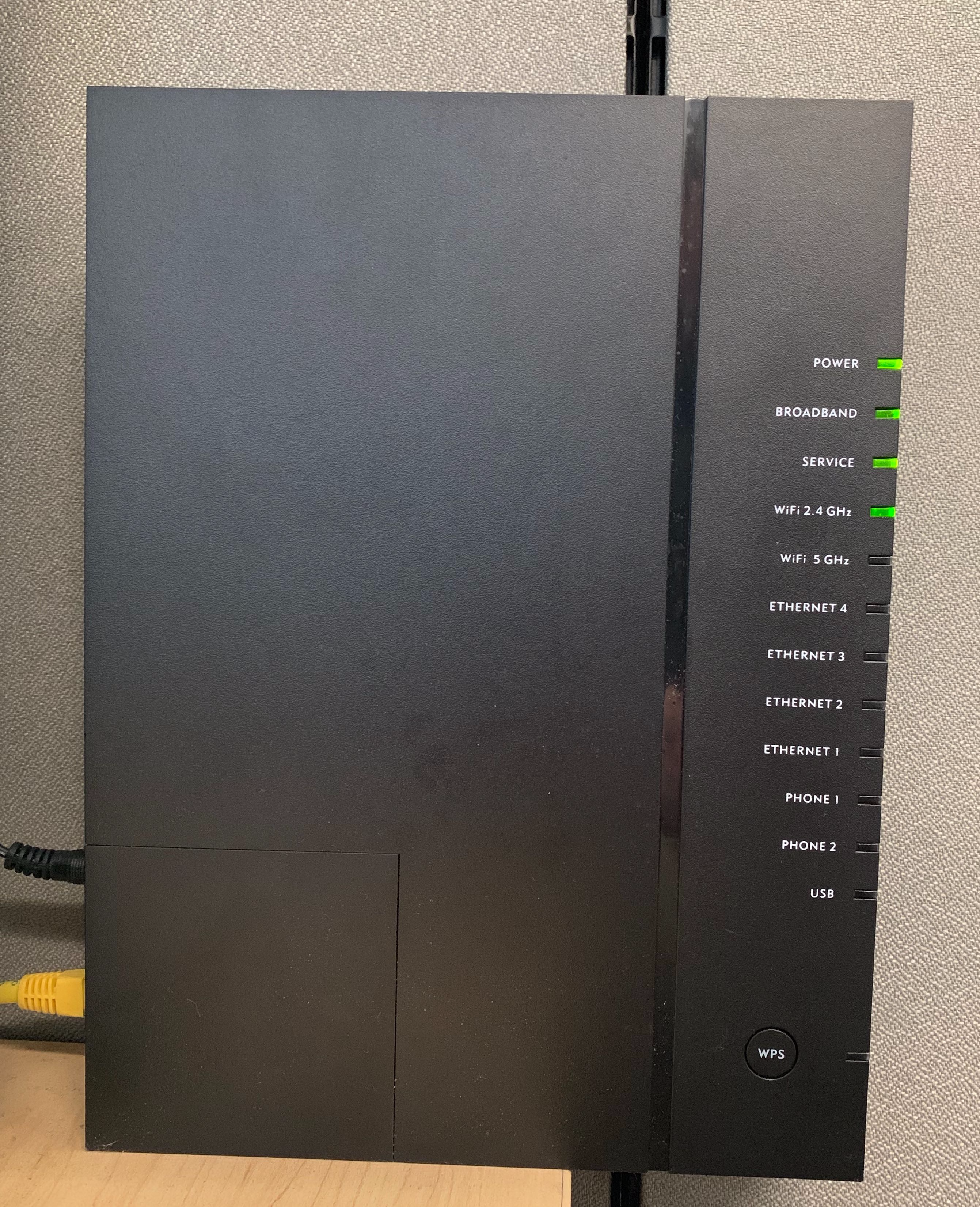
The blinking green light on your modem or router often signals that the device is trying to connect to your internet service provider (ISP). In most cases, a steady green light means the connection is established, while blinking green means the device is still working to make the connection.
Different broadband devices use slightly different light codes. Here’s what the blinking green usually means for the most common types:
- DSL Modems: The blinking green light means the device is searching for the DSL signal. It’s not yet connected.
- Fiber Optic Routers: Blinking green can mean the device is syncing with the fiber line or is in startup mode.
- Cable Modems: For some models, blinking green means the device is registering with the ISP.
Each brand and model can have its own meanings. It’s always best to check your modem/router manual for exact details.
Common Reasons For Blinking Green
- Startup phase: Device is powering on or restarting.
- Signal search: Device is looking for a signal from the ISP.
- Line issues: Loose cables, damaged wires, or poor connection.
- ISP problems: Outages or service maintenance in your area.
A blinking green light is not always a problem. Sometimes, it’s just part of normal operation. However, if it stays blinking for a long time, there may be an issue.
How Broadband Connections Work
To understand the blinking green light, it helps to know how broadband connections work. Broadband means high-speed internet. Most homes use DSL, cable, or fiber broadband.
How Data Travels
Your modem or router connects to the ISP through a wire or fiber. When you turn on your device, it checks for a signal from the ISP. If the signal is strong, the device connects and the green light becomes steady.
If the signal is weak or missing, the device keeps searching. That’s when the light blinks green.
Dsl Vs. Cable Vs. Fiber
Here’s a quick comparison of the main broadband types:
| Type | Speed Range | Typical Connection Light Behavior | Main Issues |
|---|---|---|---|
| DSL | 5–100 Mbps | Blinks green during signal search | Line noise, distance from exchange |
| Cable | 10–1000 Mbps | Blinks green during registration | Shared bandwidth, signal loss |
| Fiber | 50–2000 Mbps | Blinks green during syncing/startup | Fiber cuts, hardware faults |
Most modems and routers show a steady green light after connecting. If yours stays blinking, you may need to check for problems.
Diagnosing The Blinking Green Light
If your broadband light blinks green for more than a few minutes, it’s time to investigate. Here are practical steps you can take:
Step 1: Check Device Manuals
Every modem/router is different. The meaning of the blinking green light can change from model to model. Look in the manual or search for your device online. This can help you know if blinking green means searching, syncing, or something else.
Step 2: Inspect Cables And Connections
Loose or damaged cables are a common cause. Make sure:
- All cables are firmly plugged in.
- No cables are frayed or cut.
- The device is connected to the right port (wall socket, splitter, etc. ).
A simple cable adjustment can fix many blinking green issues.
Step 3: Restart Your Device
Turn off your modem/router. Wait about 30 seconds. Turn it back on. This can clear temporary errors and force the device to reconnect.
Step 4: Test With Another Device
Try connecting another device to your modem/router. If it also doesn’t connect, the problem is probably the broadband signal or device itself. If other devices work, it may be a problem with your computer or phone.
Step 5: Contact Your Isp
If your light stays blinking green, call your ISP. They can check for outages, line problems, and guide you through troubleshooting.
Common Causes And Solutions
Many issues can cause the broadband light to blink green. Here are the most frequent problems and what you can do:
1. Startup Or Reset
When you restart or reset your device, the green light often blinks for a few minutes. This is normal. Wait for 2–5 minutes. If the light becomes steady green, your connection is fine.
2. Cable Or Line Issues
Loose, damaged, or incorrectly plugged cables can cause blinking green. Check all cables, especially:
- Power cable
- DSL or cable line
- Ethernet cables
Replace any damaged cables. Plug everything in firmly.
3. Isp Outage
If your ISP has an outage or is doing maintenance, your device may not connect. You can check your ISP’s website or call their helpline. Outages are usually fixed in a few hours.
4. Incorrect Configuration
Sometimes, your device needs to be configured with the correct settings. This can include:
- Username and password (for DSL)
- IP settings (for some fiber/cable setups)
- VLAN or PPPoE settings
Check your manual or ask your ISP for the correct settings.
5. Hardware Fault
Rarely, the modem/router itself is faulty. If you see blinking green and have tried all other steps, your device may need repair or replacement.
Data Comparison: Common Causes Of Blinking Green
Here’s a breakdown of the most reported reasons for broadband lights blinking green:
| Cause | Percentage of Cases | Typical Fix |
|---|---|---|
| Loose Cable | 32% | Reconnect or replace cable |
| ISP Outage | 26% | Wait, contact ISP |
| Device Startup | 18% | Wait 2–5 mins |
| Incorrect Settings | 13% | Update configuration |
| Hardware Fault | 11% | Repair/replace device |
These numbers are based on broadband support data from major ISPs. Most issues are simple to fix.
How To Fix Broadband Light Blinking Green: Step-by-step
If your broadband light is blinking green, follow these steps for a quick solution:
- Wait for 2–5 minutes. During startup or after a reset, blinking green is normal.
- Check all cables. Unplug and replug cables. Look for damage.
- Restart the modem/router. Power off, wait 30 seconds, power on.
- Check for ISP outages. Visit your ISP’s site or call them.
- Review settings. Log into your device (usually at 192.168.1.1 or similar) and check configuration.
- Test another device. Try connecting with a different computer or phone.
- Factory reset (only as a last resort). Use a small pin to press the reset button. Warning: This wipes all settings.
- Contact ISP support. If nothing works, call for technical help.
Practical Example
Suppose your DSL modem’s broadband light blinks green. You:
- Unplug and replug the DSL line.
- Restart the modem.
- Check your ISP’s status page.
- Log into the modem and verify PPPoE settings.
- Try connecting with your laptop.
If the light becomes steady green, the problem is solved. If not, call your ISP.
Broadband Light Codes: What Do They Mean?
Modems and routers use lights to show their status. Here’s a quick guide to what the broadband light colors and patterns mean:
- Steady green: Connected and working.
- Blinking green: Searching for signal, syncing, or starting up.
- Steady red: No connection, error.
- Blinking red: Major fault, hardware problem.
- Off: No power or disconnected.
Some devices use blue, orange, or white lights. Always check your device manual for exact meanings.
When Should You Worry?
A blinking green light is not always a problem. Here are signs you should worry:
- The light blinks green for more than 10 minutes.
- You have no internet access.
- Other device lights show errors.
- You hear strange noises or see sparks from cables (danger—unplug immediately).
If you see these signs, act quickly to fix the issue.
How Isps Detect And Fix Broadband Problems
ISPs use advanced tools to monitor broadband lines. When you call them about a blinking green light, they can often:
- Run remote tests on your line.
- Check for outages or maintenance.
- Guide you through troubleshooting.
- Dispatch a technician if needed.
Most ISPs solve common broadband issues within 24–48 hours.
Example: Isp Troubleshooting Process
Let’s say you report a blinking green light. The ISP will:
- Check your line status remotely.
- Verify account settings.
- Ask you to restart your device.
- Suggest cable checks.
- Schedule a technician if needed.
Credit: connectctc.zendesk.com
Tips To Prevent Broadband Light Problems
You can avoid blinking green light issues with a few simple habits:
- Keep cables tidy and secure. Loose cables cause most issues.
- Don’t move your modem/router often. Movement can loosen connections.
- Use surge protectors. Electrical surges damage devices.
- Update firmware. Check for updates from your device’s manufacturer.
- Avoid overloading the device. Don’t connect too many devices if your router is old.
Non-obvious Insight 1
Many people forget that humidity and dust can affect cable connections. Clean your device area regularly and avoid placing modems near water sources.
Non-obvious Insight 2
Some ISPs use remote firmware updates. If your device blinks green during these updates, it’s normal. Don’t interrupt the process. Wait for 5–10 minutes.
Modem Vs. Router: Understanding The Difference
Some people confuse modems and routers. Here’s a quick comparison:
| Device | Main Function | Connection Light | Common Problems |
|---|---|---|---|
| Modem | Connects to ISP | Blinks green during signal search | Cable/line issues |
| Router | Shares internet with devices | Blinks green during startup | Configuration errors |
If your router shows blinking green, check the modem first. The modem connects to the ISP. The router shares the connection.
Real-life Examples Of Broadband Light Issues
Let’s look at some real stories:
- Anna in Texas: Her fiber router blinked green for 20 minutes. She found a loose cable in her wall socket. After plugging it in firmly, the light became steady green.
- Sam in Florida: His cable modem blinked green after a storm. The ISP fixed a line fault within 24 hours.
- Li in California: Her DSL modem blinked green after moving it to another room. She needed a new DSL splitter.
These examples show that most issues are simple and can be fixed at home.
When To Replace Your Modem Or Router
If your device is old (more than 3–5 years), it may cause blinking green light issues due to aging hardware. Signs you need a new device:
- The light blinks green often, even after troubleshooting.
- Slow internet speed.
- Device overheats.
- Frequent disconnections.
Upgrading to a new modem/router can improve reliability and speed.
How To Choose A Reliable Broadband Device
If you need a new modem or router, focus on these factors:
- Compatibility: Make sure it works with your ISP and broadband type.
- Speed: Choose a device that supports your internet speed.
- Warranty: Look for at least a 1-year warranty.
- Features: Dual-band Wi-Fi, multiple Ethernet ports, parental controls.
- Brand reputation: Choose brands with good customer support.
Avoid common buyer mistakes:
- Buying a device that doesn’t match your broadband type (DSL, cable, fiber).
- Ignoring firmware updates.
- Overpaying for unnecessary features.
You can learn more about modem/router selection at Consumer Reports.
Broadband Light Blinking Green: Myths And Facts
There are many myths about the blinking green light. Let’s clarify:
- Myth: Blinking green always means a big problem.
- Fact: It’s often normal during startup or minor issues.
- Myth: You must always reset your device.
- Fact: Simple cable checks fix most cases.
- Myth: Only experts can fix broadband issues.
- Fact: Most users can solve common problems at home.
Frequently Asked Questions
Why Does My Broadband Light Blink Green After A Power Outage?
After a power outage, your modem/router needs time to reconnect to the ISP. The blinking green light means it’s searching for a signal. Wait 2–5 minutes. If the light becomes steady green, your connection is restored. If not, check your cables and restart the device.
Credit: www.reddit.com
Is Blinking Green Light Normal During Device Startup?
Yes, most broadband devices blink green during startup. This means the device is searching for the ISP signal and syncing. It should become steady green within a few minutes. If it stays blinking, check for issues.
Can Weather Affect My Broadband Light?
Heavy rain, storms, and humidity can affect cable connections and lines outside your home. This can cause the broadband light to blink green. If your device blinks green after bad weather, contact your ISP for a line check.
Should I Press The Reset Button If The Light Keeps Blinking Green?
Use the reset button only as a last resort. Resetting wipes all settings. Try checking cables, restarting, and checking ISP status first. If nothing works, then reset and reconfigure your device.
What Does It Mean If All Lights Are Off On My Modem/router?
If all lights are off, your device has no power. Check the power cable and plug. If the device still doesn’t turn on, it may be faulty and need replacement.
Watching your broadband light blink green can be stressful, but most issues are simple to fix. With a few checks—cables, device restart, ISP status—you can solve most problems yourself. Remember to keep your device area clean, use surge protectors, and upgrade your modem/router every few years for best performance.
If you need help, your ISP is always ready to assist. By understanding the blinking green light, you’ll keep your broadband running smoothly and avoid unnecessary downtime.

Credit: www.youtube.com