
When your Brightspeed modem starts blinking blue, it’s easy to feel confused or worried. You might wonder if your internet is down, if you need to fix something, or if it’s just a normal part of how the modem works. Many people experience this blinking blue light and aren’t sure what it really means. Understanding these signals can help you solve problems faster, avoid unnecessary frustration, and keep your internet running smoothly. Let’s look closely at what the blinking blue light on your Brightspeed modem means, how to troubleshoot it, and how you can avoid common mistakes.
What Does A Blinking Blue Light Mean On A Brightspeed Modem?
The lights on your modem are not just decorations—they’re essential indicators of its status. The blinking blue light is one of the most common signals, but its meaning depends on the situation.
When you see a blinking blue light on your Brightspeed modem, it usually means the device is trying to connect to the internet. The modem is searching for a signal, negotiating with your internet provider, or setting up a new connection. If the light is steady blue, the modem has made a connection and is working normally.
But if the blinking blue light stays on for a long time (usually more than 2–3 minutes), it suggests something may be wrong. The modem is struggling to connect, and you probably won’t have internet access.
Common Scenarios For Blinking Blue Light
- Just powered on: The modem is starting up and looking for a signal.
- Restarted or reset: After a reboot, the device tries to reconnect.
- Network disruption: If there’s a problem with the line, the modem will blink blue while searching for a connection.
- Firmware update: Sometimes, during updates, the modem blinks blue temporarily.
Non-obvious insight: Many users think a blinking blue light always means a major problem, but often it’s just the modem working through its normal start-up or reconnect process. Only when the light stays blinking for many minutes should you be concerned.
Understanding Brightspeed Modem Lights
Your Brightspeed modem has several indicator lights, and each one tells a story about your connection. Knowing what they mean helps you react faster to issues.
| Light Color | State | Meaning |
|---|---|---|
| Blue | Blinking | Connecting to internet |
| Blue | Solid | Connected, normal operation |
| Red | Solid/Blinking | Error or no connection |
| Green | Solid | Power is on |
| White | Blinking | Firmware update |
| Yellow | Blinking | Limited connectivity |
Pro tip: If you see both blue and another color blinking, it may mean the modem is updating or resetting. Always wait a few minutes before unplugging or restarting.
Causes Of A Blinking Blue Light
A blinking blue light on your Brightspeed modem can happen for several reasons. Some are harmless, while others need your attention.
1. Modem Startup
When you plug in your Brightspeed modem, it goes through a startup routine. The blue light blinks while it checks for a signal and prepares to connect.
2. Service Outage
If your internet provider is having trouble, your modem may blink blue because it can’t reach the central server. This is common during bad weather or maintenance.
3. Loose Or Damaged Cables
If the cables connecting your modem to the wall or router are loose, damaged, or not plugged in properly, the modem will try to connect and blink blue.
4. Incorrect Configuration
If you’ve changed settings, or if the modem is new and hasn’t been set up properly, the blue light may blink until the device is configured.
5. Firmware Update
Sometimes your modem receives updates from Brightspeed. During the update, the blue light may blink or alternate with white.
6. Line Issues
Problems with the phone line or fiber cable can cause the modem to blink blue. If the line is noisy, broken, or not activated, the modem can’t connect.
7. Hardware Fault
Less commonly, a blinking blue light might mean the modem itself has a problem. This could be a faulty component or overheating.
Non-obvious insight: A blinking blue light during the night might be caused by automatic updates scheduled by your ISP, not necessarily by a user action or error.
How To Fix A Brightspeed Modem Blinking Blue
If your Brightspeed modem keeps blinking blue and your internet isn’t working, there are several steps you can take. Let’s walk through them as a practical advisor.
Step 1: Check All Connections
Make sure every cable is plugged in tightly. Look at the power cable, the Ethernet cable (if used), and the line from the wall.
- Remove and reconnect each cable.
- Inspect for any damage or wear.
- Use a different outlet if possible.
Step 2: Restart Your Modem
Turn off the modem, wait 30 seconds, then turn it back on. This simple action often solves connectivity issues.
- Unplug the power cable.
- Wait 30 seconds.
- Plug it back in and watch the lights.
Step 3: Wait For Start-up
After restarting, the modem will blink blue as it tries to connect. Give it 2–3 minutes. If the light turns solid blue, you’re good.
Step 4: Check For Service Outages
Use your phone or another device (with cellular data) to check if Brightspeed is experiencing outages in your area.
- Visit the Brightspeed website or use their app.
- Search for outage maps.
- If there’s an outage, you must wait until it’s resolved.
Step 5: Inspect Your Modem For Overheating
Touch your modem gently. If it feels hot, unplug it and let it cool for 10–15 minutes. Overheating can cause connection problems and blinking lights.
Step 6: Reset The Modem
If nothing else works, you can perform a factory reset.
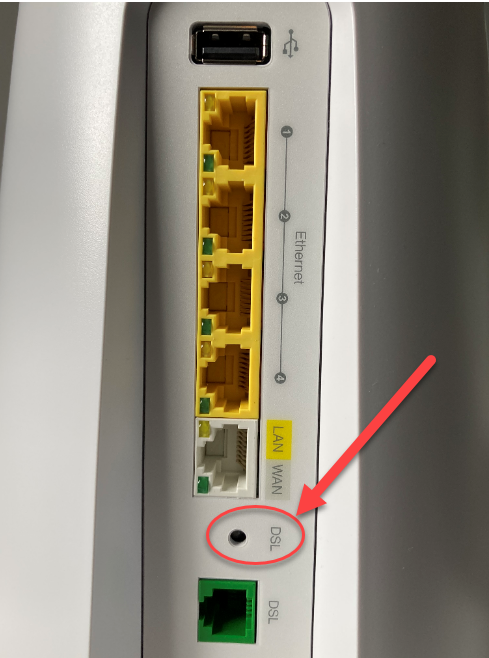
- Find the reset button (usually a small hole).
- Use a paperclip to press and hold for 10 seconds.
- The modem will restart and may blink blue as it reconnects.
Warning: A factory reset will erase all custom settings (Wi-Fi name, password, etc.). Only use this as a last step.
Step 7: Contact Brightspeed Support
If your modem still blinks blue after all these steps, contact Brightspeed support. They can check your line, send updates, or replace your modem if needed.
Common mistake: Many users skip the cable check and immediately restart or reset. Bad cables are the most frequent cause of blinking blue lights.
Comparing Brightspeed Modem Models
Not every Brightspeed modem works the same way. Some models have extra features or slightly different light patterns. Here’s a quick comparison of popular models:
| Model | Blue Light Function | Other Features |
|---|---|---|
| Brightspeed BGW320 | Blinking during startup and updates | Wi-Fi 6, smart diagnostics |
| Brightspeed C2100Z | Blinking during connection process | Dual-band Wi-Fi, remote management |
| Brightspeed PACE5268AC | Blinking blue for pairing | Multiple Ethernet ports, robust firewall |
Pro tip: The BGW320’s smart diagnostics can send you alerts about connectivity issues, which helps you catch problems early.
How Long Should The Blue Light Blink?
A blinking blue light is normal for a short time. But how long is too long? Here are some guidelines:
- Normal: 1–3 minutes during startup or restart.
- Firmware update: Up to 10 minutes (rare).
- Problem: More than 3–5 minutes with no change.
If your modem blinks blue for more than 5 minutes and doesn’t change to solid blue or another color, it’s likely an issue.
Example: If you restart your modem at 8:00 am and by 8:05 it’s still blinking blue, you should begin troubleshooting.
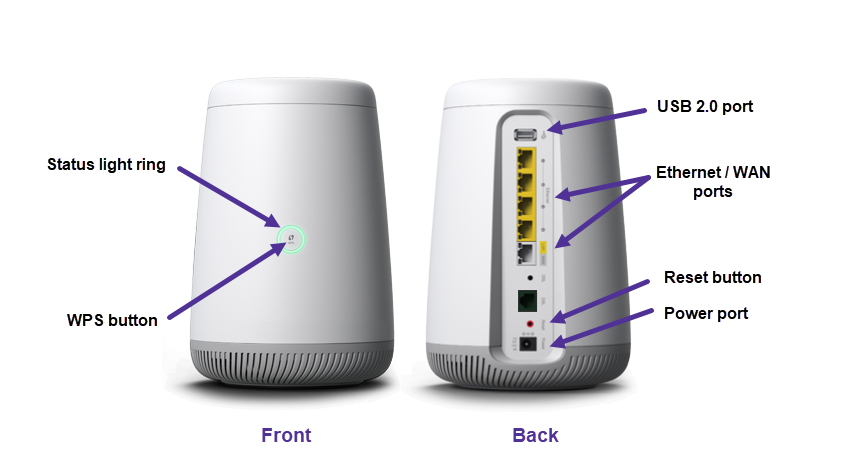
Credit: www.quantumfiber.com
Advanced Troubleshooting For Persistent Blinking Blue Light
Sometimes, simple fixes aren’t enough. If your Brightspeed modem still blinks blue, try these advanced steps.
1. Check For Interference
Other electronics near your modem, like cordless phones or microwaves, can cause interference.
- Move your modem away from electronics.
- Try placing it higher up, like on a shelf.
2. Use A Different Cable
Swap your Ethernet or phone line cable with a new one. Old cables can cause connection issues.
3. Update Modem Firmware Manually
If you can access the modem’s settings via browser (usually http://192.168.1.1), look for firmware updates.
- Log in with your username and password.
- Find the update section.
- Follow instructions to update.
4. Check Wall Jack Or Fiber Port
Sometimes, the problem isn’t the modem, but the wall jack or fiber port.
- Try plugging the modem into a different port.
- Inspect for damage or dust.
5. Test With Another Modem
If you have access to another Brightspeed modem, plug it in to see if it connects. If it works, your original modem may be faulty.
Expert tip: Even if your cables look fine, invisible wear or corrosion can cause issues. Replacing cables is a low-cost, high-impact fix.
What If The Blue Light Is Solid But There’s No Internet?
A solid blue light usually means the modem is connected. But if you still have no internet, the problem might be elsewhere.
Possible Causes
- Router issues: Your router may be disconnected or misconfigured.
- Device problems: The device you’re using might have Wi-Fi issues.
- ISP problems: The internet provider may have a backend issue.
Solutions
- Restart your router and devices.
- Check Wi-Fi settings (SSID, password).
- Confirm your Brightspeed account is active and paid.
Credit: www.brightspeed.com
When To Replace Your Modem
If your modem frequently blinks blue for long periods and troubleshooting doesn’t help, it might be time to consider replacement.
Signs You Need A New Modem
- The modem is more than 4–5 years old.
- It gets very hot during use.
- The blue light never turns solid, even after resets.
- You experience frequent dropped connections.
Benefits Of Upgrading
- Faster speeds: Newer modems support better Wi-Fi and faster connections.
- Better reliability: New hardware is less likely to fail.
- Improved security: Updated firmware and features protect your network.
Non-obvious insight: Upgrading your modem can also improve your experience with smart devices and video streaming, not just basic browsing.
How To Prevent Future Blinking Blue Light Issues
A little maintenance can go a long way. Here’s how you can keep your Brightspeed modem running smoothly:
- Keep your modem clean: Dust can block vents and cause overheating.
- Check cables regularly: Inspect for damage and replace if needed.
- Update firmware: Set reminders to check for updates every 3–6 months.
- Avoid power surges: Use a surge protector to protect your modem.
- Place modem in a safe spot: Keep it away from heat and moisture.
Pro tip: Write down your modem’s model number and key settings. If you have to reset or replace it, you can set up your network faster.
Real-world Examples
Let’s look at a few real situations where people solved the blinking blue light problem.
Example 1: The Cable Issue
Maria noticed her modem was blinking blue for over 10 minutes. She checked the cables and found the Ethernet cable was loose. After reconnecting it, the light turned solid blue and her internet worked.
Example 2: Service Outage
Sam’s modem blinked blue during a storm. He checked the Brightspeed website and found there was a service outage. After waiting two hours, the light turned solid blue and everything worked.
Example 3: Overheating
A family placed their modem behind a TV. It started blinking blue after hours of use. Moving the modem to a cooler spot fixed the problem.
Comparing Brightspeed To Other Isps
Brightspeed is not the only provider with modems that blink blue. Here’s a quick comparison with other ISPs:
| ISP | Modem Light Patterns | Support Response Time |
|---|---|---|
| Brightspeed | Blue for connection, red for error | 1–2 hours (chat and phone) |
| Xfinity | White for connection, red for error | 30–60 minutes |
| AT&T | Green for connection, amber for update | 2–3 hours |
Expert tip: Brightspeed’s blue light system is designed for clarity. If you switch ISPs, learn the new light codes—they can be different.

Credit: manuals.plus
Safety And Security Considerations
Your modem is the gateway to your home network. A blinking blue light isn’t just about connectivity—it can also signal security changes.
- Firmware updates: Often include security patches.
- Factory resets: Erase custom passwords—always re-secure your Wi-Fi.
- ISP changes: Sometimes, ISPs update settings for safety.
Pro tip: After fixing your modem, always check that your Wi-Fi password is strong and your network is private.
Getting Help Online
If you’re stuck, there are many resources online. The official Brightspeed support page has guides, FAQs, and troubleshooting tools. Community forums can also help, especially if you have a less common modem model.
For more technical advice, visit Brightspeed’s official support site.
Non-obvious insight: Some modem issues are local (inside your home), while others are regional (ISP-wide). Forums can help you figure out which is which.
Frequently Asked Questions
Why Does My Brightspeed Modem Blink Blue After A Power Outage?
After a power outage, the modem needs to reconnect to the internet. The blinking blue light means it’s searching for a signal. Usually, it will connect within 2–3 minutes. If not, try restarting the modem and checking the cables.
Is It Safe To Reset My Brightspeed Modem If It’s Blinking Blue?
Yes, but remember that a reset erases custom settings. Only reset if other steps don’t work. Write down your Wi-Fi name and password before resetting, so you can set up your network again quickly.
How Can I Tell If The Blinking Blue Light Is Caused By A Service Outage?
Check Brightspeed’s outage map or use their app. If you see other lights blinking or unusual colors, it might also signal an outage. You can also ask neighbors if they have internet problems.
What Should I Do If The Blue Light Never Turns Solid?
If the light stays blinking blue for more than 5 minutes, check cables, restart the modem, and look for outages. If nothing works, contact Brightspeed support. You may need a replacement modem or a technician visit.
Can A Blinking Blue Light Mean My Modem Is Updating Firmware?
Yes. Sometimes, the modem blinks blue during a firmware update. If you see blue and white blinking together, it’s likely an update. Wait up to 10 minutes. Don’t unplug the modem during an update.
Final Thoughts
A blinking blue light on your Brightspeed modem is usually a sign that it’s working to connect or update. In most cases, the issue is simple—a loose cable, a brief outage, or a routine update. With a calm approach, careful troubleshooting, and regular maintenance, you can solve blinking blue light problems quickly and keep your internet running smoothly. Always remember to check cables first, wait for updates, and ask for help if needed. Your modem is your internet gateway—by understanding its signals, you’ll always stay connected and in control.