
When your Cox modem starts blinking white, it can be frustrating and confusing. You expect fast, reliable internet, but instead, you’re left wondering what’s wrong and how to fix it. Many Cox internet users see this blinking white light and aren’t sure what it means. Sometimes, the solution is simple. Other times, it can point to a deeper issue with your equipment, wiring, or even your Cox service itself.
This article will help you understand why your Cox modem is blinking white, what the light means, and the best ways to solve the problem. You’ll find practical steps, clear explanations, and helpful tips so you can get your internet working again as quickly as possible.
Whether you’re a tech beginner or have some experience, you’ll learn not only how to troubleshoot, but also what causes this issue and how to prevent it in the future.
What Does A Blinking White Light Mean On A Cox Modem?
The lights on your Cox modem are there for a reason. Each color and pattern tells you something about your device’s status. When you see a blinking white light, it usually means your modem is trying to establish an internet connection. In other words, it’s not fully online yet.
Cox modems use different lights for different functions:
- Solid white: Internet connection is established and stable.
- Blinking white: The modem is in the process of connecting, syncing, or updating.
- Other colors: May indicate errors or different connection states.
A blinking white light is not always a sign of a serious problem. Sometimes, it means the modem just needs a few more minutes to connect. However, if the blinking continues for more than 5-10 minutes, it could signal a technical issue that needs your attention.
Why The Modem Blinks White
Your Cox modem will blink white for a few main reasons:
- Booting up: After you restart or power on the modem.
- Firmware update: The modem is installing new software from Cox.
- Signal problem: The modem can’t get a stable signal from Cox’s network.
- Connection error: Something is wrong with your cables, service, or configuration.
Most commonly, users notice the white blinking light after a storm, service outage, or when they move the modem to a new location.
Common Causes Of A Cox Modem Blinking White
Let’s break down the possible reasons for the blinking white light. Each cause will have its own solution, but understanding the root problem helps you fix things faster.
1. Service Outage In Your Area
Sometimes, the problem isn’t inside your home at all. If Cox is having a network outage in your area, your modem will blink white because it can’t connect to the service. Outages can happen because of storms, maintenance, or unexpected technical problems.
How To Check For Outages:
- Visit the Cox website or use the Cox app to check for reported outages.
- Call Cox customer service for confirmation.
2. Loose Or Damaged Cables
A common reason for connection issues is a loose or damaged coaxial cable (the main thick cable that screws into your modem). If the cable isn’t tight or is damaged, your modem can’t communicate with Cox’s network properly.
3. Splitters Or Signal Interference
If your coaxial cable is connected to a splitter (a device that splits one cable into two or more), it can weaken the signal. Poor quality splitters or too many devices on one line can cause the modem to blink white.
4. Power Issues
A modem needs stable power. If your power outlet is faulty, or the modem’s power adapter is damaged, the device may not work correctly.
5. Firmware Updates
Cox regularly sends software updates to modems. During an update, the light may blink white for several minutes. Interrupting this process can sometimes cause further problems.
6. Modem Malfunction
Like any electronic device, modems can fail over time. If your modem is old or has been exposed to power surges, it may not function properly.
7. Incorrect Activation
If you recently moved, changed your plan, or got a new modem, it might not be activated on Cox’s network. The modem will blink white until it’s registered and set up.

Credit: wi-fiplanet.com
Step-by-step Troubleshooting For A Blinking White Cox Modem
Let’s walk through the most effective ways to solve the blinking white light issue. Start with the simplest solutions first, then move to more advanced steps.
Step 1: Wait And Observe
After restarting or powering on your modem, it’s normal for the white light to blink for 2-5 minutes. This is the modem syncing with Cox’s network. If the light turns solid white within this time, everything is working.
Step 2: Check For A Service Outage
If your modem keeps blinking, check if Cox is experiencing an outage:
- Go to the Cox Outage Support page.
- Enter your zip code or login to see if there’s an outage near you.
- If there is, you’ll need to wait until Cox restores service.
Step 3: Inspect All Cables
Check every cable connected to your modem:
- Make sure the coaxial cable is tight and free from visible damage.
- Look for kinks, bends, or cuts in the cable.
- If you use a splitter, try connecting the modem directly to the wall jack.
Step 4: Power Cycle The Modem
A simple reboot can solve many problems:
- Unplug the modem’s power cord from the outlet.
- Wait for 60 seconds.
- Plug it back in.
- Wait for the modem to fully restart (watch the lights).
If the light turns solid white, you’re back online.
Step 5: Remove Or Replace Splitters
If your modem is connected through a splitter, remove it and connect the modem directly to the wall. If the blinking stops, the splitter may be faulty or causing too much signal loss.
Step 6: Try A Different Power Outlet
Plug your modem into a different outlet to rule out power issues. Avoid using extension cords or power strips, which can sometimes cause problems.
Step 7: Check For Firmware Updates
Some modems have a web interface where you can check the firmware version. If your modem is updating, it’s best to let the process finish. Interrupting it can cause the modem to malfunction.
Step 8: Verify Modem Activation
If you have a new modem or recently moved, you may need to activate your device:
- Visit Cox’s self-activation page (cox.com/activate).
- Follow the instructions.
- You may need your Cox account number and modem’s MAC address.
Step 9: Reset The Modem
If all else fails, try a factory reset:
- Locate the reset button (usually a small hole).
- Press and hold it with a paperclip for 10 seconds.
- Release and wait for the modem to reboot.
*Warning:* This will erase any custom settings.
Step 10: Contact Cox Support
If your modem still blinks white, contact Cox support. You may need a technician to check your line or replace your modem.
How To Tell If It’s A Modem Or Router Problem
Many homes have both a modem and a router. If you’re not sure which one is having trouble, look for these signs:
- If only the modem’s light is blinking white, the problem is likely with the modem or Cox’s service.
- If the modem’s light is solid, but you still have no internet, the problem is likely with your router or your devices.
Here’s a quick comparison:
| Device | Light Status | Likely Problem |
|---|---|---|
| Modem | Blinking White | Connection to Cox network |
| Router | No lights / Red light | Router or device issue |
| Both | No internet | Service outage or cabling |
If you’re not sure which device is which, the modem usually connects to the wall and the router connects to the modem.
How Long Should The White Light Blink?
A blinking white light is normal for a short time—usually 2 to 5 minutes after you power on or reset the modem. If it blinks longer than 10 minutes, something is wrong. Firmware updates can take a bit longer, but if the light blinks for more than 20 minutes, it’s safe to start troubleshooting.
What To Do If The Blinking White Light Returns Often
If your modem works for a while, then starts blinking white again, you may have an intermittent connection problem. This can be more difficult to solve, but it’s important to fix.
Here are some possible causes:
- Loose cable connections that shift if the cable is bumped.
- Aging or damaged coaxial cable inside your walls.
- Signal interference from appliances or nearby devices.
- Outdated modem firmware or hardware.
- Overloaded network if too many devices are using the internet at once.
You may need a Cox technician to check the wiring and signal strength in your home.
Advanced Troubleshooting: For Persistent Blinking White Lights
If you’ve tried all the basic steps and the problem persists, try these advanced checks.
Check Modem Signal Levels
Most Cox modems allow you to view signal levels through a web interface:
- Connect your computer directly to the modem with an Ethernet cable.
- Open a web browser and enter the modem’s IP address (often 192.168.100.1).
- Look for a “Signal” or “Status” page.
Here’s what healthy signal levels look like:
| Signal Type | Ideal Range |
|---|---|
| Downstream Power | -7 dBmV to +7 dBmV |
| Upstream Power | +40 dBmV to +50 dBmV |
| SNR (Signal to Noise Ratio) | 35 dB or higher |
If your numbers are far outside these ranges, the problem is likely with the signal from Cox, not your equipment.
Replace The Coaxial Cable
An old or damaged coaxial cable can cause the modem to lose signal and blink white. Replace the cable with a new, high-quality RG6 cable if possible.
Try A Different Modem
If you have a spare compatible modem, try swapping it in. If the white blinking light goes away, your original modem may be faulty.
Ask Cox For A Line Test
Cox support can run a remote test on your line. If they see poor signal levels, they may send a technician to your home.
Understanding Cox Modem Light Patterns
Not all Cox modems use the same light patterns. Here’s a quick guide to the most common models:
| Modem Model | Blinking White Meaning | Solid White Meaning |
|---|---|---|
| Arris TG1682 | Connecting to network | Online |
| Technicolor CGM4141 | Firmware update / startup | Ready for use |
| Netgear CM500 | Searching for signal | Connected |
Always check your modem’s manual or Cox’s support site for the exact meaning of the lights.
When Should You Replace Your Modem?
Modems don’t last forever. If your Cox modem is more than 5 years old, or you see issues like frequent disconnects, slow speeds, or persistent blinking white lights, it may be time for a new device. Upgrading your modem can also improve your internet speed and reliability.
Signs You Need A New Modem:
- Blinking white light stays on for hours
- Frequent need to reboot the modem
- Internet drops during video calls or gaming
- Old model not compatible with Cox’s latest speeds
How To Choose A Replacement
When buying a new modem, make sure it’s Cox certified. Check the Cox website for a list of compatible models.
Consider these features:
- DOCSIS 3.1 support (for fastest speeds)
- Enough channels (at least 16×4 for most plans)
- Reliable brand (Arris, Netgear, Motorola)
Avoid the mistake of buying a cheap, off-brand modem. It may not be compatible and could cause more problems.
Preventing Future Modem Problems
You can reduce the chances of seeing the white blinking light again by following a few best practices:
- Secure all cable connections and check them every few months.
- Avoid moving your modem unless necessary.
- Use a surge protector to protect the modem from power spikes.
- Keep the modem in a cool, well-ventilated area.
- Update your modem’s firmware if Cox recommends it.
- Check for service updates if you notice connection problems.
These small steps can help keep your Cox modem running smoothly for years.
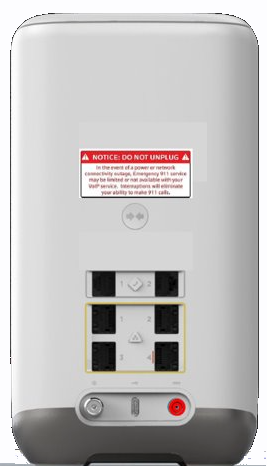
Credit: www.cox.com
Real-world Example: A Blinking White Light Solved
Maria, a Cox customer in Phoenix, noticed her modem’s white light blinking one morning. She hadn’t changed anything in her setup. First, she checked the Cox outage map—no problems reported. Next, she unplugged the modem, waited, and plugged it back in.
The white light kept blinking.
Maria noticed the coaxial cable was loose. When she tightened it, the light turned solid white after 3 minutes. Her internet was back. The issue was simply a loose cable—a reminder that sometimes the solution is quick if you know what to check.
Frequently Asked Questions
Why Does My Cox Modem Blink White After A Power Outage?
A power outage can interrupt the modem’s connection to Cox’s network. When power returns, the modem will blink white as it tries to reconnect. If it doesn’t stop after 10 minutes, check for service outages or try restarting your modem.
How Do I Know If My Modem Is Receiving A Signal From Cox?
Most Cox modems show a solid white light when connected. You can also check signal levels by logging into the modem’s web interface (usually at 192.168.100.1). If levels are out of range, call Cox for assistance.
Can A Bad Splitter Cause The Modem To Blink White?
Yes, a faulty or low-quality splitter can weaken the signal and cause connection issues, making your modem blink white. Try connecting the modem directly to the wall to see if the issue goes away.
How Long Should I Wait Before Contacting Cox Support?
If your modem has been blinking white for more than 15 minutes after checking cables and restarting, it’s a good idea to contact Cox support. This can save time and help you avoid unnecessary frustration.
Is A Blinking White Light Ever A Sign Of A Security Problem?
No, a blinking white light on a Cox modem is related to connection or signal issues, not security problems. However, always keep your modem firmware up-to-date to protect against security risks. You can read more about modem security on the FCC’s official guide.
Final Thoughts
When you know what your Cox modem’s blinking white light means and how to fix it, you can get your internet back up quickly without stress. By following these steps and tips, you’ll spend less time troubleshooting and more time enjoying your connection.
If in doubt, Cox support is always ready to help.