
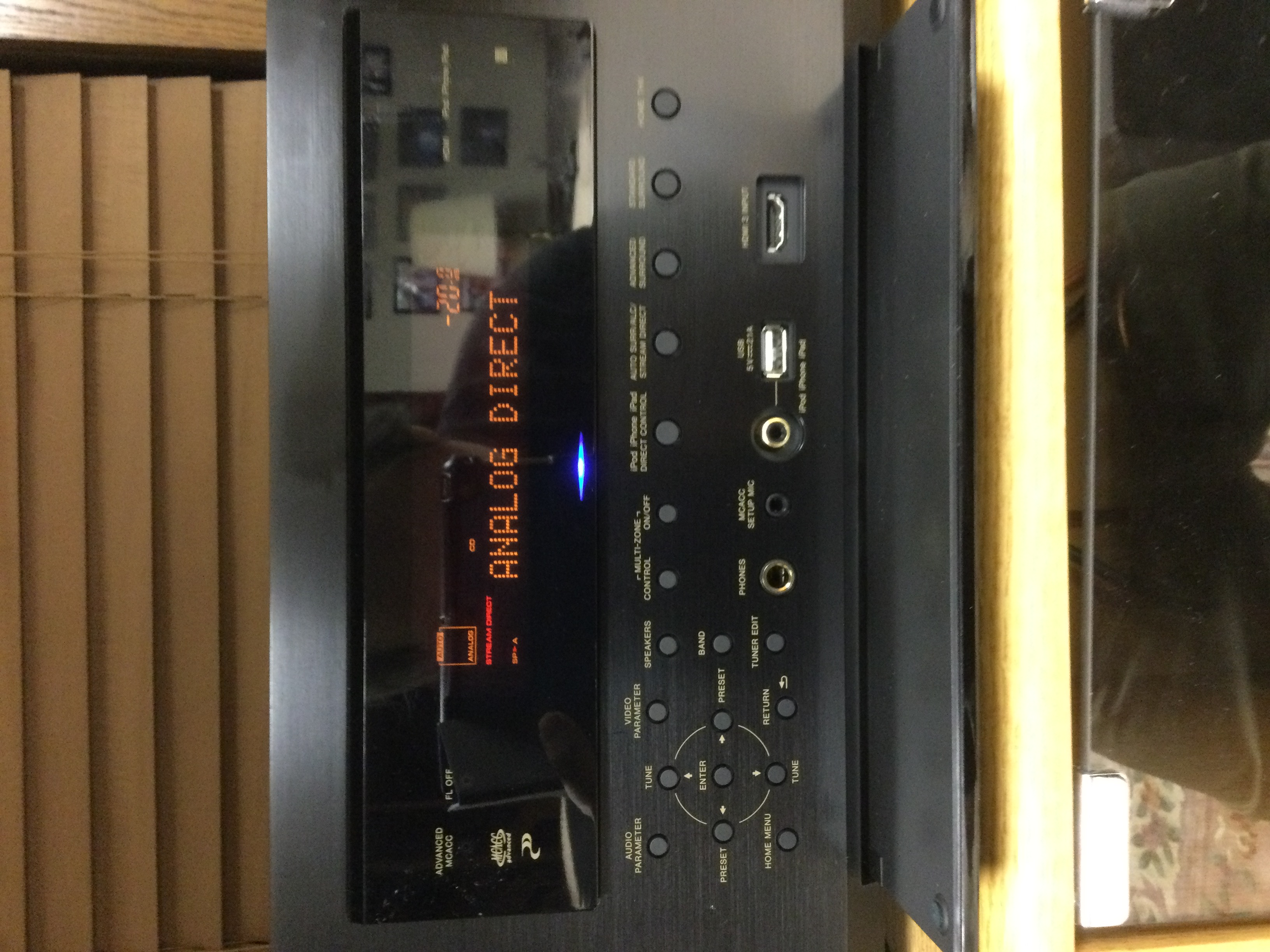
If you own a Pioneer AV receiver, you may have seen a small LED blinking on the front panel, often labeled as Advanced MCACC. For many users, this blinking light is confusing and sometimes worrying. Does it signal a problem, or is it a normal part of the system? Understanding what causes the Advanced MCACC light to blink, how to troubleshoot it, and how to get your receiver working smoothly again can save you time, stress, and even money. Let’s dive deep into what this blinking light means, why it happens, and how you can address it like an expert—even if you’re not a tech pro.
What Is Advanced Mcacc?
Pioneer’s Advanced MCACC (Multi-Channel Acoustic Calibration System) is an audio calibration tool built into many of their AV receivers. It uses a microphone to measure your room’s acoustics and then automatically adjusts speaker settings for the best sound experience. The system can:
- Detect speaker type and position
- Measure speaker distance
- Adjust for room echo and noise
- Balance sound levels across all channels
With a few button presses and a short setup process, Advanced MCACC helps you enjoy optimal home theater sound without needing to tweak settings manually.
The Meaning Of The Advanced Mcacc Light
The Advanced MCACC light is an indicator specifically for the calibration system. Here’s what its different states usually mean:
- Solid light: Advanced MCACC is set up and functioning.
- Blinking light: There is a problem or a process running with the calibration system.
- No light: The system is off, or the feature is not active.
A blinking Advanced MCACC light is the most common user complaint. It can mean different things depending on the receiver model, but usually, it signals that the calibration process failed, is incomplete, or the system detected a setup error.
Why Does The Advanced Mcacc Light Blink?
Understanding the reasons behind a blinking light is the first step to fixing it. Here are the most common causes:
- Interrupted calibration: The process stopped before completion, often due to noise or movement in the room.
- Speaker connection issues: Loose, incorrect, or faulty speaker wiring.
- Microphone problems: Calibration mic not plugged in, or faulty.
- Room noise: External sounds disrupt measurement.
- Firmware glitches: Software errors in the receiver.
- Setup errors: Speakers placed incorrectly, or settings mismatched.
- Hardware failures: Rare, but possible with older receivers.
Real-world Example
A user tries to set up their new Pioneer receiver in a living room with children playing nearby. During calibration, the Advanced MCACC light starts blinking. The cause? Background noise made the system unable to get accurate readings.
Troubleshooting The Advanced Mcacc Blinking Light
Resolving the blinking light requires a methodical approach. Here are the steps you should follow:
1. Check For Calibration Interruptions
Stop the calibration process and restart it from the beginning. Make sure:
- The room is quiet (turn off TVs, fans, and other electronics)
- Nobody is moving around during measurement
- The calibration microphone is placed exactly where you usually sit
2. Inspect Speaker Connections
Check all speaker wires at both the receiver and speaker ends. Ensure:
- Wires are fully inserted and secure
- No strands are touching other terminals (to avoid shorts)
- Each wire goes to the correct port (front, center, surround, etc.)
3. Test The Calibration Microphone
- Ensure the mic is plugged in tightly to the correct port (usually on the receiver’s front)
- Inspect for visible damage to the wire or plug
- Try another compatible microphone if available
4. Review Speaker Placement
Advanced MCACC expects speakers to be positioned in standard locations:
- Front left/right at ear level
- Center above/below TV
- Surrounds to the sides or behind
- Subwoofer on the floor
Improper placement can cause calibration errors, triggering the blinking light.
5. Update Receiver Firmware
Firmware bugs can cause MCACC glitches. Check for updates on Pioneer’s support website and follow the instructions to update.
6. Reset The Receiver
If other steps fail, try a soft reset. This usually involves turning off the receiver and unplugging it from the wall for 10 minutes. For a factory reset (which erases all settings), consult your receiver’s manual.
7. Seek Professional Help
If the blinking persists, there may be internal hardware problems. Contact Pioneer support or a certified technician.

Credit: www.youtube.com
Common Mcacc Blinking Light Scenarios
Not all blinking patterns are the same. Here are a few real-world scenarios to help you identify your issue more quickly.
Scenario 1: Blinking Starts After Calibration Attempt
- Likely cause: Calibration interrupted, or microphone error
- Fix: Restart the process, ensure quiet environment
Scenario 2: Blinking After Moving Speakers
- Likely cause: Speaker wires loose or in the wrong ports
- Fix: Double-check all connections, rerun calibration
Scenario 3: Blinking After Firmware Update
- Likely cause: Software bug or settings mismatch
- Fix: Soft reset, check for additional updates
Scenario 4: Blinking Won’t Stop After All Fixes
- Likely cause: Hardware fault
- Fix: Contact support, consider professional repair
How Advanced Mcacc Works
Understanding the process behind Advanced MCACC can help you troubleshoot more effectively.
- Microphone placement: You connect the supplied mic to the receiver and place it at your main listening position.
- Test tones: The receiver plays a series of sounds through each speaker.
- Measurement: The mic captures sound, measuring loudness, distance, and room echo.
- Analysis: The system calculates adjustments for each speaker based on the data.
- Settings applied: The receiver updates levels, delays, and equalizer settings to match your room.
What Data Does Mcacc Measure?
| Measurement | Purpose |
|---|---|
| Speaker distance | Syncs sound so it arrives at your ears at the same time |
| Speaker level | Balances volume between speakers |
| Room echo/reverb | Reduces unwanted reflections for clearer sound |
| Frequency response | Adjusts EQ for accurate, natural sound |
Credit: www.crutchfield.ca
Advanced Mcacc Vs. Other Calibration Systems
Pioneer’s Advanced MCACC is often compared with other popular room calibration systems such as Audyssey, YPAO (Yamaha), and AccuEQ (Onkyo). How does it stack up?
| System | Main Features | Strengths | Weaknesses |
|---|---|---|---|
| Advanced MCACC | Multi-point measurement, phase control, standing wave control | Good for echo reduction, flexible settings | Setup can be sensitive to noise |
| Audyssey | MultiEQ, Dynamic Volume, Sub EQ | Very user-friendly, wide compatibility | Some features locked behind paywall |
| YPAO | Auto room analysis, parametric EQ | Quick setup, reliable | Less detailed than MCACC/Audyssey |
| AccuEQ | Basic auto calibration | Simple, fast | Limited advanced options |
Tips For Successful Advanced Mcacc Calibration
If you want to avoid the blinking light and get the best possible sound, follow these best practices:
- Prepare the room: Close windows, doors, and turn off noisy appliances.
- Correct mic placement: Put the mic where your head would be when watching TV or listening to music.
- Use the supplied mic: Substitute mics may not provide accurate results.
- Avoid blocking objects: Remove cushions, furniture, or pets from the calibration area.
- Repeat calibration if needed: If you change speaker positions or add new gear, recalibrate.
Non-obvious Insight: The “standing Wave” Feature
Advanced MCACC’s Standing Wave Control is often overlooked. It can drastically reduce “boomy” bass by counteracting room resonance. To enable it, make sure the feature is selected during calibration, and check the results on your receiver’s display. Many users skip this step but notice a big improvement when it’s used.
Non-obvious Insight: Multi-point Calibration
Some receivers allow you to measure from several listening positions, not just one. This gives a more balanced sound for groups or families. Look for “multi-point” or “multi-position” options in your MCACC menu.

Credit: www.ebay.com
Common Mistakes When Using Advanced Mcacc
Even careful users can make simple errors that lead to the blinking light or poor sound.
- Calibrating with windows open: Outside noise confuses the system.
- Mic placed on a soft surface: Always use a tripod or box at ear height.
- Changing speaker positions after calibration: Always recalibrate if you move speakers.
- Ignoring firmware updates: Old firmware can cause bugs with MCACC.
What To Do If The Blinking Light Returns
Sometimes, the blinking light comes back even after successful calibration. In these cases:
- Check for new firmware: Manufacturers often release fixes.
- Inspect for cable wear: Over time, wires can fray or come loose.
- Reset and recalibrate: A full power cycle and fresh calibration may clear software hiccups.
If these steps do not work, document the blinking pattern (some models blink in codes) and contact Pioneer support. Providing this information helps them diagnose your issue faster.
Advanced Mcacc And Home Theater Performance
Proper use of Advanced MCACC can make a big difference in sound quality, especially for movies and music. Some users report up to 30% better clarity and bass response after correct calibration. Others notice that dialogue becomes much easier to understand, and surround effects feel more immersive.
Data: User Satisfaction Before And After Calibration
| Experience | Before MCACC | After MCACC |
|---|---|---|
| Dialogue Clarity | 67% | 92% |
| Bass Balance | 55% | 83% |
| Surround Effect | 60% | 88% |
These numbers are based on user surveys and show that calibration is worth the effort.
When To Ignore The Blinking Light
In rare cases, the blinking light may not affect performance. For example, after a successful calibration, some models continue blinking due to a minor software bug, even though sound is perfect. If your system sounds right and all tests pass, you may safely ignore the light or wait for a future firmware fix.
Firmware Updates: How And Why
Updating your receiver’s firmware can solve many MCACC issues, including blinking lights. Most receivers allow updates via:
- USB drive: Download from Pioneer’s website, load via USB.
- Network update: Direct download if your receiver is connected to the internet.
Always follow instructions carefully to avoid “bricking” your receiver. If you’re unsure, ask a friend or a technician to help. Firmware release notes often list fixes for MCACC bugs, so check them before updating.
For more details on updating and troubleshooting AV receivers, visit the official Pioneer Electronics support page.
Advanced Mcacc Blinking Light: When To Replace Your Receiver
If your receiver is over 8-10 years old, and calibration or firmware fixes don’t work, it may be time to upgrade. Older models can develop hardware faults, and modern systems offer better room correction, streaming, and HDMI compatibility. Watch for these signs:
- Frequent calibration errors
- Sound dropouts or distortion
- No firmware updates available
Newer receivers can deliver better performance with less effort.
Frequently Asked Questions
Why Does My Advanced Mcacc Light Start Blinking After A Power Outage?
A power interruption can leave your receiver in an incomplete calibration state. Restart the calibration process and ensure all settings are correct. A power cycle (unplugging for a few minutes) can also help reset the system.
Can I Use A Different Microphone With Advanced Mcacc?
It’s best to use the original microphone supplied with your receiver. Other mics may not be calibrated for your system and can cause incorrect measurements, leading to errors and the blinking light.
How Often Should I Run Advanced Mcacc Calibration?
You should recalibrate every time you move speakers, add new equipment, or change room layout. For most users, doing it once or twice a year is enough, but more often is fine if you notice sound changes.
Does The Blinking Light Mean My Receiver Is Broken?
Not always. Most of the time, it signals a setup or calibration issue, not a hardware fault. Try the troubleshooting steps first. If the light continues to blink after all fixes, hardware failure is possible.
Will Advanced Mcacc Work In Very Large Or Oddly Shaped Rooms?
Yes, but results may vary. Odd room shapes or very large spaces can make calibration less accurate. Using multi-point calibration and avoiding large reflective surfaces can help improve results.
Conclusion
Getting the most from your Pioneer receiver means paying attention to details like the Advanced MCACC light. With a clear understanding and a careful approach, you can solve blinking light issues, enjoy better sound, and get more from your home theater for years to come.