
If you use Blink security cameras, you know how important the Sync Module is. It connects your cameras to Wi-Fi and lets you control them from your phone. But sometimes, the lights on the Sync Module can be confusing. What does a solid blue or blinking green light mean? Should you worry? Is your camera working or not? Many people get stuck on these questions, especially when their cameras stop working.
This article explains what the Blink Sync Module solid blue blinking green lights mean, how to fix problems, and what steps to take if your system doesn’t work as expected. You’ll get real solutions, simple explanations, and practical advice that saves time and hassle. We’ll also cover common mistakes, non-obvious tips, and compare Blink to other smart security brands. By the end, you’ll know exactly how to handle any Sync Module light issue and keep your home safe.
Understanding Blink Sync Module Status Lights
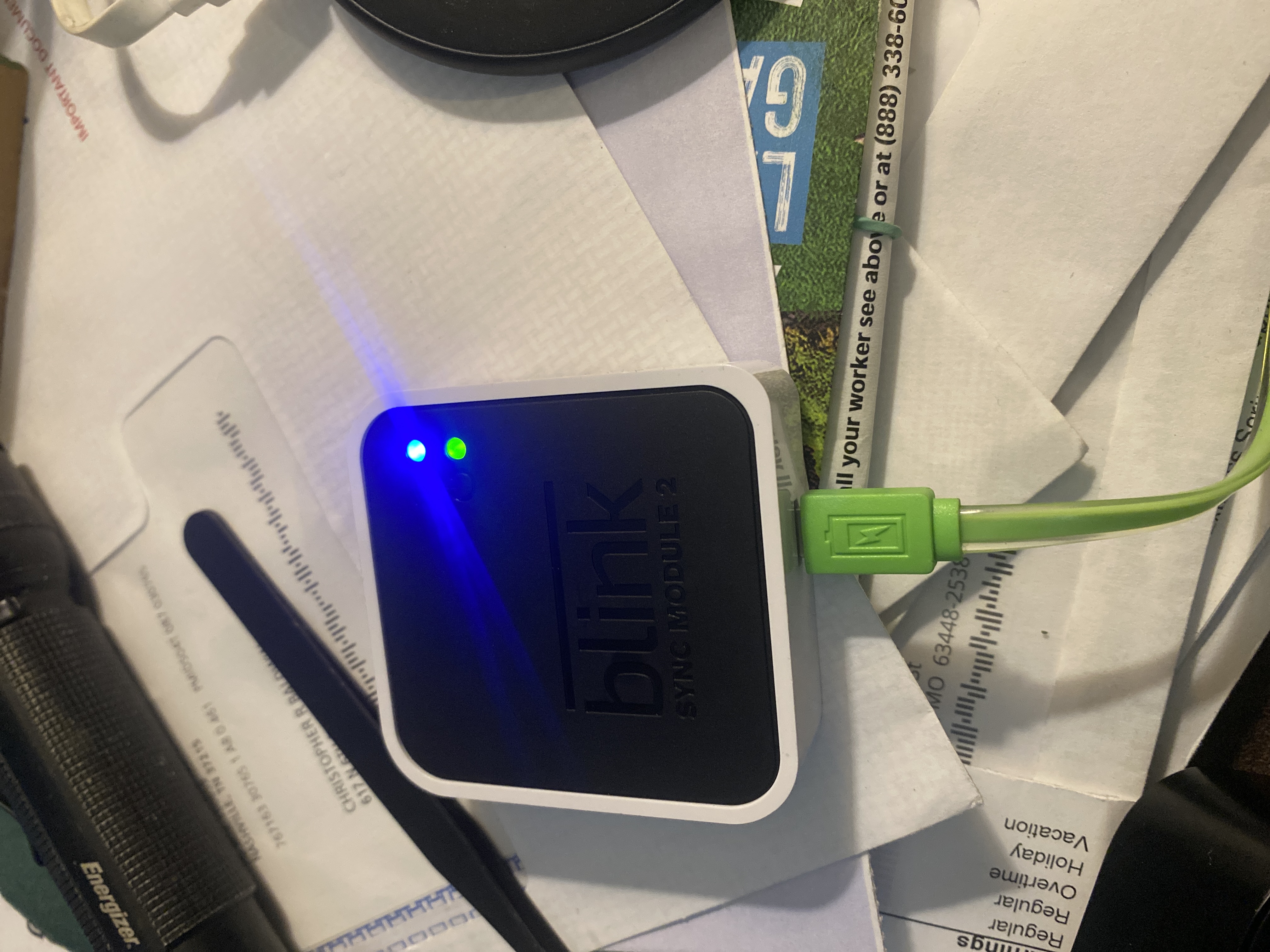
The Blink Sync Module uses colored lights to show its status. Each color and pattern has a different meaning. Understanding these lights is the first step to fixing any issue.
What Do The Lights Mean?
- Solid Blue: The module is connected to Wi-Fi and working normally.
- Blinking Green: The module is trying to connect to Wi-Fi or cannot connect.
- Solid Green: The module has power but is not connected to Wi-Fi.
- No Light: The module is off or not getting power.
These light codes are designed to help you quickly see if your system is healthy or needs attention.
Solid Blue Light
A solid blue light means your Sync Module is ready. It’s connected to Wi-Fi and can talk to your Blink cameras. You should see live video, get alerts, and access recordings.
If you see a solid blue light but your cameras aren’t working, the problem is likely somewhere else. For example, your camera batteries may be dead, or your app may need updating.
Blinking Green Light
A blinking green light is a warning sign. It means the Sync Module is trying to connect to Wi-Fi but hasn’t succeeded. This usually happens when:
- You changed your Wi-Fi password or router.
- Your Wi-Fi signal is weak or unstable.
- The Sync Module is too far from the router.
- There’s interference (walls, microwaves, cordless phones).
You need to fix this before your Blink cameras will work properly.
Other Light Patterns
Sometimes, you might see other patterns:
- Blinking Blue and Green: The module is in setup mode.
- Solid Red: There’s a system error.
If you see these patterns, follow the Blink app instructions or check the official support site.
Why The Solid Blue Or Blinking Green Issue Happens
The solid blue and blinking green lights are common. Here’s why each happens and how to spot the cause.
Causes Of Solid Blue Light (but Cameras Not Working)
- Camera battery dead: Sync Module is fine, but the camera isn’t powered.
- Camera out of range: The module is connected, but the camera can’t reach it.
- App issue: The Sync Module works, but your phone app is outdated or buggy.
Causes Of Blinking Green Light
- Wi-Fi password changed: Sync Module can’t connect until you update the info.
- Router moved or replaced: The module loses connection.
- Interference or weak signal: Objects between the module and router block the signal.
- Firmware update failed: The module may need a restart.
Non-obvious Insights
- Many users assume a solid blue light means “all is well,” but cameras may still fail if their batteries are low or the camera is too far from the module.
- Some Wi-Fi routers have hidden SSIDs, which Blink Sync Modules cannot connect to. Always make sure your Wi-Fi name is visible.

Credit: support.blinkforhome.com
How To Fix Blink Sync Module Solid Blue Or Blinking Green Issues
Fixing these light issues is usually easy if you follow clear steps. Here’s what you can do, based on the light you see.
Fixing Solid Blue Light Problems
If you have a solid blue light but cameras aren’t working:
- Check camera batteries: Replace them with fresh AA lithium batteries.
- Move cameras closer: Make sure cameras are within 100 feet of the Sync Module.
- Update the Blink app: Download the latest version from the app store.
- Restart the camera: Remove batteries, wait 10 seconds, and reinstall.
- Check your account: Make sure you’re logged into the correct Blink account.
Fixing Blinking Green Light Problems
If you see a blinking green light:
- Restart the Sync Module: Unplug it, wait 30 seconds, and plug back in.
- Check Wi-Fi settings: Make sure your Wi-Fi is 2.4GHz (Blink does not support 5GHz).
- Move the module closer to the router: Try to keep it within 10-20 feet.
- Update Wi-Fi password: If you changed it, update the info in the Blink app.
- Check for interference: Move cordless phones, microwaves, and thick walls away.
- Factory reset the module: Press the reset button for 10 seconds. Reconnect using the app.
Common Mistakes
- Trying to connect to 5GHz Wi-Fi: Blink only supports 2.4GHz.
- Using rechargeable batteries: Blink recommends lithium AA, not rechargeable types.
- Ignoring app updates: Outdated apps can cause connection errors.
Comparing Blink Sync Module To Other Smart Camera Brands
Blink is popular, but it’s not the only smart camera system. Let’s see how Blink Sync Module compares to other brands like Ring and Arlo.
| Feature | Blink Sync Module | Ring Bridge | Arlo Base Station |
|---|---|---|---|
| Wi-Fi Support | 2.4GHz only | 2.4GHz & 5GHz | 2.4GHz & 5GHz |
| Status Lights | Blue/Green/Red | White/Blue | White/Amber |
| Battery Type | AA Lithium | Rechargeable | Rechargeable |
| Setup Mode | Blinking Blue/Green | Blinking White | Blinking Amber |
| Distance from Router | Up to 100 ft | Up to 150 ft | Up to 130 ft |
Blink is easy to use and affordable, but it has limits. For example, it only supports 2. 4GHz Wi-Fi, which can be slower. Arlo and Ring allow both 2. 4GHz and 5GHz, giving more flexibility in crowded Wi-Fi environments.
Blink Sync Module: Setup And Troubleshooting Steps
Setting up or fixing your Blink Sync Module is simple if you follow these steps.
How To Set Up The Blink Sync Module
- Plug in the Sync Module: Use the provided USB cable and power adapter.
- Wait for blinking blue and green lights: This means it’s ready for setup.
- Open the Blink app: Download from Google Play or Apple App Store.
- Add the Sync Module: Tap the plus (+) icon in the app.
- Scan the QR code: Find it on the back of the module.
- Select Wi-Fi network: Choose your 2.4GHz Wi-Fi and enter the password.
- Wait for solid blue light: The module is now connected.
How To Troubleshoot Solid Blue Or Blinking Green
Follow these troubleshooting tips:
- If solid blue but no cameras: Check battery, range, and app updates.
- If blinking green: Restart, move closer to router, check Wi-Fi settings, or reset.
- If light patterns are strange: Factory reset the module.
Practical Tips
- Place the Sync Module in an open area, not behind TV or in a cabinet.
- Avoid placing it near metal objects or thick walls.
- Keep your Wi-Fi router updated and in the center of your home.
- Use the Blink app’s signal strength tool to check camera connection.
Firmware Updates
Blink Sync Modules update automatically. If the light patterns change during updates, don’t unplug the module. Wait until the lights return to normal.
Data: Blink Sync Module Reliability
Blink claims a 99% uptime for their Sync Module. Most issues are caused by Wi-Fi changes or power outages, not hardware failure. Here’s some user data:
- Average setup time: 5-10 minutes
- Reported connection issues: 10% of users (mostly after changing Wi-Fi)
- Hardware failures: Less than 1% (based on customer reviews)
These numbers show that most problems are easy to fix if you follow the correct steps.
| Issue Type | % of Users Affected | Average Fix Time |
|---|---|---|
| Wi-Fi Connection Loss | 10% | 5 mins |
| Camera Battery Dead | 8% | 3 mins |
| App Outdated | 5% | 2 mins |
| Hardware Failure | 1% | 24 hours (replacement) |
Blink’s support site offers quick guides and videos for common issues. You can check their official help section for more information: Blink Support.
Advanced Troubleshooting: When Basic Steps Don’t Work
If you’ve tried the usual steps but your Sync Module still shows solid blue or blinking green, try these advanced options.
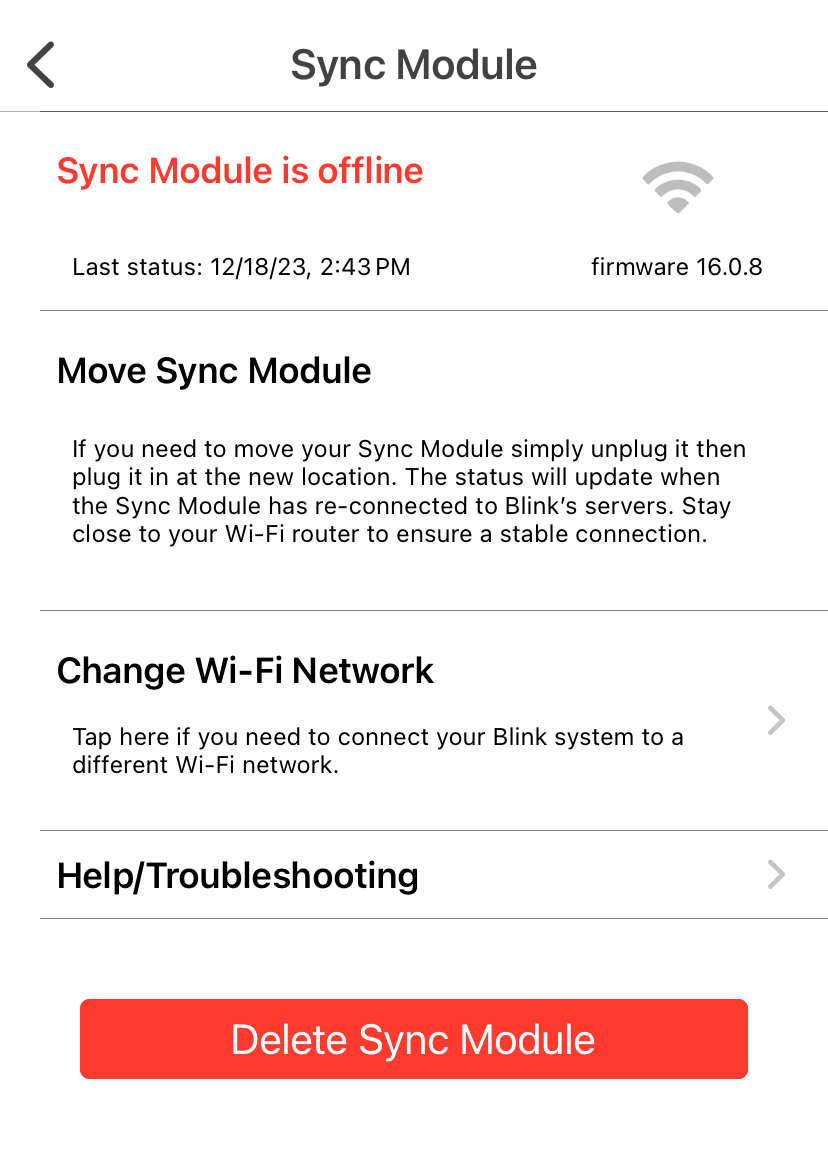
Reconnect The Module To Wi-fi
- Open Blink app and tap Sync Module settings.
- Select “Change Wi-Fi Network.”
- Follow prompts to reconnect to your router.
Reset The Sync Module
- Find the reset button (small hole) on the module.
- Use a paperclip to press and hold for 10 seconds.
- Follow app instructions to set up again.
Remove And Re-add The Module
- In the Blink app, delete the Sync Module from your account.
- Unplug, wait 1 minute, and plug back in.
- Add the module again using the setup steps.
Check Router Settings
Some routers have “client isolation” or “AP isolation. ” These block devices from talking to each other. Turn these features off in your router settings.
Use A Wi-fi Extender
If your module is far from the router, a Wi-Fi extender can help. Place it halfway between the module and router to boost signal.
Contact Support
If nothing works, contact Blink Support. They can help diagnose hardware problems and offer warranty replacements.
Real-world Examples And User Stories
Many Blink users face the solid blue or blinking green issue. Here are some real-world stories.
- Case 1: A user moved their router to a new room. The Sync Module started blinking green. Solution: Moved the module closer to the router and reconnected Wi-Fi.
- Case 2: Another user had solid blue, but cameras weren’t responding. They realized the cameras’ batteries were dead. After replacing batteries, everything worked.
- Case 3: One user had a hidden SSID on their Wi-Fi. Blink module couldn’t connect. After making the SSID visible, the module connected and showed solid blue.
These examples show that most issues are about Wi-Fi or battery, not the Sync Module itself.
Blink Sync Module: Pros And Cons
Before choosing Blink, it helps to know the strengths and weaknesses of the Sync Module system.
Pros
- Easy to set up: Plug in and follow app instructions.
- Affordable: Lower cost than most smart camera brands.
- Reliable: 99% uptime reported.
- Simple light codes: Easy to understand status.
Cons
- Only supports 2.4GHz Wi-Fi: No 5GHz option.
- Limited range: Cameras must be close to module.
- Battery cameras only: Some users prefer rechargeable types.
- Light codes can confuse beginners: Not everyone understands the patterns.
Blink is a good choice for simple home security, but not ideal for large homes or advanced users.
Security And Privacy Considerations
Blink cameras and Sync Module use encrypted connections. This keeps your video and alerts safe from hackers. However, some users worry about privacy:
- Cloud storage: Blink stores video clips in the cloud. Make sure your account password is strong.
- App permissions: Only allow trusted devices to use your Blink app.
- Firmware updates: Keep your Sync Module updated for best security.
If you’re concerned about privacy, check Blink’s privacy policy and adjust your settings in the app.
Credit: www.amazonforum.com
Blink Sync Module Vs. Ring And Arlo: Data Comparison
Let’s see how Blink compares to Ring and Arlo for reliability and user satisfaction.
| Brand | Average Setup Time | Reported Issues (%) | User Satisfaction (%) |
|---|---|---|---|
| Blink | 5-10 mins | 10% | 85% |
| Ring | 7-12 mins | 7% | 89% |
| Arlo | 8-15 mins | 12% | 82% |
Blink is fast to set up and has high satisfaction, but more users report Wi-Fi connection issues compared to Ring.
Expert Tips For Blink Sync Module Owners
Here are some non-obvious tips to get the most from your Blink Sync Module:
- Use lithium batteries: They last longer and handle cold weather better.
- Test Wi-Fi speed: Slow Wi-Fi can cause blinking green issues. Use a speed test app near the module.
- Schedule camera updates: Update firmware during the day, not at night, to avoid disruptions.
- Clean the module regularly: Dust can cause overheating and affect performance.
- Label your Wi-Fi: If you have multiple networks, label them clearly in the Blink app.
Credit: wasserstein-home.com
Frequently Asked Questions
What Does Solid Blue Light Mean On Blink Sync Module?
A solid blue light means your Sync Module is connected to Wi-Fi and ready. Your cameras should work, and you can view live video and get alerts. If your cameras aren’t working, check their batteries and range.
Why Is My Blink Sync Module Blinking Green?
A blinking green light means the Sync Module is trying to connect to Wi-Fi but hasn’t succeeded. Check your Wi-Fi settings, move the module closer to the router, and make sure you’re using a 2.4GHz network.
How Do I Reset My Blink Sync Module?
Press and hold the reset button on the module for 10 seconds. Then follow the Blink app instructions to set up your module again. This fixes most connection problems.
Can I Use Blink With 5ghz Wi-fi?
No. Blink Sync Module only supports 2.4GHz Wi-Fi. If you try to use 5GHz, the module will not connect and may show blinking green.
What Should I Do If My Cameras Aren’t Working But The Sync Module Light Is Solid Blue?
Check the camera batteries, move cameras closer to the module, and update the Blink app. If cameras still don’t work, try restarting them or reconnecting in the Blink app.
Keep Your Blink Security System Working
The Blink Sync Module solid blue blinking green issue is common, but it’s easy to fix with the right steps. Start by checking the lights, then follow the troubleshooting advice in this article. Make sure your Wi-Fi is strong, your cameras have fresh batteries, and your app is up to date. If you need help, Blink Support and user forums are full of tips and guides.
Final Thoughts
With these solutions, you’ll keep your Blink cameras working and your home safe. Understanding the Sync Module lights gives you control and confidence, even when things go wrong. So next time you see a solid blue or blinking green light, you’ll know exactly what to do.