
Centurylink Modem Blinking Green: Meaning, Causes, And Solutions
Many people rely on Centurylink modems for fast and reliable internet. When your modem starts blinking green, you may feel confused or worried. Is it a good sign? Is something wrong with your connection? Understanding the blinking green light on your Centurylink modem can help you solve problems faster, save time, and get back online.
This guide explains why the green light blinks, what it means for your internet, and how to fix common issues. By the end, you will know exactly what steps to take and what mistakes to avoid. You will also learn how to spot deeper problems and when to ask for expert help.
If you are a Centurylink customer, this article will help you keep your internet running smoothly.
What Does A Blinking Green Light Mean?
Most Centurylink modems have LED lights to show their status. The green light is usually labeled “DSL,” “Internet,” or “Power,” depending on your model. When the green light is blinking, it means the modem is trying to connect to the internet.
- Blinking green: The modem is searching for a signal or syncing with Centurylink’s network.
- Solid green: The modem has connected successfully.
- No green light: The modem is off or not getting power.
Some newer models use multiple green lights to show different stages. For example, one light blinks while syncing, and another turns solid when connected.
Why Does The Light Blink?
A blinking green light is normal for a few minutes after turning on your modem. It shows the device is working to connect. But if the light keeps blinking for more than five minutes, there may be a problem. This can mean:
- A loose cable
- A weak signal from Centurylink
- Modem settings are wrong
- Outages in your area
Centurylink Modem Models And Light Patterns
Each Centurylink modem model has its own light signals. Understanding your model’s pattern helps you know what to expect.
| Model | Green Light Label | Blinking Green Meaning |
|---|---|---|
| Actiontec C3000A | DSL | Syncing with network |
| Technicolor C1100T | Internet | Connecting to internet |
| Zyxel C1100Z | Power/DSL | Trying to sync |
| Greenwave C4000XG | Status | Searching for signal |
If you see a blinking green light, check your modem’s manual or Centurylink’s website for your exact model. Some models flash quickly when updating firmware, while others blink slowly during connection tests.
Causes Of A Blinking Green Light
There are several reasons why your Centurylink modem might blink green. Most are simple to fix, but some need extra attention.
1. Network Syncing
When you turn on your modem, it needs to sync with Centurylink’s servers. This is normal and usually takes 1–3 minutes. If the light blinks longer, your modem may struggle to sync.
2. Loose Or Damaged Cables
A common cause is a loose cable. If the DSL or Ethernet cable is not fully plugged in, your modem cannot connect.
- Check the cable between the wall jack and modem.
- Inspect for cracks or frayed wires.
3. Service Outage
Centurylink sometimes has outages. If the green light keeps blinking, their network may be down.
- Check Centurylink’s outage map online.
- Ask neighbors if they have internet issues.
4. Wrong Modem Settings
Incorrect settings can stop your modem from connecting. This happens after a reset or firmware update.
- Wrong username or password
- Incorrect protocol (VDSL, ADSL)
5. Interference Or Line Noise
Phone lines can have interference from other devices.
- Old wiring
- Nearby electronics causing signal problems
6. Faulty Modem Hardware
Sometimes the modem itself is broken. Older modems fail after years of use.
- Overheating
- Internal component failure
How To Fix Centurylink Modem Blinking Green
If your modem’s green light keeps blinking, follow these steps to solve the problem.
Step 1: Power Cycle The Modem
Turn off your modem, wait 30 seconds, and turn it back on. This clears minor glitches.
- Unplug from power
- Wait for 30–60 seconds
- Plug back in and wait for lights to stabilize
Step 2: Check All Cables
Make sure all cables are secure and undamaged.
- Remove and reinsert the DSL and Ethernet cables
- Check the power adapter
- Look for bent pins or broken connectors
Step 3: Inspect Wall Jack And Splitters
Many homes use splitters for phone and internet. A faulty splitter can cause blinking.
- Remove the splitter and connect modem directly to wall jack
- Check for dust or corrosion inside the jack
Step 4: Review Modem Settings
Log in to your modem’s web interface. Check your connection settings.
- Username and password (from Centurylink)
- Connection type: PPPoE, VDSL, or ADSL
- Firmware version
If unsure, reset to factory settings and enter your Centurylink details again.
Step 5: Test Other Devices
Check if other devices can connect. If all devices fail, the issue is likely with the modem or Centurylink service.
- Try connecting your computer directly to the modem using Ethernet
- Test WiFi and wired connections
Step 6: Update Modem Firmware
Some blinking is caused by outdated firmware. Update your modem from the web interface.
- Find “Firmware Update” or “Software Upgrade” option
- Download and install updates
Step 7: Contact Centurylink Support
If none of the above fixes work, call Centurylink. They can check your line for problems and guide you.
- Have your account number ready
- Tell them about the blinking green light
- Ask if there are outages or maintenance
Comparing Common Modem Issues
Centurylink modems can show different light patterns for various issues. Knowing the difference helps you act faster.
| Light Pattern | Possible Issue | Recommended Action |
|---|---|---|
| Blinking green | Syncing, cable issues, outage | Check cables, wait, contact support |
| Solid green | Connected | No action needed |
| Blinking red | Line error or failed connection | Reset modem, check settings |
| No light | No power | Check power adapter |
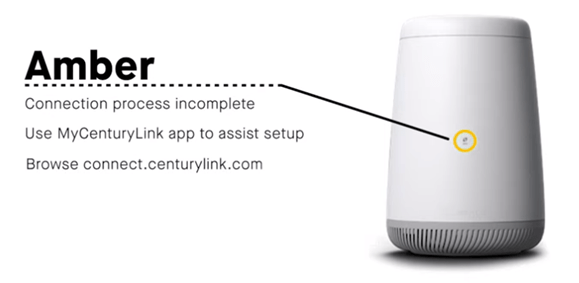
| Blinking amber | Firmware update in progress | Wait for update to finish |
Knowing these patterns prevents confusion and helps you troubleshoot quickly.
When Is Blinking Green A Problem?
A blinking green light is not always bad. Sometimes it is part of normal operation.
- After setup: Blinking for 1–3 minutes is normal.
- After firmware update: Blinking while updating is expected.
But if the light blinks for more than 5–10 minutes, it usually signals a problem.
Hidden Mistakes Beginners Make
- Ignoring cable quality: Using old or damaged cables can cause blinking, even if everything else is set up right.
- Overlooking splitters: Many people forget that faulty splitters can block the signal.
- Missing firmware updates: Outdated firmware can cause connection issues, but this is often missed.
- Not checking power adapters: A weak or broken adapter can cause the modem to restart or fail to connect.
- Wrong login info: After a factory reset, the modem needs correct Centurylink credentials.
Advanced Troubleshooting
If basic steps do not fix the issue, try these advanced tips.
Check For Line Noise
Use a phone to listen for static or noise on the line. If you hear buzzing, your DSL signal may be weak. Replace old wiring or move the modem to a different jack.
Try A Different Wall Jack
Sometimes the jack is the problem. Move your modem to another room and test.
Replace Cables
Buy new, high-quality cables for DSL and Ethernet. Even small damage can cause issues.
Factory Reset Modem
Press the reset button (usually with a paperclip) for 10 seconds. This clears all settings.
- You will need to re-enter Centurylink details
Use Centurylink’s Online Tools
Centurylink offers an online troubleshooting guide. Visit their website and enter your account info for step-by-step help.
Data: Centurylink Outage Statistics
Centurylink serves millions of customers across the US. Outages happen occasionally, and blinking green lights are often the first sign.
- According to Centurylink, most outages are fixed within 2–6 hours
- Less than 3% of customers experience monthly outages
- Over 75% of blinking green light reports are solved by checking cables or power cycling
These numbers show that simple fixes solve most problems.

Credit: www.reddit.com
How To Prevent Modem Issues
Prevention is better than cure. Here are ways to avoid blinking green light problems.
- Use new cables: Replace cables every 1–2 years.
- Keep modem cool: Avoid overheating by placing modem in open areas.
- Update firmware: Check for updates every few months.
- Avoid splitters: Connect modem directly when possible.
- Check power supply: Use the original adapter.
Centurylink Modem Vs. Other Providers
How Does Centurylink’s Blinking Green Light Compare To Other Isps?
| Provider | Blinking Green Meaning | Typical Fix Time |
|---|---|---|
| Centurylink | Syncing or network search | 2–6 hours |
| AT&T | Syncing or firmware update | 1–4 hours |
| Xfinity | Booting or searching for signal | 1–3 hours |
| Verizon | Network connection issue | 2–5 hours |
Most ISPs use similar signals, but fix times can vary based on network size and support quality.
Credit: www.centurylink.com
When To Replace Your Modem
If your Centurylink modem blinks green often and does not fix after troubleshooting, it may be time for a replacement.
- Modems older than 5 years are more likely to fail
- Newer models connect faster and have better signal strength
- Centurylink usually recommends replacement if your modem cannot connect after all fixes
Replacing your modem can solve persistent blinking and improve your connection.
Expert Tips For Reliable Internet
Even experienced users can miss key points. Here are two insights most beginners do not know:
- Modem placement matters: Putting your modem near metal objects or in closed spaces can cause signal problems. Keep it in a central, open spot.
- Check for firmware auto-update: Some Centurylink modems update at night. If you notice blinking green late at night, it may be updating itself.
These tips prevent unnecessary worry and help you enjoy stable internet.

Credit: www.youtube.com
Useful Resources
If you need deeper help, visit Centurylink’s official support page or check the troubleshooting section of Centurylink Help.
Frequently Asked Questions
What Does A Blinking Green Light On My Centurylink Modem Mean?
A blinking green light means your modem is trying to connect to Centurylink’s network. This is normal for a few minutes after turning it on. If it keeps blinking for more than five minutes, it may signal a problem like cable issues, incorrect settings, or a service outage.
How Long Should The Green Light Blink Before It Connects?
Usually, the green light blinks for 1–3 minutes during startup. If it blinks longer, check your cables, settings, or contact Centurylink. Extended blinking often means the modem cannot sync with the network.
Can A Blinking Green Light Mean My Modem Is Updating?
Yes, some models blink green during firmware updates. This usually happens at night or after a reset. Wait for 5–10 minutes. If the blinking continues, check your modem’s web interface for update status.
What Should I Do If Power Cycling Does Not Fix The Blinking Green Light?
If restarting does not help, check cables, wall jacks, and splitters. Update your firmware and double-check modem settings. If nothing works, contact Centurylink support for help. They can test your line remotely.
Is It Safe To Use My Modem When The Green Light Is Blinking?
It is safe, but your internet will not work until the modem connects. Wait for the light to turn solid green. If it does not, try troubleshooting steps or call Centurylink for assistance.
Many people worry when their Centurylink modem blinks green. With the right knowledge and steps, you can quickly solve the problem and get back online. Remember to check cables, settings, and firmware first. Most issues are simple to fix, but do not hesitate to ask Centurylink for help if needed.
By staying alert and following these tips, you will enjoy reliable internet and avoid unnecessary frustration.