
When your broadband router starts blinking red, life can feel disrupted. The internet is a vital part of daily routines, work, entertainment, and communication. A simple red light can bring everything to a halt, leaving you confused and frustrated. Understanding what a blinking red light means, and how to fix it, is essential for anyone relying on broadband. This guide dives deep into the causes, solutions, and practical tips so you can restore your connection quickly and confidently.
What Does A Blinking Red Light Mean?
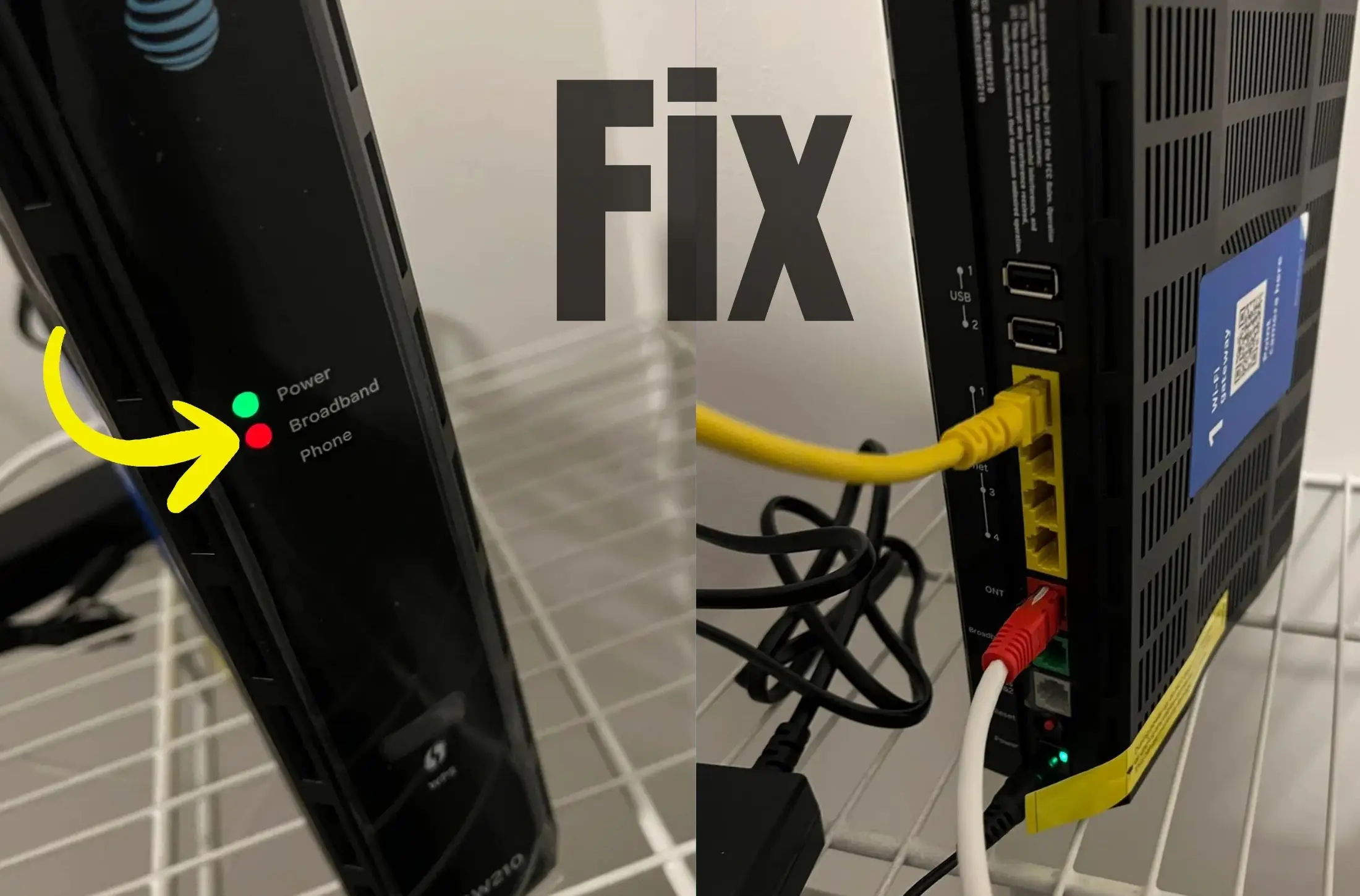
A blinking red light on your broadband router or modem is usually a sign that something is wrong. It’s more than just a color change—it’s a signal that the device is trying to tell you about a problem. The exact meaning can vary depending on the model and provider, but in most cases, it means one of the following:
- The device can’t connect to the internet
- There’s a hardware issue inside the router/modem
- The connection to your service provider is unstable
- Firmware needs an update
- There’s a problem with cables or ports
Many people assume a blinking red light means the internet is completely down. In some cases, other devices might still work, or the issue is limited to one area of your home. Knowing the real cause is the first step to fixing it.
Common Causes Of Broadband Blinking Red
Understanding the root causes helps you solve the problem faster. Here are the most frequent reasons for a blinking red light:
1. Service Provider Outage
Sometimes, the issue is not inside your home. Service outages happen when your internet provider has technical problems or maintenance. These outages can affect entire neighborhoods or just your address.
2. Loose Or Damaged Cables
If cables connecting your modem or router are loose, frayed, or broken, the device may not receive a proper signal. Even a small bend in a cable can disrupt the connection.
3. Faulty Router Or Modem
A blinking red light may indicate hardware failure. Devices can overheat, break down, or suffer from manufacturing defects.
4. Incorrect Configuration
Routers and modems need proper settings to connect. If you recently changed passwords, reset devices, or upgraded hardware, incorrect settings can cause the red light.
5. Firmware Issues
Firmware is the software that controls your device. Outdated firmware can cause connectivity problems, especially after updates from your provider.
6. Line Noise Or Interference
Electrical interference from household devices or damaged phone lines can disrupt broadband signals, leading to the blinking red indicator.
7. Payment Problems
Some providers disable service for missed bills or payment issues. The red light then signals no active connection, not a technical fault.
8. Isp Account Changes
If you move, change plans, or update account details, your provider may temporarily disable your connection, causing the blinking red light.
How To Diagnose The Problem
Diagnosing the blinking red light is often easier than people think. Here’s how to approach it:
- Check for service outages: Visit your provider’s website or call their helpline. Many providers have outage maps and status pages.
- Inspect all cables: Look for damage, loose connections, or unplugged wires. Replace cables if needed.
- Restart the router/modem: Power cycle the device by unplugging it, waiting 30 seconds, then plugging it back in.
- Check device temperature: Overheated routers can malfunction. Touch the device—if it’s hot, let it cool before restarting.
- Check firmware updates: Log into your router’s admin page. Look for firmware update options.
- Review payment status: Log into your provider’s billing portal. Ensure your account is active.
- Test with another device: Try connecting using a different computer or phone to see if the problem is device-specific.
- Reset router/modem: Use the reset button, but note this will erase custom settings.
Example: Diagnosing A Home Outage
Imagine your router’s red light is blinking. You check your provider’s outage page and see no issues. Next, you inspect cables and find the coaxial cable is loose. After tightening it, the light turns green. This simple fix shows how basic steps can solve most problems.
Solutions For Broadband Blinking Red
Once you know the cause, you can try targeted solutions. Here’s how to address each issue:
Service Provider Outage
Wait for the provider to fix the problem. If the outage lasts longer than expected, contact support. Providers usually post updates on their websites or social media.
Cable Issues
Replace damaged cables with new ones. Make sure all connections are tight. Avoid coiling cables, as this can cause interference.
Faulty Hardware
If your router or modem is old or damaged, consider replacing it. Most providers offer free or discounted replacements for faulty equipment.
Configuration Problems
Log into your router’s admin panel. Check settings like username, password, and connection type. Restore default settings if unsure.
Firmware Updates
Update your router’s firmware through the admin page. Always download updates from official sources to avoid malware.
Payment And Account Issues
Resolve any outstanding bills. If you recently changed plans, confirm with your provider that the service is active.
Line Interference
Move your router away from microwaves, cordless phones, and large metal objects. If using DSL, check phone line filters.
Resetting The Device
If all else fails, a full reset can clear errors. Hold the reset button for 10 seconds, then reconfigure the device.
Understanding Router Light Patterns
Routers use different light patterns to signal status. Here’s a comparison of common router lights:
| Light Color | Status | Meaning |
|---|---|---|
| Green (Solid) | Normal | Connected to internet |
| Green (Blinking) | Activity | Data is being transferred |
| Red (Blinking) | Error | Connection problem or hardware failure |
| Red (Solid) | Critical | No internet or major fault |
| Amber/Yellow | Warning | Limited connectivity or update needed |
Different brands use different patterns, so check your router’s manual for exact meanings.
When To Call Your Internet Provider
You should contact your provider if:
- The blinking red light stays after trying all basic fixes
- You notice frequent outages or slow speeds
- You suspect hardware failure
- There are payment/account issues you can’t resolve online
Providers can test your connection remotely and offer solutions like device replacement or technician visits.
What To Expect From Support
Support teams usually:
- Ask you to restart your router
- Check your account status
- Test line quality remotely
- Schedule a technician visit if needed
Be ready with your account number, device model, and description of the problem.
Tips To Prevent Broadband Problems
Most broadband issues are preventable. Here are practical tips to keep your connection stable:
- Keep your router in a cool, ventilated spot.
- Update firmware regularly.
- Use quality cables and connectors.
- Avoid placing the router near large metal objects or other electronics.
- Monitor your provider’s outage alerts.
- Set reminders for bill payments.
- Check devices for viruses or malware, which can cause connectivity issues.
- Secure your Wi-Fi with strong passwords to avoid unauthorized access.
- Back up router settings before resetting.
- Schedule regular speed tests to detect slowdowns early.
These habits can keep your broadband running smoothly and reduce the risk of blinking red lights.
Comparing Broadband Technologies
Different broadband types have unique strengths and weaknesses. Here’s a comparison:
| Technology | Speed Range | Reliability | Common Issues |
|---|---|---|---|
| Fiber Optic | 100 Mbps–10 Gbps | High | Rare outages, cable cuts |
| Cable (Coaxial) | 25 Mbps–1 Gbps | Medium–High | Congestion, signal loss |
| DSL | 1–100 Mbps | Medium | Line noise, distance limits |
| Satellite | 12–100 Mbps | Low–Medium | Weather, latency |
| Fixed Wireless | 10–500 Mbps | Medium | Interference, line of sight |
Fiber optic is usually the most reliable, but outages can still happen. Knowing your technology helps you understand possible causes for the blinking red light.
Credit: www.reddit.com
Real-life Examples: Solving Broadband Blinking Red
Example 1: Apartment Complex Outage
Emma lives in a large apartment building. One evening, her router blinks red. She checks her provider’s outage map and sees her area is affected. She waits, and within two hours, service is restored. Emma’s experience shows that sometimes, patience is needed.
Example 2: Damaged Cable
Sam’s internet drops suddenly. He notices his router blinking red. After checking cables, he finds the Ethernet cable chewed by a pet. Replacing the cable fixes the issue. This example highlights how physical damage is often overlooked.
Example 3: Firmware Update Needed
Jasper’s router blinks red after a power outage. He logs into the admin panel and sees a firmware update prompt. Updating firmware restores his connection. Many users ignore firmware updates, not knowing they impact reliability.
Advanced Troubleshooting Steps
For users with some technical experience, these steps offer deeper troubleshooting:
- Check router logs: Most routers have logs showing errors. Look for messages about lost connectivity or hardware faults.
- Try a different power supply: Faulty power adapters can cause red lights. Use another adapter if available.
- Test the connection directly: Connect a computer to the modem with an Ethernet cable to bypass the router.
- Change DNS settings: Sometimes, DNS problems cause connectivity issues. Try public DNS servers like Google (8.8.8.8) or Cloudflare (1.1.1.1).
- Contact provider for line test: Ask your provider to run a line test. This checks signal quality from their end.
These steps can solve issues that basic troubleshooting misses.
Why Ignoring The Red Light Is Risky
Some users ignore the blinking red light, hoping it will go away. This can lead to:
- Security risks: Outdated firmware or unsecured connections make you vulnerable.
- Missed updates: Providers push updates that fix bugs and improve performance.
- Higher repair costs: Small problems can turn into expensive hardware failures.
- Lost productivity: Unstable connections mean interrupted work and entertainment.
Taking action quickly avoids bigger problems.
How Broadband Providers Communicate Problems
Internet providers use several methods to alert users about outages or issues:
- Website status pages: These show real-time outage information.
- SMS/email alerts: Providers send messages about scheduled maintenance.
- Social media updates: Many providers post outage information on platforms like Twitter.
- Automated phone messages: Calling support often gives outage information.
Staying informed can help you avoid unnecessary troubleshooting.
Credit: www.howtoisolve.com
Comparing Broadband Router Brands
Here’s a look at common router brands and their reliability:
| Brand | Average Lifespan | Common Issues | Support Quality |
|---|---|---|---|
| Netgear | 3–5 years | Firmware bugs, overheating | Good |
| TP-Link | 3–6 years | Signal drop, slow updates | Very Good |
| Linksys | 4–7 years | Port failures, configuration resets | Excellent |
| Arris | 2–5 years | Connection loss, slow reboot | Average |
| Asus | 5–8 years | Firmware, Wi-Fi range | Excellent |
Brand choice can impact how often you see blinking red lights. Investing in reliable brands pays off over time.
Hidden Insights Most Beginners Miss
Many users overlook these points:
- Router placement matters: Too close to walls, floors, or electronics increases interference.
- Power surges can damage routers: Using surge protectors prevents sudden failures.
- ISP-provided routers are often basic: Upgrading to a better model can reduce problems.
- Not all red lights mean the same: Some routers use red for updates, not errors.
These insights help you prevent and solve problems faster.
How Broadband Health Affects Your Whole Home
A blinking red light doesn’t just stop the internet—it can:
- Interrupt smart home devices (lights, thermostats, security systems)
- Block streaming and gaming
- Stop remote work and learning
- Affect phone service if using VoIP
Keeping broadband healthy means your whole home runs smoothly.
When You Should Upgrade Your Router
If you see blinking red lights often, it may be time to upgrade. Signs you need a new router include:
- Frequent drops in connection
- Slow speeds even after troubleshooting
- Device is older than five years
- No support for latest Wi-Fi standards
- Poor coverage in your home
Upgrading can solve many persistent issues.
The Role Of Firmware And Software
Firmware updates are critical. They:
- Fix bugs causing red lights
- Improve security
- Add new features
- Enhance stability
Ignoring firmware can leave your device vulnerable. Always check for updates after outages or blinking lights.
How To Prepare For Broadband Outages
Outages are sometimes unavoidable. Here’s how to prepare:
- Download important files for offline use
- Use mobile data as backup
- Inform family or coworkers about possible downtime
- Keep your provider’s support number handy
Preparation reduces stress and keeps you productive.

Credit: www.reddit.com
Frequently Asked Questions
What Should I Do First When My Broadband Is Blinking Red?
Start by checking for service outages with your provider. Inspect cables, restart the router, and check your account status. These simple steps solve most problems.
Can A Blinking Red Light Mean My Router Is Broken?
Yes. If basic troubleshooting fails, and the light stays red, it could signal hardware failure. Consider replacing the device or contacting support.
How Long Does It Take To Fix A Blinking Red Broadband Light?
It depends on the cause. Cable fixes take minutes, outages may last hours, and hardware replacement can take days. Providers often resolve common issues within 24 hours.
Will Upgrading My Router Stop Blinking Red Lights?
Upgrading to a modern, reliable router can reduce red light issues caused by old hardware or outdated firmware. But provider outages or cable issues can still cause problems.
Where Can I Find More Information About Broadband Outages?
Visit your provider’s website or consult trusted sources like FCC Broadband Consumer Guide for tips and updates.
Conclusion
A blinking red light is a warning, not a disaster. By understanding the cause, taking smart steps, and staying informed, you can solve broadband problems quickly. With the right habits and tools, your internet stays fast, reliable, and ready for whatever you need.