
If you own a Plume Pod, that small but smart Wi-Fi device, you may have noticed a blue light blinking on it at some point. For many users, a Plume Pod blinking blue can be confusing or even worrying. What does it mean? Is something wrong? Is your internet at risk? You’re not alone—lots of people have the same questions. This article breaks down what a blinking blue light means, why it happens, and what you can do about it. Whether you’re new to Plume or just want to troubleshoot quickly, you’ll find clear answers here.
What Is A Plume Pod?
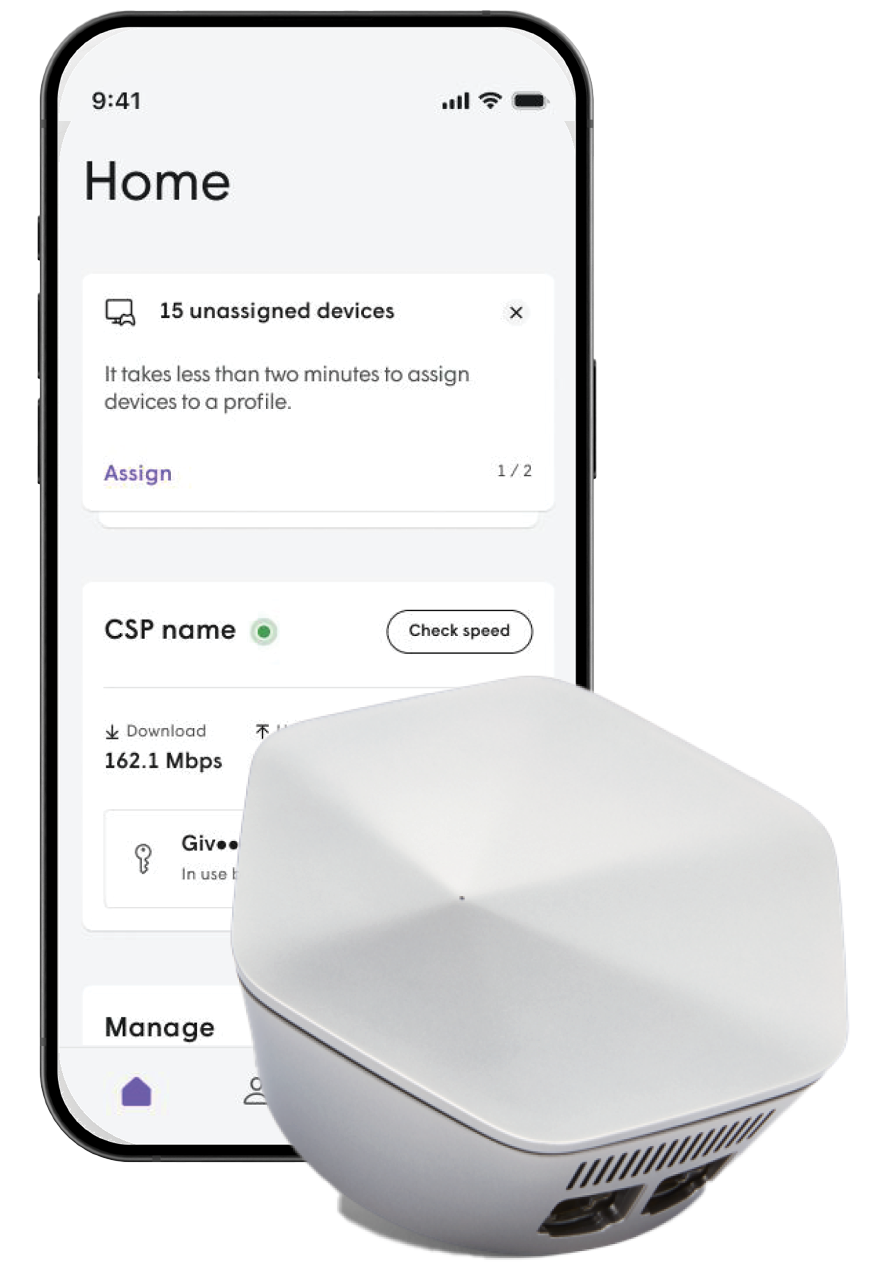
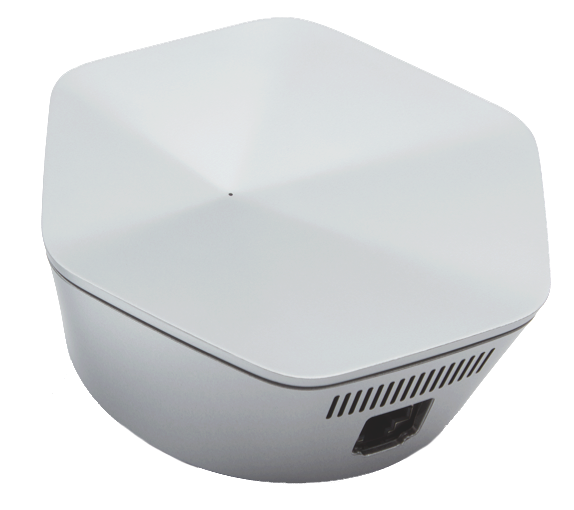
A Plume Pod is a Wi-Fi mesh device that helps extend and improve your home internet. Instead of relying on just one router, you place Plume Pods around your home. They talk to each other to make your Wi-Fi stronger in every room. This is especially useful in larger homes or places with thick walls.
Plume Pods are small, modern-looking, and easy to set up. They work with the Plume app, letting you control your home Wi-Fi, see which devices are connected, and even set schedules or parental controls. They’re popular for their reliability and smart features.
Understanding Plume Pod Light Colors
To help users, Plume Pods use different colored lights to show their status. Here’s a quick look at what the main colors mean:
| Light Color | Status | Meaning |
|---|---|---|
| Solid White | Normal Operation | Pod is working and connected |
| Blinking Blue | Setup or Error | Pod is ready to set up or lost connection |
| Solid Red | Serious Problem | Pod cannot connect to network |
| No Light | Powered Off or Hidden | Pod is off or LED is disabled |
The blinking blue light is the one that causes the most questions. Let’s dig deeper into what it means.
What Does Plume Pod Blinking Blue Mean?
When you see your Plume Pod blinking blue, it’s trying to tell you something important about its status. In most cases, the blue blinking means one of two things:
- Ready for Setup: If you just plugged in your Plume Pod, the blue blinking light means it’s waiting to be set up. It’s not yet connected to your network.
- Lost Connection: If your Pod was working before but starts blinking blue, it has lost its connection to the main network or router.
These meanings are designed to be simple. However, other issues can sometimes cause the blue blinking light, such as a network update, a power issue, or a firmware glitch.
Common Reasons For Blinking Blue
Understanding why your Plume Pod is blinking blue can save you time. Here are the most common causes:
- Pod is New or Recently Reset: New Pods or recently reset Pods always start by blinking blue.
- Wi-Fi Network Change: If you changed your Wi-Fi name or password, the Pod may lose connection and blink blue.
- Pod Out of Range: If the Pod is too far from the main router or other Pods, it can’t connect and will blink blue.
- Firmware Update: During a software update, the Pod may temporarily blink blue.
- Internet Outage: If your internet provider has an outage, Pods might lose contact and start blinking.
- Hardware Fault: Rarely, a hardware problem can cause the Pod to blink blue and not recover.
Credit: hamilton.net
How To Fix A Plume Pod Blinking Blue
If your Plume Pod is blinking blue, don’t panic. Most fixes are quick and easy. Follow these steps to solve the problem:
1. Check Power And Connections
First, make sure the Pod is plugged into a working power outlet. Unplug it and plug it back in. Wait a minute and see if the light changes.
2. Move The Pod Closer
If the Pod is too far from your main router or another Pod, move it closer. Wait to see if the blue light turns solid white. Pods need to be in range to connect.
3. Use The Plume App
Open the Plume app on your phone. It will guide you through setting up a new Pod or reconnecting one that’s lost. The app can also show if there’s a network problem.
4. Restart Your Network
Sometimes the problem is with your main router or modem. Try restarting all devices: unplug your modem, main router, and all Pods. Wait 30 seconds, then plug them in again, starting with the modem.
5. Check For Internet Outage
Before spending too much time, check if your internet provider is down in your area. A quick call or checking their website can save you lots of time.
6. Reset The Pod
If nothing works, you can reset the Pod. Press and hold the reset button (usually on the bottom or side) for about 10 seconds. The light will turn off and then start blinking blue again. Use the app to set it up as new.
7. Update Firmware
The Plume app often updates Pods automatically. Still, check for updates in the app settings. Outdated firmware can cause connection problems.
8. Contact Plume Support
If your Pod still blinks blue, it may be a rare hardware problem. Contact Plume support through their website or app for further help.
What Not To Do
Many users try things that don’t help—or can make things worse. Avoid these mistakes:
- Don’t move Pods too far apart. They need to be within range.
- Don’t ignore a blinking blue light for days. Fix it early to avoid Wi-Fi problems.
- Don’t reset Pods too often. This can make things more confusing.
- Don’t open the Pod or try to repair it yourself. This voids the warranty.
Real-world Example
Let’s say you bought a new Plume Pod and plugged it into your living room. You notice a blinking blue light. You open the Plume app, which tells you the Pod is ready for setup. After following the instructions, your Pod joins the network, and the light turns solid white.
Now, imagine a few weeks later, your internet goes out. Suddenly, one Pod starts blinking blue. You check your main modem and discover it needs a restart. After resetting your modem, the blue light stops blinking.
These are common scenarios for Plume users, and the solutions are simple once you know what to look for.
Advanced Troubleshooting
Sometimes, the basic steps don’t solve the blinking blue problem. Here are a few advanced tips:
Check For Interference
Devices like microwaves, cordless phones, and thick concrete walls can block Wi-Fi signals. If your Pod is near these, move it to a better spot.
Use A Wired Connection
Some Plume Pods support Ethernet cables. Plug the Pod directly into your router to see if the blinking blue stops. If it does, you know the problem was wireless range.
Compare Pod Placement
Here’s a simple way to see if Pod placement is the issue:
| Pod Location | Signal Strength | Blinking Blue? |
|---|---|---|
| Next to Main Router | Strong | No |
| Two Rooms Away | Medium | Sometimes |
| Garage (Far Away) | Weak/None | Yes |
If your Pod blinks blue only when it’s far away, you’ve found the cause.
Check Device Limits
If you have many devices connected (smart TVs, laptops, phones), your network can become crowded. Plume Pods handle many devices well, but every network has limits. Disconnect unused devices if you notice slowdowns or connection drops.
When Should You Replace Your Plume Pod?
Most blinking blue problems are easy to fix. However, there are times when a replacement may be needed:
- The Pod blinks blue even when next to the main router and after reset.
- The Pod gets very hot.
- The light never changes, even after following all troubleshooting steps.
- The Pod is old and unsupported (check Plume’s website for hardware support dates).
If you’re facing these issues, contact Plume support for a replacement or upgrade.
Plume Pod Vs. Other Mesh Systems: Blinking Light Codes
If you’re curious how Plume compares to other mesh Wi-Fi systems, here’s a quick look at how different brands use light codes for similar issues:
| Brand | Light Code for Setup/Error | What It Means |
|---|---|---|
| Plume Pod | Blinking Blue | Setup needed or lost connection |
| Google Nest Wi-Fi | Pulsing Blue | Ready to set up |
| Amazon Eero | Blinking White | Starting up or error |
| TP-Link Deco | Pulsing Blue | Ready for setup |
As you can see, many brands use blue or white blinking lights for setup or error states. Always check your device’s manual for the exact meaning.

Credit: support.plume.com
Two Insights Most Beginners Miss
- Pod Placement Matters More Than You Think: Many users put Pods wherever there is a free socket. In reality, placement is key. For best results, place Pods halfway between the main router and the area with weak signal. Avoid corners, thick walls, or placing Pods inside cabinets.
- Firmware Updates Are Critical: Plume Pods update automatically, but sometimes an update can get stuck if the Pod loses connection. Always check the app for updates if you notice connection problems. Outdated firmware can cause blinking blue issues that are hard to diagnose.
Keeping Your Plume System Healthy
To avoid future problems, follow these maintenance tips:
- Keep Pods in open spaces, not hidden behind furniture.
- Restart your network once a month for best performance.
- Use the app to check for updates and manage devices.
- Don’t overload your Wi-Fi network with too many smart devices.
If you travel or unplug Pods often, remember to let each Pod finish booting up before moving to the next one. This avoids confusion and blinking blue errors.
When To Ask For Help
If you’ve tried all the steps above and your Pod is still blinking blue, don’t wait too long before contacting support. Hardware problems are rare, but they do happen. The Plume support team is experienced and can help you by phone, chat, or email.
For more technical details, you can also visit the official Plume support site or check resources like Wikipedia’s Mesh Networking article to understand how mesh Wi-Fi systems operate.
Frequently Asked Questions
Why Is My Plume Pod Blinking Blue After Setup?
A blue blinking light right after setup usually means the Pod is still trying to connect to your main network. Double-check your Wi-Fi settings in the Plume app and make sure the Pod is close enough to another connected Pod or the main router.
Will A Blinking Blue Pod Affect My Wi-fi Speed?
Yes, a Pod that is blinking blue is not fully connected and cannot boost your Wi-Fi signal. Rooms that rely on that Pod will have weaker or no internet until the problem is fixed.
How Long Should A Plume Pod Blink Blue During Setup?
Normally, a new Pod blinks blue for less than 10 minutes during setup. If it blinks blue for more than 15 minutes, something is wrong. Check your connections, restart your devices, and use the Plume app to troubleshoot.
Can I Turn Off The Lights On My Plume Pod?
Yes, you can control the LED light using the Plume app. However, this only hides the light; it does not fix connection issues. If your Pod is blinking blue, it’s best to solve the problem before turning off the LED.
Do I Need To Replace My Plume Pod If It Keeps Blinking Blue?
Not always. Most blinking blue problems are caused by setup, range, or network issues. Try all troubleshooting steps first. If the Pod stays blinking blue even after reset, or gets hot, you may need a replacement.
A blinking blue light on your Plume Pod is not a disaster. Most of the time, it’s a simple fix—move the Pod, restart your devices, or use the app for help. By understanding what the light means and how to respond, you can keep your home Wi-Fi fast and reliable.
Remember, smart troubleshooting saves time and keeps your network running smoothly.
Credit: gearheart.com