
If you use Ooma for your home phone service, you may have seen a blinking red light on your device. This warning can be confusing and stressful, especially if you rely on your Ooma system for important calls. The blinking red light is a signal that something is not working right. It can mean problems with internet, hardware, or system setup. Understanding why your Ooma is blinking red—and how to fix it—can save time and frustration. In this article, you’ll learn what causes the red blinking, how to solve it, and tips to avoid future trouble.
What Does The Ooma Blinking Red Light Mean?
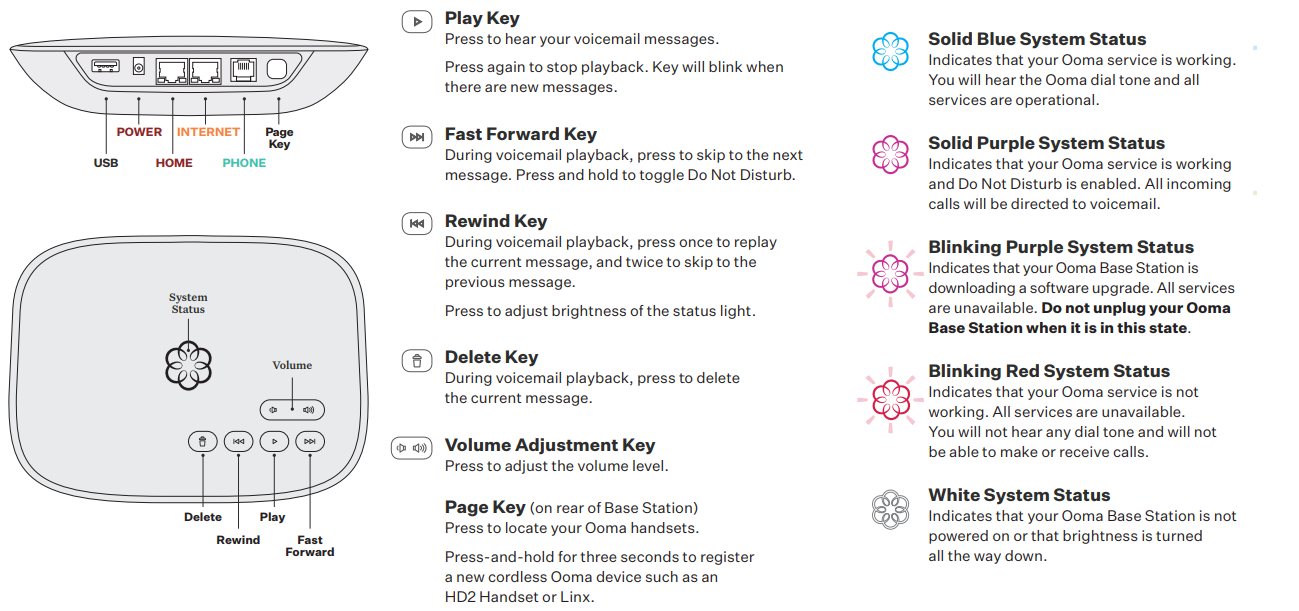
The Ooma Telo and other Ooma devices use lights to show their status. The blinking red light is the most common warning. It usually means the device can’t connect to Ooma’s servers or your internet.
Here’s what the blinking red light can mean:
- No internet connection
- Ooma servers are unreachable
- Device failed to boot up properly
- Firmware update failed
- Hardware error (rare)
If your Ooma Telo is blinking red, it cannot make or receive calls until the issue is fixed.
Common Causes Of Ooma Blinking Red
To solve the issue, you first need to know what’s causing it. These are the most frequent reasons:
- Internet outage: If your home network loses internet, Ooma can’t connect.
- Loose cables: Ethernet or power cables may be unplugged or not fully inserted.
- Router settings: Firewall or security settings can block Ooma’s access.
- Firmware problems: Failed updates may leave Ooma stuck in red blinking mode.
- Account issues: Ooma may block access if your account is not activated or has billing problems.
Let’s look at each cause in more detail.
Internet And Network Issues
Most blinking red problems come from lost internet connection. If your Wi-Fi or wired network is down, Ooma cannot reach its servers. Sometimes, your internet may be slow or unstable, causing Ooma to disconnect.
Hardware And Cable Problems
A loose power cable, broken ethernet wire, or defective device can prevent Ooma from starting up. Hardware errors are less common but can lead to red blinking if the device can’t boot.
Firmware And Updates
Ooma devices update their software automatically. If an update fails—maybe during a power outage—the device can get stuck blinking red. Sometimes, manual reset or update is needed.
Account And Activation Errors
If you have not activated your Ooma device, or your account has a payment problem, Ooma may block service. Red blinking can signal that you need to log in to your Ooma account and check status.
Step-by-step Troubleshooting For Ooma Blinking Red
Fixing Ooma’s blinking red light is usually simple. Follow these steps to solve the problem:
- Check Internet Connection
- Make sure your home internet is working. Try browsing on your phone or computer.
- Restart your modem and router.
- Inspect Cables
- Unplug and re-plug the power cable and ethernet cable.
- Check for damage or loose connections.
- Restart Ooma Device
- Unplug Ooma’s power cable.
- Wait 30 seconds.
- Plug it back in and watch the lights.
- Check Router Settings
- Make sure Ooma is allowed through your firewall.
- Disable parental controls or security features that block Ooma.
- Login to Ooma Account
- Go to your Ooma account online.
- Check for activation status and billing issues.
- Update Firmware
- If possible, force a firmware update or reset.
- Instructions can be found in the Ooma support site.
- Contact Support
- If none of these steps work, contact Ooma customer support for help.
Example: Real-life Troubleshooting
Sarah’s Ooma Telo started blinking red after a storm. Her Wi-Fi was working, but Ooma would not connect. She restarted her router and Ooma device, checked her account online, and found her payment had failed. After updating her payment info, Ooma reset and the red light stopped.
How Ooma Status Lights Work
Ooma uses colored lights to show device health. Understanding the lights helps you diagnose problems faster.
Here’s a quick overview:
| Light Color | Status | Meaning |
|---|---|---|
| Solid Blue | Normal | Device is online and working |
| Blinking Red | Error | Device cannot connect or has a problem |
| Solid Red | Critical | Device is starting up or failed |
| Blinking Blue | Update | Device is updating firmware |
| No Light | Off | Device is powered off |
The blinking red light stands out—it signals a problem that needs your attention.
Comparing Ooma Blinking Red To Other Voip Devices
Many VoIP devices use status lights. How does Ooma’s blinking red compare?
| Device | Status Light | Problem Signal |
|---|---|---|
| Ooma Telo | Blinking Red | Internet or hardware issue |
| Vonage Box | Blinking Orange | Connection error |
| Obihai VoIP | Blinking Green/Red | Firmware or network issue |
| MagicJack | No Light/Blinking | Device not detected |
Ooma’s blinking red is similar to other devices—usually a sign to check your network or cables.
Advanced Fixes For Ooma Blinking Red
If basic troubleshooting doesn’t work, try these advanced methods:
Static Ip Setup
Some routers have trouble with Ooma’s automatic network settings. Manually setting a static IP address for Ooma can fix some red blinking issues.
- Go to your router’s admin page.
- Reserve an IP address for Ooma’s MAC address.
- Restart Ooma device.
Port Forwarding
Ooma needs certain ports open to connect to its servers. If your router blocks these, Ooma will blink red.
- Open UDP ports 53, 123, 1194, 3386, 59000–59999.
- Check Ooma’s support site for port instructions.
Factory Reset
If all else fails, a factory reset can solve deep errors:
- Unplug Ooma.
- Hold down the “reset” button (often found under the device).
- Plug in power while holding the button for 10 seconds.
- Release and wait for restart.
Factory reset erases settings—use only as a last resort.

Credit: www.youtube.com
Data And Statistics: How Common Is Ooma Blinking Red?
Ooma reports that over 80% of blinking red cases are due to simple internet or cable issues. Less than 10% are caused by hardware failure. The remaining cases are mostly account or setup errors.
User forums and reviews show that most blinking red problems are fixed in under 10 minutes with basic troubleshooting. However, rare cases may need device replacement.
| Cause | Percentage | Average Fix Time |
|---|---|---|
| Internet/Cable | 80% | 5-10 min |
| Account/Activation | 10% | 10-20 min |
| Firmware/Reset | 8% | 15-30 min |
| Hardware Failure | 2% | Device replacement needed |
Common Mistakes When Fixing Ooma Blinking Red
Even experienced users make mistakes when fixing Ooma:
- Ignoring cables: Not checking all connections is a frequent error.
- Restarting only Ooma: Failing to restart the router as well.
- Skipping account check: Not logging into Ooma to check activation or billing.
- Missing firmware update: Not updating Ooma’s software.
- Resetting too soon: Factory reset before simple fixes can cause more problems.
Always start with basic steps before advanced fixes.
Tips To Prevent Ooma Blinking Red
Avoiding trouble is easier than fixing it. Here are practical tips:
- Use a surge protector for Ooma and router.
- Update Ooma firmware regularly.
- Keep cables organized and check for damage.
- Set up automatic payments for your Ooma account.
- Check router settings after changing providers or hardware.
Preventing blinking red saves time and keeps your phone service reliable.
When To Replace Your Ooma Device
Ooma devices last for years, but sometimes a blinking red light means hardware is failing. If your device is over 5 years old, or if resets and updates don’t work, it may be time to upgrade.
Newer Ooma models offer better reliability, faster startup, and improved features. Upgrading can solve stubborn blinking red issues and improve your phone quality.
Credit: support.ooma.com
External Help And Resources
If you need extra guidance, Ooma’s official support site offers step-by-step help, videos, and contact info. For detailed troubleshooting and advanced fixes, visit the Ooma Support Center.
Frequently Asked Questions
What Does The Blinking Red Light On Ooma Telo Mean?
The blinking red light shows Ooma cannot connect to the internet or its servers. It may also signal a hardware or software error. Fixing this is needed before you can use your phone.
Can I Use Ooma If The Red Light Is Blinking?
No, a blinking red light means Ooma is offline and cannot make or receive calls. You must fix the problem to restore service.
How Do I Reset My Ooma Telo?
To reset, unplug the power cable, wait 30 seconds, then plug it back in. If the red light stays, try holding the reset button while plugging in power for a factory reset.
What Should I Do If Ooma Keeps Blinking Red Even After Troubleshooting?
If basic steps don’t work, check your Ooma account online for activation and billing issues. Try advanced fixes like static IP setup or port forwarding. Contact Ooma support if needed.
Is The Blinking Red Light A Sign Of Device Failure?
Usually not. Most blinking red problems are network or setup issues. Rarely, it may signal hardware failure, especially in old devices. If all fixes fail, consider replacing your Ooma.
Your Ooma system is a reliable way to stay connected, but the blinking red light can be a hassle. By understanding what causes it, checking cables and internet, and following clear troubleshooting steps, you can fix most problems quickly. Preventing future issues is simple: keep your device updated and cables secure. If you run into stubborn trouble, Ooma support and community forums are ready to help. With the right approach, your blinking red light will soon be a thing of the past—and your phone service will stay strong.

Credit: www.youtube.com