
When you see the green light blinking on your Blink Sync Module, you might feel a bit worried. Is your home security system failing? Is something wrong with the connection? These questions are common, especially if you rely on Blink cameras to keep your property safe. This article will guide you through what the blinking green light means, why it happens, and—most importantly—how to fix it. You’ll learn not only the basics but also practical advice and deeper insights that are often missed by beginners. Whether you’re a homeowner, renter, or tech enthusiast, you’ll find clear explanations and simple solutions.
What Is The Blink Sync Module?
The Blink Sync Module is a small device that connects your Blink cameras to the internet. It acts as a hub, allowing you to view camera feeds, receive alerts, and control settings from your smartphone. Without the Sync Module, your Blink cameras won’t be able to communicate with the Blink app or send footage to the cloud.
Most Blink systems use either Sync Module 1 or Sync Module 2. Both models work similarly but Sync Module 2 has more features like local storage with USB. The Sync Module is essential for your security cameras to work reliably.
Decoding The Green Light: What Does It Mean?
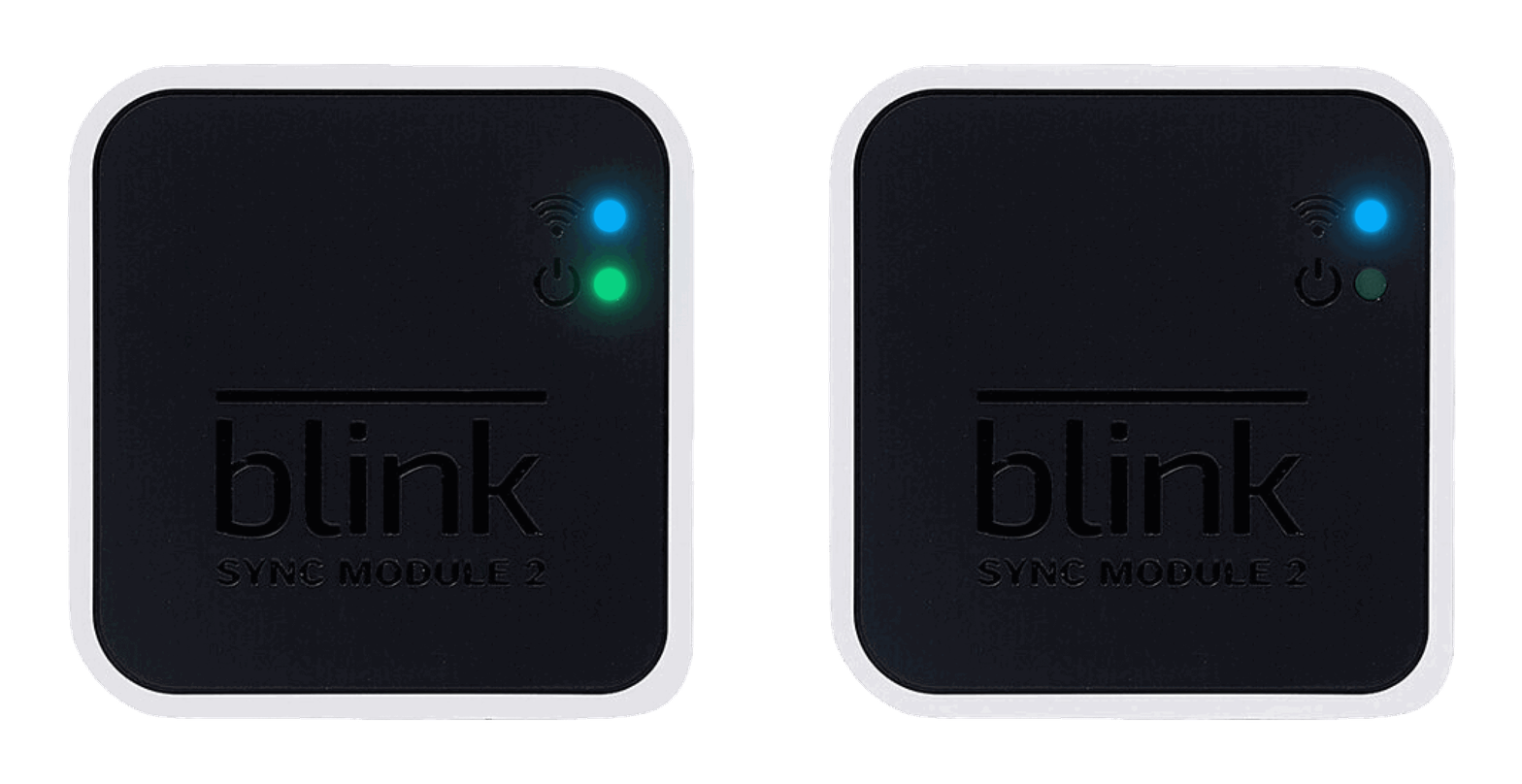
A green light on the Blink Sync Module is normal—but blinking can signal different issues. Here’s what the light patterns mean:
- Solid green light: The module is connected and working.
- Blinking green light: There’s a problem with the network connection or the module is trying to connect.
- No green light: The device is off or not powered.
Most of the time, the blinking green light means your Sync Module is not connected to Wi-Fi or has lost its connection. Sometimes, it can also mean the module is updating or restarting. Understanding these patterns helps you troubleshoot quickly.

Credit: www.youtube.com
Common Causes Of The Blinking Green Light
Several things can trigger the blinking green light. Here are the most frequent causes:
- Wi-Fi issues: If your Wi-Fi is down or unstable, the Sync Module struggles to connect.
- Power interruptions: Losing power or unplugging the module can cause blinking while it restarts.
- Firmware updates: When the module updates, you may see the green light blink briefly.
- Router changes: If you change your Wi-Fi router or password, the Sync Module loses connection.
- Interference: Physical barriers or other devices can interfere with the signal.
- Account issues: Sometimes, problems with your Blink account or app can disrupt the module.
These problems are not always obvious. For example, even if your internet is working on your phone, the Sync Module may still struggle due to interference or outdated firmware.
How To Fix A Blinking Green Light
Now, let’s look at practical steps to solve the blinking green light issue. Most solutions are simple and require little technical skill.
1. Check Your Wi-fi Connection
First, confirm that your internet is working. Try connecting another device to Wi-Fi. If it works, move to the next step. If not, reboot your router or contact your internet provider.
2. Restart The Blink Sync Module
Unplug the Sync Module from power. Wait 10 seconds, then plug it back in. This simple restart often solves temporary glitches.
3. Move The Sync Module Closer To Your Router
If the module is far from your router, the signal may be weak. Try placing the Sync Module in the same room as your router, then check the light.
4. Reconnect To Wi-fi
Open the Blink app and go to Sync Module settings. Select “Change Wi-Fi” and follow instructions to reconnect. Make sure you use the correct Wi-Fi password and network.
5. Update Firmware
The Blink app will usually update firmware automatically. If you suspect an update failed, restart the module and check for updates in the app.
6. Remove Interference
Microwaves, cordless phones, or thick walls can block signals. Keep the module away from these and place it in an open area.
7. Factory Reset
If nothing works, try a factory reset. Press and hold the reset button (usually found on the back) for 5–10 seconds. Then set up the module again using the Blink app.
8. Check For Account Issues
Log out and back into the Blink app. Make sure your email and password are correct. If needed, contact Blink support for help.
Comparing Blink Sync Module Models
Many users wonder if upgrading their Sync Module will solve blinking light issues. Here’s a quick comparison of the two main models:
| Feature | Sync Module 1 | Sync Module 2 |
|---|---|---|
| Local Storage | No | Yes (USB) |
| Camera Support | Up to 10 | Up to 10 |
| Wi-Fi Connectivity | 2.4 GHz only | 2.4 GHz only |
| Firmware Updates | Automatic | Automatic |
| Physical Size | Small | Small |
Upgrading to Sync Module 2 gives you local storage, but does not directly solve connection problems. The blinking green light is often related to network issues, not hardware.
Wi-fi Troubleshooting Tips For Blink Sync Module
Wi-Fi is the most common cause of the blinking green light. Here are advanced tips to strengthen your connection:
- Place your router in a central spot, away from walls and metal.
- Avoid sharing Wi-Fi bandwidth with too many devices.
- Use a unique Wi-Fi SSID (network name) to prevent confusion.
- Check if your router uses 2.4 GHz—Blink Sync Modules cannot connect to 5 GHz.
- Update your router firmware for better compatibility.
- Set up a guest network if your main network is crowded.
Many beginners overlook the importance of the 2.4 GHz band. Even if your router supports both bands, make sure your Sync Module connects to 2.4 GHz. Another missed insight: Wi-Fi names with special characters can cause connection issues. Use simple names and passwords.
Example: Real-life Troubleshooting Scenario
Let’s say your Sync Module has a blinking green light after a power outage. Here’s how you might fix it:
- Check if your router is back online.
- Restart the Sync Module by unplugging it.
- Open the Blink app and look for connection status.
- If it still blinks, reconnect the module to Wi-Fi.
- Move the module closer to the router.
- If needed, factory reset and set up again.
This step-by-step approach solves most problems. Many users skip the “move closer” step, not realizing physical placement matters.
Comparing Blink Sync Module Connection Issues With Other Devices
It helps to understand how Blink Sync Module compares to other smart home hubs. Here’s a look at some common hubs:
| Device | Common Light Signals | Connection Issues | Reset Options |
|---|---|---|---|
| Blink Sync Module | Blinking green | Wi-Fi dropout, interference | Restart, factory reset |
| Amazon Echo | Blinking orange | Setup, Wi-Fi lost | Restart, reset |
| Google Nest Hub | Blinking white | Network error | Restart, reset |
| Ring Bridge | Blinking blue | Wi-Fi dropout | Restart, reset |
Most smart hubs use blinking lights to signal issues. The fixes—restart, reset, move closer—are similar for all.
How To Prevent Future Blink Sync Module Issues
Prevention is better than cure. Here’s how to stop the blinking green light from happening again:
- Keep your Sync Module and router plugged into surge protectors.
- Regularly update the Blink app and Sync Module firmware.
- Use strong, simple Wi-Fi passwords.
- Place the Sync Module in an open, central location.
- Avoid moving your router or changing Wi-Fi settings too often.
- Periodically check your network speed (minimum 2 Mbps upload for Blink).
- Set up local storage (Sync Module 2) as a backup.
Most users forget to check upload speeds. Blink cameras need at least 2 Mbps upload to work well. Slow speeds cause dropouts and blinking lights.
When To Contact Blink Support
If you’ve tried everything and the green light keeps blinking, it’s time to reach out for help. Contact Blink support if:
- The Sync Module does not connect after multiple resets.
- You see error messages in the Blink app.
- Your cameras stop working or lose connection.
- Firmware updates fail repeatedly.
- The module is physically damaged.
Have your device serial number, app info, and network details ready. This helps support diagnose problems faster. For official troubleshooting guides, visit Blink Support.
Advanced Troubleshooting Steps
Sometimes, basic fixes don’t work. Here are advanced steps:
- Change your router’s Wi-Fi channel to reduce interference.
- Use a Wi-Fi extender if your signal is weak.
- Check for MAC address filtering—some routers block unknown devices.
- Disconnect and reconnect all Blink cameras after fixing the Sync Module.
- Try setting up the Sync Module on a different Wi-Fi network.
A non-obvious tip: If you use a mesh Wi-Fi system, place the Sync Module near the main router—not a satellite node—for the best signal. Mesh systems can confuse devices if the module moves between nodes.
Sync Module Firmware And Updates
Firmware keeps your Sync Module running smoothly. Updates happen automatically, but can sometimes cause blinking during installation. Here’s what you should know:
- Updates usually take 1–2 minutes.
- The green light may blink during updates.
- Don’t unplug the module during a firmware update.
If you see blinking for more than 10 minutes, restart the module. If the problem continues, contact support. Up-to-date firmware also improves security and reliability.

Credit: www.youtube.com
Data And Statistics: Blink Sync Module Performance
Blink is popular for smart home security. According to Statista, Blink cameras are among the top-selling smart cameras in the US, with over 2 million units shipped yearly. Most users report reliable performance but network issues affect about 15% of users at least once a year.
- Average setup time: 5–10 minutes
- Typical Wi-Fi dropout frequency: Once every 2–3 months
- User satisfaction rating: 4.3/5 (across major retailers)
- Support request rate: 10% of users per year
These numbers show that the blinking green light is not rare, but most users solve it easily.
Blink App Features Related To Sync Module
The Blink app helps you manage the Sync Module. Key features include:
- Device status: Shows if the module is online or offline.
- Wi-Fi settings: Lets you change or reconnect Wi-Fi.
- Firmware updates: Notifies you of updates.
- Reset options: Guides you through factory reset.
- Camera management: Lets you add, remove, or sync cameras.
Many people miss the “Change Wi-Fi” option in the app. It’s the easiest way to reconnect after a router change.
Credit: support.blinkforhome.com
Security And Privacy Considerations
The Sync Module is secure, but network issues can expose vulnerabilities. Always use secure Wi-Fi passwords and update firmware. For extra privacy, use Sync Module 2 with local USB storage—your videos stay offline.
Blink uses encryption for communication, protecting your data from hackers. Still, weak passwords and outdated firmware can put your system at risk. Stay alert and update regularly.
Real-world Example: Homeowner Experience
Sarah, a homeowner in Texas, noticed her Blink Sync Module blinking green after switching internet providers. She tried restarting, but the light kept blinking. Eventually, she realized her new router used a complicated Wi-Fi name with special characters. After changing the name to simple letters and numbers, the module connected instantly.
This example shows how small details—like Wi-Fi names—can make a big difference. Many users overlook these factors.
Frequently Asked Questions
What Does A Blinking Green Light On The Blink Sync Module Mean?
A blinking green light usually means the Sync Module is trying to connect to Wi-Fi or has lost connection. It can also signal a firmware update or restart. Check your network, restart the module, or reconnect in the Blink app to solve the issue.
How Do I Reconnect My Blink Sync Module To Wi-fi?
Open the Blink app, go to Sync Module settings, and select “Change Wi-Fi. ” Follow the instructions to enter your new network name and password. Make sure you use the 2. 4 GHz band and a simple network name.
Is The Blinking Green Light A Sign Of Hardware Failure?
Not usually. Most blinking green light issues are caused by network problems or power interruptions. Hardware failure is rare. If the module does not respond after resets, contact Blink support.
Can I Use A Wi-fi Extender With The Blink Sync Module?
Yes, a Wi-Fi extender can help if your module is far from the router. Connect the Sync Module to the extender’s 2.4 GHz signal. Make sure the extender is reliable and close enough to both the router and module.
How Long Should The Green Light Blink During Firmware Updates?
Firmware updates normally take 1–2 minutes. The green light may blink during this time. If it blinks for more than 10 minutes, restart the module. If the problem continues, contact Blink support or check for app notifications.
Conclusion
Blink Sync Module problems can seem complicated, but most are easy to fix. If you follow the steps above, you can get your Blink system back online quickly. Remember: Wi-Fi quality and physical placement are key. Checking these details often solves blinking green light issues faster than expected. With the right approach, your Blink cameras will keep your home secure, day and night.