
When your Rain Bird sprinkler controller’s WiFi light starts blinking red and green, it’s easy to feel frustrated or confused. This blinking pattern isn’t just random—it’s your device’s way of telling you there’s a problem with the WiFi connection or a setup issue. For many homeowners and gardeners, a working Rain Bird system is essential for keeping lawns and gardens healthy. Downtime or connection issues can mean missed watering schedules, wasted water, or brown patches in your yard. Understanding what the blinking lights mean, why they happen, and how to fix them can save you time and stress.
This guide will help you quickly diagnose the causes behind the blinking red and green light, walk you through step-by-step fixes, and share tips to keep your Rain Bird controller reliably connected. Even if you’re new to WiFi sprinkler systems, you’ll find clear explanations and practical advice here.
What The Blinking Red And Green Light Means
Rain Bird controllers use a simple color code for their WiFi module lights. When you see the WiFi light blinking red and green, it’s a clear sign something is wrong with the connection.
- Solid green: Connected to WiFi and Rain Bird app.
- Blinking green: Trying to connect to WiFi.
- Blinking red: WiFi module error, not connected.
- Blinking red and green: WiFi setup failed or WiFi module cannot connect.
Blinking red and green is the most common signal of a failed setup or lost WiFi connection. This can happen during initial installation, after a power outage, or if your home network changes.
Why Is This Light Pattern Important?
The blinking lights are a built-in troubleshooting tool. They’re designed to help you figure out what the controller needs, even before you open the app or check a manual. Ignoring these signals can lead to missed watering schedules and loss of smart features.
Common Reasons For Rain Bird Wifi Blinking Red And Green
Several factors can cause your Rain Bird controller to blink red and green. Here are the most frequent reasons:
- Incorrect WiFi Password: The controller cannot join your network if the password is wrong.
- Weak WiFi Signal: The device is too far from your router or there’s interference.
- Unsupported WiFi Network: Rain Bird usually works only with 2.4GHz networks, not 5GHz.
- Network Name (SSID) Issues: Special characters or spaces in your network name can cause problems.
- Router Settings: Some advanced settings like MAC filtering or firewalls can block the controller.
- Firmware Out-of-Date: Old firmware may not support newer routers or security protocols.
- Power Interruptions: A recent power outage might have disrupted the connection.
- Multiple Devices Interference: Too many smart devices can crowd your WiFi, making it harder for the controller to connect.
How To Fix Rain Bird Wifi Blinking Red And Green
You can solve most Rain Bird WiFi problems with a few simple steps. Here’s a troubleshooting flow, from the easiest fixes to more advanced options.
1. Power Cycle Your Controller
Turn the controller off, wait 30 seconds, and turn it back on. This simple reset often clears temporary glitches.
2. Check Wifi Network Settings
- Make sure your router is broadcasting a 2.4GHz signal. Many newer routers use both 2.4GHz and 5GHz. Rain Bird only connects to 2.4GHz.
- If your network uses both, try temporarily disabling 5GHz during setup.
- Avoid using network names (SSIDs) with spaces or special characters like #, %, or $.
3. Re-enter Wifi Credentials
If you changed your WiFi password or router, the controller needs the updated information.
- Open the Rain Bird app.
- Go to WiFi settings.
- Follow the prompts to re-enter your network name and password.
4. Move The Controller Closer To The Router
If possible, move your Rain Bird controller closer to your WiFi router for setup. Walls, microwaves, and other electronics can block the signal.
5. Check For Firmware Updates
Outdated firmware can cause connection issues. Update your controller’s firmware through the Rain Bird app if an update is available.
6. Restart Your Router
Unplug your router for 30 seconds, then plug it back in. Wait for it to fully restart before trying to reconnect the controller.
7. Reset The Wifi Module
If nothing works, try resetting the WiFi module:
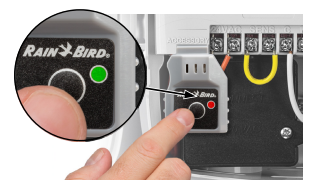
- Press and hold the WiFi button on your controller until the light turns solid red.
- Release the button. Wait for the light to start blinking again.
- Go through the setup process in the Rain Bird app.
8. Check For Interference
Too many connected devices or heavy WiFi traffic can interfere with your controller. Disconnect unused smart home devices during setup.
9. Review Router Security Settings
Advanced security settings like MAC address filtering or strict firewalls can block your Rain Bird controller. Check your router’s admin page and add the controller’s MAC address to the allowed list if needed.
10. Contact Rain Bird Support
If you’ve tried everything and the light still blinks red and green, it may be a hardware problem. Contact Rain Bird customer support for advanced help.
Key Troubleshooting Steps At A Glance
Here’s a summary table to compare steps, difficulty, and time required:
| Step | Difficulty | Time Needed | Success Rate |
|---|---|---|---|
| Power Cycle Controller | Easy | 2 min | High |
| Check WiFi Network | Easy | 5 min | High |
| Re-enter Credentials | Easy | 5 min | High |
| Firmware Update | Medium | 10 min | Medium |
| Reset WiFi Module | Medium | 10 min | Medium |
| Contact Support | Hard | Varies | High |
Rain Bird Wifi Controller Compatibility And Limitations
Not every Rain Bird controller supports WiFi. Only models with built-in WiFi or a WiFi-ready module can connect. Here are some common models and their WiFi features:
| Model | WiFi Ready | Notes |
|---|---|---|
| ESP-TM2 | Yes (with LNK WiFi module) | Needs module for WiFi |
| ESP-Me | Yes (with LNK WiFi module) | Needs module for WiFi |
| ST8-2.0 | Yes (built-in) | WiFi included |
| Older ESP models | No | Not compatible with WiFi |
If your controller is not listed above, check the manual or the Rain Bird website for compatibility.
Advanced Tips For Reliable Wifi Connection
Some users experience the blinking red and green light even after following the standard troubleshooting steps. Here are a few advanced strategies to improve your setup:
Use A Dedicated 2.4ghz Network
Many modern routers combine 2.4GHz and 5GHz into a single network name. This can confuse some smart devices. If possible, create a separate 2.4GHz network for your Rain Bird controller. This step is often found in the router’s admin settings.
Avoid Wifi Range Extenders During Setup
WiFi extenders can cause connection confusion, especially during setup. If your controller is connected through an extender, try moving it within direct range of the main router first. Once setup is complete, you can move it back if needed.
Reserve An Ip Address
Assign a static IP address to your Rain Bird controller through your router’s settings. This prevents IP conflicts that sometimes cause connection drops.
Update Your App
Always keep the Rain Bird app on your phone or tablet up to date. Older versions may not support the latest security or features.
Monitor Network Traffic
If your home has many smart devices, try disconnecting a few during troubleshooting. This can reduce network congestion and make it easier for the controller to connect.

Credit: www.youtube.com
Real-life Examples
- A homeowner found the light blinking red and green after installing a new router. They discovered their new network was set to 5GHz only. Switching the router to broadcast both 2.4GHz and 5GHz solved the issue.
- Another user experienced issues after a power outage. Power cycling both the controller and router restored the connection within minutes.
- One gardener struggled with setup until they realized their WiFi password had a special character (#), which the controller did not accept. Changing the password to only letters and numbers fixed the problem.
How To Prevent Future Wifi Issues
Once your Rain Bird controller is working, you can take steps to avoid future problems:
- Keep your router firmware updated. Security updates improve smart device compatibility.
- Use simple network names and passwords. Avoid special characters.
- Place your router in a central location. This gives your yard and controller the best signal.
- Limit the number of connected devices if your router is older or basic.
- Check your controller after power outages. A quick reset can prevent missed watering.

Credit: www.youtube.com
When To Upgrade Your Equipment
If you consistently have WiFi problems, your router may be outdated. Newer routers offer better coverage and support for many smart devices. Consider upgrading if your current router is more than 5 years old or only supports 2. 4GHz.
Common Mistakes To Avoid
Many users repeat the same errors when facing the blinking red and green lights:
- Ignoring the 2.4GHz WiFi requirement.
- Using complicated WiFi passwords with special symbols.
- Skipping firmware and app updates.
- Overlooking router settings like MAC filtering or guest networks.
- Relying on WiFi extenders for initial setup.
Avoiding these common mistakes can save hours of frustration.
Data: Wifi Signal Strength And Controller Performance
Rain Bird controllers work best with a WiFi signal strength of -60 dBm or better (closer to 0 is stronger). You can check your signal strength with smartphone apps or your router’s admin page.
| Signal Strength (dBm) | Connection Quality | Performance |
|---|---|---|
| -30 to -60 | Excellent | Reliable, fast updates |
| -61 to -70 | Good | Occasional delays |
| -71 to -80 | Fair | Possible drops |
| -81 or worse | Poor | Frequent drops, setup may fail |
If your signal is weak, consider moving your router, using a better antenna, or upgrading your equipment.
External Resources
For detailed technical support and the latest updates, visit the official Rain Bird Support page.
Credit: www.bigfrogsupply.com
Frequently Asked Questions
Why Does My Rain Bird Controller Only Connect To 2.4ghz Wifi?
Most smart devices, including Rain Bird controllers, use 2.4GHz because it offers better range and wall penetration than 5GHz. This makes it ideal for devices installed outside or in garages.
How Do I Know If My Rain Bird Controller’s Firmware Is Up To Date?
Check in the Rain Bird app under controller settings. If an update is available, you’ll see a prompt. Regular updates fix bugs and add support for new routers.
Will A Wifi Extender Help My Rain Bird Controller Connect?
A WiFi extender can help if the signal is weak, but it’s best to set up your controller near the main router first. Some extenders can cause issues during setup or create unstable connections.
What Should I Do If The Blinking Red And Green Light Returns After A Few Days?
Repeat the basic troubleshooting: power cycle, check WiFi, and re-enter credentials. If the problem continues, check for interference, update firmware, or assign a static IP address.
Can I Use A Mobile Hotspot For My Rain Bird Controller?
It’s possible to connect the controller to a mobile hotspot, but it’s not recommended for long-term use. Hotspot connections are less stable, and data limits may affect performance.
A blinking red and green WiFi light on your Rain Bird controller doesn’t have to be a mystery. With the right steps and a little patience, you can restore your smart irrigation features and keep your lawn looking its best.