
If your Roku device starts showing a blinking blue light, it can be confusing and a little stressful. Streaming should be simple, but unexpected lights can turn movie night into a troubleshooting session. You’re not alone—many Roku users run into this issue and wonder what that blinking light actually means. The good news: it’s often easy to fix, and understanding the cause is your first step.
This article breaks down what the Roku blinking blue light really means, why it happens, and how you can solve it without stress. Whether you’re a tech beginner or just in a hurry, you’ll find clear answers, step-by-step solutions, and practical tips to get your Roku working again.
What Does The Roku Blinking Blue Light Mean?
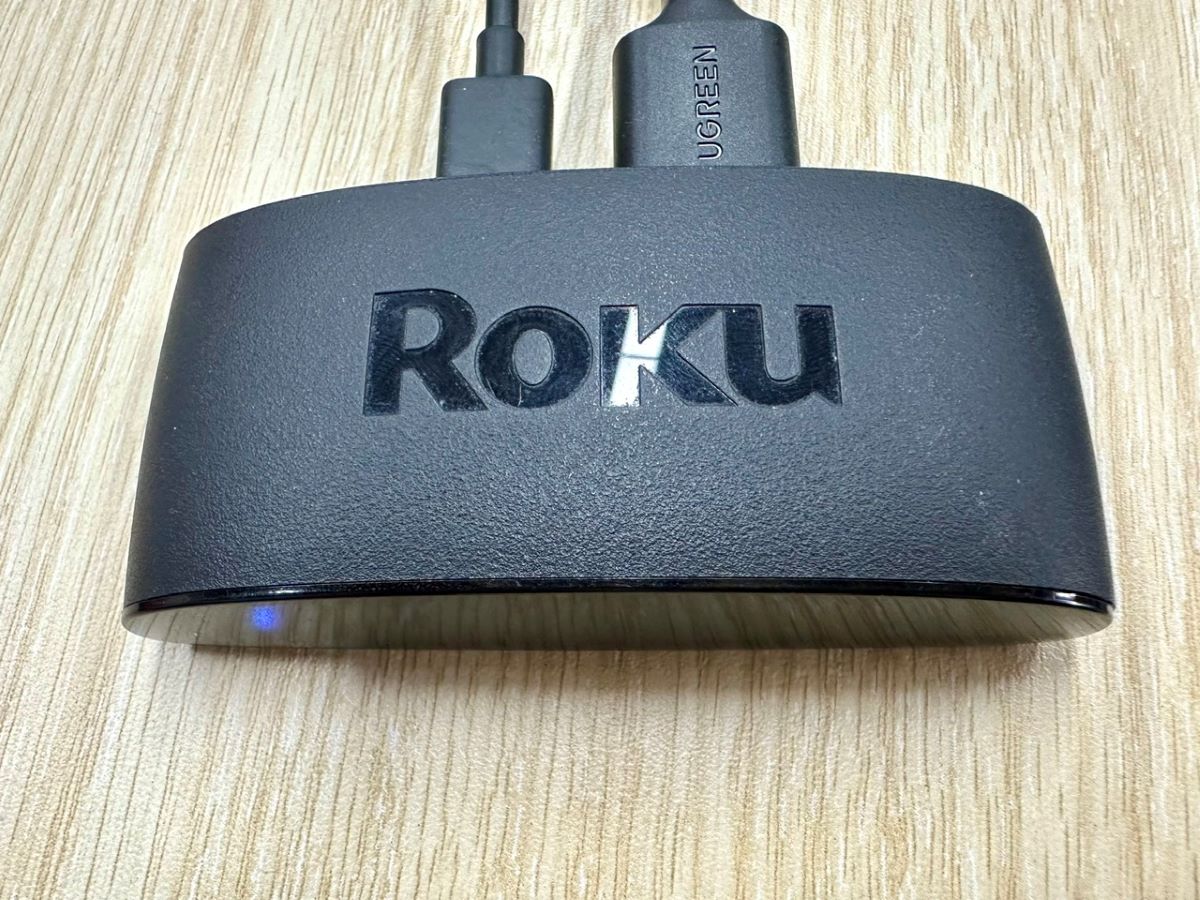
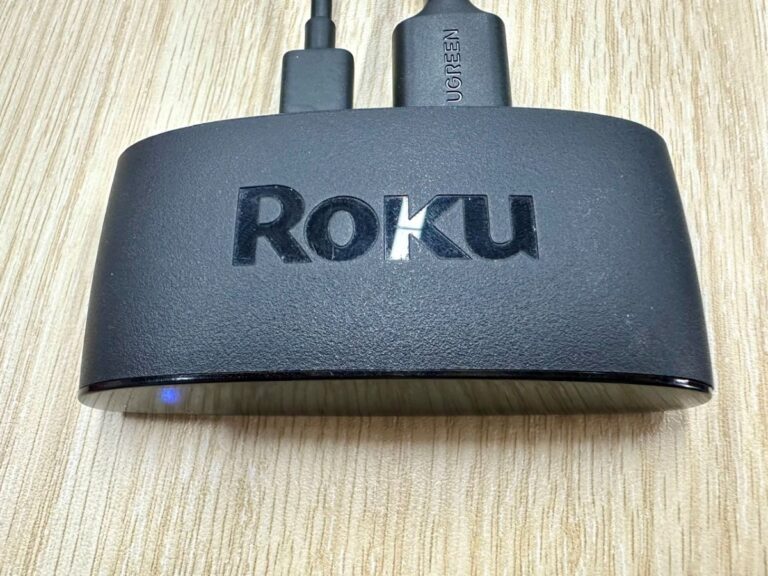
The blue blinking light on your Roku isn’t random. It’s a way for the device to tell you that something’s wrong. Most often, this light signals a connection problem—but the exact meaning can change depending on your Roku model.
Here are the most common meanings for a blinking blue light:
- Remote pairing issue: The Roku can’t find or connect to its remote.
- Network connection problem: The device is trying (and failing) to join your Wi-Fi.
- Hardware or power issue: Less common, but possible if there’s a problem with the hardware.
Not every Roku has a blue light. On some models, the light might be white or another color. Always check your model’s manual or the official Roku support page for details.
Which Roku Devices Have A Blinking Blue Light?
Not all Roku devices use a blue indicator. Here’s a quick comparison of popular Roku models and their light signals:
| Roku Model | Light Color | What It Indicates |
|---|---|---|
| Roku Streaming Stick+ | Blue | Remote or network issue |
| Roku Express/Express 4K | White | Power or network issue |
| Roku Ultra | Blue/White | Hardware or remote issue |
| Roku TV | White | Power cycle or signal problem |
If your device is flashing blue, you’re likely using a Streaming Stick+ or Ultra. For other models, a different colored light may mean the same thing.
Common Causes Of Roku Blinking Blue Light
Understanding why the blue light is blinking saves you time. Here are the main reasons:
- Remote Pairing Lost: The remote and Roku are not communicating. This often happens after a power outage, battery change, or interference.
- Wi-Fi Problems: The Roku can’t connect to your home network. This can be due to a weak signal, wrong password, or router issue.
- USB Power Issues: Insufficient power from your TV’s USB port can cause problems. Roku devices need stable power.
- HDMI Connection Faults: A loose HDMI connection can trigger blinking lights, especially if the TV isn’t recognizing the Roku.
- Firmware Glitches: Sometimes, a failed update or software bug can cause the light to blink.
Many users miss that USB power is a frequent problem. If your TV’s USB port doesn’t supply enough energy, the Roku might not start correctly—even if it looks like it’s on.
How To Fix Roku Blinking Blue Light
You don’t need to be an expert to fix most Roku issues. Follow these steps in order, and you’ll likely solve the problem.
1. Check The Power Supply
Unstable power is a common cause. Here’s what to do:
- If you’re using your TV’s USB port, try switching to the included Roku power adapter. Plug it directly into a wall outlet.
- Make sure the power cable is undamaged and fits tightly.
- If you still see the blue light, try another power outlet.
2. Re-pair The Remote
Roku remotes sometimes lose their connection. To re-pair:
- Remove the batteries from your remote.
- Unplug your Roku device from power for 10 seconds.
- Plug the Roku back in and wait until the home screen appears.
- Put the batteries back in the remote. Press and hold the pairing button inside the battery compartment for 5 seconds, or until you see the pairing light flash.
- Wait about 30 seconds for the devices to pair.
If you use a Roku mobile app, try pairing with your phone to see if the device responds.
3. Inspect The Hdmi Connection
A loose or faulty HDMI cable can cause problems:
- Unplug the HDMI cable from both the Roku and the TV.
- Check for dirt or damage, then plug it back in firmly.
- Try a different HDMI port on your TV.
If your device came with an HDMI extender, use it to improve wireless signals and reduce interference.
4. Restart Your Network
Network issues are another common cause:
- Unplug your Wi-Fi router for 30 seconds, then plug it back in.
- After the router has restarted, restart your Roku by unplugging it for 10 seconds and reconnecting.
- Wait for both devices to fully boot up.
If possible, move your Roku closer to your router to improve signal strength.
5. Update Roku Software
Outdated software can cause unexpected behaviors:
- If you can access the menu, go to Settings > System > System update and check for updates.
- If you can’t access the menu, restart the device and try again.
A little-known tip: Sometimes, a failed update can get “stuck.” Unplugging the Roku for a full minute often clears this issue.
6. Factory Reset (last Resort)
If nothing works, you might need a full reset:
- Find the reset button on your Roku (usually on the back or bottom).
- With the device powered on, press and hold the button for at least 10 seconds (some models need a paperclip).
- Release when the light blinks rapidly.
This erases all your settings, so only do this if you’ve tried everything else.
When To Seek Professional Help
Most Roku blinking blue light problems are easy to fix at home. However, contact Roku support or your device’s seller if:
- The blue light blinks even after a factory reset.
- The device gets hot or smells burnt.
- There’s visible damage to the power port or HDMI connector.
Sometimes, the hardware is faulty and needs repair or replacement.
Comparing Roku Light Patterns
Different indicator lights can mean different things. Here’s a quick reference comparing blue, white, and red lights:
| Light Color | Blinking Pattern | Possible Issue |
|---|---|---|
| Blue | Fast blink | Remote or network problem |
| White | Slow blink | Power or startup issue |
| Red | Solid or blink | Overheating or severe hardware fault |
If you see a red light, unplug your Roku immediately and let it cool down. Overheating can permanently damage your device.
Credit: pointerclicker.com
Tips To Prevent Future Blinking Blue Light Issues
Prevention is easier than fixing. Here’s how to avoid this problem next time:
- Always use the original power adapter—third-party chargers often cause trouble.
- Keep your Roku in a well-ventilated space; avoid stacking other electronics on top.
- Update your Roku regularly to avoid software glitches.
- Place your router and Roku in the same room if possible, or use a wired connection for Ultra models.
- Replace batteries in your remote as soon as it feels slow or unresponsive.
Many users forget that cheap HDMI cables can cause signal issues. Investing in a quality cable reduces the chance of blinking lights and random disconnects.
Hidden Issues Beginners Often Miss
Some Roku problems aren’t obvious, even to experienced users:
- Interference from other devices: Cordless phones, baby monitors, or even microwaves can disrupt the Roku’s wireless signal.
- Incorrect TV input: Sometimes, the Roku works fine, but the TV is set to the wrong HDMI input. Double-check your TV’s input selection.
If your Roku seems fine but you still see a blue light, try your device on a different TV. This quickly reveals if the problem is with the Roku or the television.
Credit: pointerclicker.com
When A Blinking Blue Light Is Not A Problem
In rare cases, a blinking blue light can be normal—like during the initial pairing or setup process. If the blinking happens only briefly while you set up your device, there’s usually nothing to worry about.
However, if the light keeps blinking and the device won’t work, follow the troubleshooting steps above.
Real User Experiences
Let’s look at some real-world examples:
- Anna in Dallas found her Roku Streaming Stick+ blinking blue after a power surge. Switching from the TV’s USB port to the wall adapter fixed her problem instantly.
- Raj in Toronto struggled with Wi-Fi interference. He moved his Roku closer to his router and the blinking stopped.
- Luis in Miami replaced his batteries, but the remote still wouldn’t pair. After using the mobile app to check the device, he discovered his HDMI cable was loose.
These examples show that the cause isn’t always obvious—sometimes, a simple solution works best.
Credit: www.youtube.com
Official Roku Resources
If you need more technical help or want to check for updates and manuals, visit the official Roku Support page. They provide model-specific guides, videos, and troubleshooting tools.
Frequently Asked Questions
Why Is My Roku’s Blue Light Blinking Rapidly?
A rapidly blinking blue light usually means the remote has lost pairing or there’s a network issue. Try re-pairing the remote and checking your Wi-Fi connection.
Can A Weak Wi-fi Signal Cause The Blinking Blue Light?
Yes, a weak Wi-Fi signal is a common cause. If your Roku can’t reach your router, it may blink blue to show it’s trying to connect.
Does The Blinking Blue Light Mean My Roku Is Broken?
Not necessarily. In most cases, it’s a minor issue—like power supply, HDMI cable, or remote pairing. Hardware failure is much less common.
Should I Use The Tv Usb Port Or The Wall Adapter For Power?
Always use the wall adapter if possible. TV USB ports often provide less power than Roku devices need, causing blinking lights or startup problems.
How Do I Know If My Roku Needs Repair?
If the blue light blinks after all troubleshooting steps, or if you see smoke, smell burning, or notice physical damage, contact Roku support for repair or replacement.
—
Conclusion
A blinking blue light on your Roku might be annoying, but it’s rarely serious. With the right steps, you can fix most problems yourself—often in just a few minutes. Remember, always use the correct power supply, check your connections, and keep your software up to date.
If you run into trouble, don’t hesitate to reach out to Roku support or check their official resources. Soon, you’ll be back to streaming your favorite shows without interruption.