
When your Skybell doorbell starts blinking orange, it’s hard to ignore. The small, flashing light can be confusing, especially if you’re not sure what it means or how to fix it. Smart doorbells are supposed to make life easier, not add new worries. But don’t worry—this guide will help you understand exactly why your Skybell is blinking orange, what you can do about it, and how to keep your device working smoothly.
What Does Skybell Blinking Orange Mean?
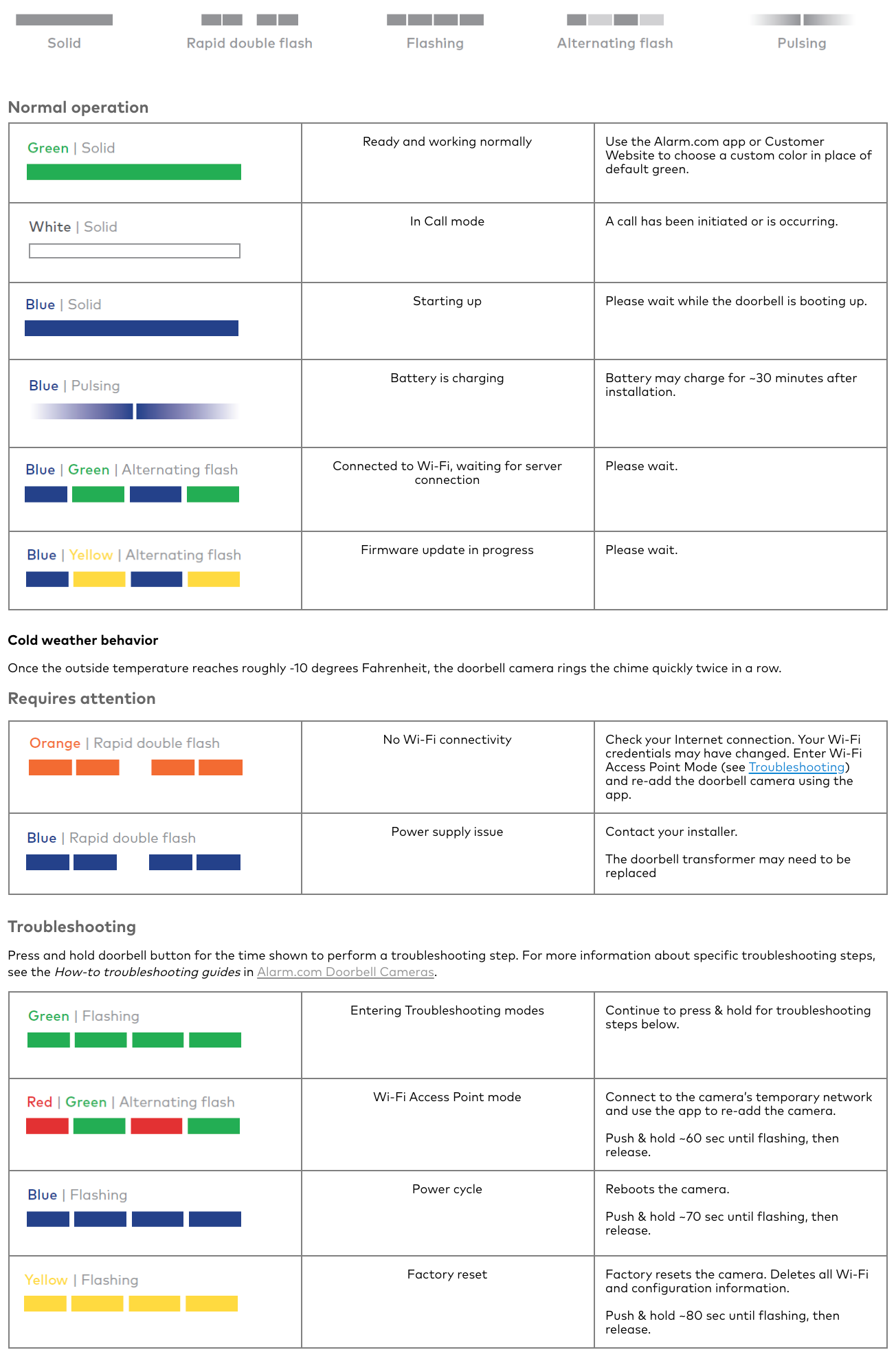
A blinking orange light on your Skybell isn’t random. It’s a signal that tells you something specific about your device’s status. For most Skybell models, an orange (sometimes called amber) blinking light usually means one of the following:
- The device is in access point mode (ready for Wi-Fi setup)
- There’s a problem connecting to Wi-Fi
- The firmware update process is ongoing or interrupted
Knowing which situation applies to you is the first step to a solution.
Skybell Color Codes Explained
Skybell uses different colors and blinking patterns to communicate device status. Here’s a quick comparison to put the orange blinking in context:
| Light Color | Blink Pattern | Meaning |
|---|---|---|
| Green (Solid) | Continuous | Device is ready and online |
| Red (Blinking) | Slow/fast | Power or connection issue |
| Blue (Blinking) | Slow | Syncing with app |
| Orange (Blinking) | Fast | Wi-Fi setup mode or error |
Understanding these patterns can help you quickly identify what your Skybell is trying to tell you.
Why Is Your Skybell Blinking Orange?
Let’s look at the most common reasons behind the blinking orange light:
- Wi-Fi Setup Mode: When you first install the Skybell or reset it, it enters Wi-Fi setup mode. The orange blinking means it’s waiting for you to connect it to your network using the Skybell app.
- Wi-Fi Connection Failure: If your Skybell loses its Wi-Fi connection, it tries to reconnect. If it can’t, the orange light blinks to alert you.
- Firmware Update Issues: Sometimes, the orange light flashes if a firmware update is in progress or has failed.
- Power Supply Problem: Rarely, a drop in voltage or unstable power can cause the device to re-enter setup mode and blink orange.
- Device Malfunction: Internal errors, though less common, can trigger the orange light. This could be due to a hardware issue or a failed reset.
How To Fix Skybell Blinking Orange
The good news: Most orange blinking issues are easy to fix at home. Here’s a step-by-step approach.
1. Check Your Wi-fi Connection
The majority of orange blinking cases are Wi-Fi related. Make sure:
- Your router is on and working.
- The Wi-Fi signal is strong where the Skybell is installed.
- Your network is 2.4GHz (Skybell doesn’t support 5GHz on most models).
- You know your Wi-Fi password.
Try moving your router closer or using a Wi-Fi extender if the signal is weak. Avoid placing the doorbell behind thick walls or metal doors.
2. Restart Your Skybell
A simple restart can solve many issues:
- Remove the Skybell from its mount.
- Wait for 30 seconds.
- Reattach it to the mount.
If your device has a reset button, hold it for 15 seconds until the light changes color. This will restart the setup process.
3. Reconnect Using The Skybell App
Open the Skybell app and follow these steps:
- Tap “Add Device” or “Reconnect Device.”
- Select your Skybell model.
- When prompted, connect to the Skybell’s temporary Wi-Fi network (often called “SKYBELL_”).
- Enter your home Wi-Fi details.
- Wait for the light to change to green.
If the orange blinking continues, double-check your Wi-Fi credentials.
4. Check For Firmware Updates
Sometimes an interrupted or incomplete update causes issues. In the Skybell app:
- Go to device settings.
- Look for firmware updates.
- If one is available, apply it and wait for the process to finish.
Make sure your Wi-Fi connection is stable during updates to avoid problems.
5. Verify Power Supply
Skybell needs steady power (usually 10-36V AC). If you suspect a problem:
- Check your doorbell transformer’s output.
- Make sure the wires are secure and not corroded.
- Consider asking an electrician if you’re unsure about wiring.
Below is a quick comparison of Skybell power requirements versus other popular doorbells:
| Brand | Voltage Range | Wired/Battery |
|---|---|---|
| Skybell | 10-36V AC | Wired |
| Ring | 8-24V AC | Wired/Battery |
| Nest Hello | 16-24V AC | Wired |
6. Factory Reset (last Resort)
If nothing else works, try a factory reset:
- Press and hold the main button for about 60 seconds until the light flashes rapidly.
- Release the button.
- Wait for the orange blinking to return, then set up the device as new.
Be aware: This erases all settings and history, so use it only if other steps fail.
Avoiding Future Orange Blinking Issues
Prevention is easier than constant troubleshooting. Here are some tips:
- Keep your router firmware updated.
- Avoid overcrowding your Wi-Fi network with too many devices.
- Regularly check for Skybell app and firmware updates.
- Clean the device contacts and wiring once a year to prevent corrosion.
- If you change your Wi-Fi password or router, remember to update your Skybell settings.
Credit: support.suretyhome.com
When To Contact Support
If the orange blinking won’t stop, even after following all these steps, you might have a hardware problem. Some signs include:
- The device gets very hot.
- The light pattern changes rapidly or inconsistently.
- You see error messages in the Skybell app.
In these cases, contact Skybell support or consult your installer. Sometimes, warranty replacement is needed.
For official troubleshooting and the latest support updates, you can check the Skybell Support Center.
Common Mistakes To Avoid
New users often make these mistakes when dealing with a blinking orange Skybell:
- Trying to connect to a 5GHz network (Skybell needs 2.4GHz).
- Skipping app updates, which can lead to compatibility problems.
- Ignoring weak Wi-Fi signals or not testing the signal at the install location.
- Forgetting to tighten wire connections, causing power drops.
Small details like Wi-Fi frequency or secure wiring make a big difference for these devices.
Credit: tradicao.pt
Real-life Example: Solving The Orange Blinking Light
Consider Anna, who installed her Skybell on a brick wall near her garage. She kept seeing the orange blinking light. At first, she tried restarting and resetting, but nothing helped. After checking, she realized her Wi-Fi signal was weak in that spot.
She added a Wi-Fi extender, reconnected her Skybell, and the orange blinking stopped—replaced by a steady green light.
Her story shows that sometimes, the solution isn’t about the doorbell itself, but the environment around it.
Pros And Cons Of Skybell Compared To Other Doorbells
If you’re wondering whether this issue is unique to Skybell or common across smart doorbells, here’s a comparison:
| Feature | Skybell | Ring | Nest Hello |
|---|---|---|---|
| Wi-Fi Support | 2.4GHz only | 2.4GHz/5GHz (some models) | 2.4GHz/5GHz |
| Video Quality | Up to 1080p | Up to 1080p | Up to 1600×1200 |
| Power Source | Wired | Wired/Battery | Wired |
| Cloud Storage | Free (limited) | Paid | Paid |
| Mobile App | Basic | Advanced | Advanced |
This shows that while the orange blinking issue is more common with Skybell due to its strict Wi-Fi requirements, other brands can have similar setup problems.

Credit: www.youtube.com
Frequently Asked Questions
Why Does My Skybell Keep Blinking Orange Even After Setup?
The most common reason is a Wi-Fi connection issue. Double-check your network details, make sure you’re connecting to a 2.4GHz network, and see if your router is working properly. If you recently changed your Wi-Fi password or router, you’ll need to update your Skybell settings.
Can I Use Skybell With A 5ghz Wi-fi Network?
No, most Skybell models only support 2.4GHz Wi-Fi. If your router uses both 2.4GHz and 5GHz, make sure your phone and Skybell connect to the 2.4GHz band during setup.
What Does A Solid Orange Light Mean On Skybell?
A solid orange light is different from blinking. Usually, a solid orange means the device is powered on but not yet connected to Wi-Fi. If it stays solid for a long time, try restarting or resetting your Skybell.
Do I Need To Reset My Skybell Every Time The Light Blinks Orange?
Not always. Try reconnecting to Wi-Fi and restarting the device first. A full factory reset should be your last step, only if other solutions fail.
Is The Blinking Orange Light A Sign Of A Serious Hardware Problem?
In most cases, no. It usually means a connection or setup issue. However, if the device is hot to the touch, smells burnt, or the blinking is extremely fast and won’t stop, contact Skybell support.
Final Thoughts
A blinking orange Skybell can be frustrating, but it’s almost always fixable with a few simple steps. Understanding what the light means, and following the right troubleshooting process, can save you hours of worry. Keep your Wi-Fi strong, your app up to date, and your device maintained, and you’ll enjoy a smooth smart home experience. And if you ever get stuck, don’t hesitate to reach out to official support or check reliable resources like the Skybell Support Center for more help.