
Every day, people rely on devices to stay powered and connected. Dual charging stations are popular because they let you charge two devices at once—phones, tablets, smartwatches, and more. But what happens when your dual charging station starts blinking orange? This warning light can be confusing and frustrating, especially if you don’t know what it means or how to fix it. In this guide, you’ll learn everything you need to know about the orange blinking light, why it happens, and how to solve it. You’ll also discover practical tips to prevent problems in the future and keep your devices charging safely.
What Is A Dual Charging Station?
A dual charging station is a device that lets you charge two gadgets at the same time. It usually has two ports—USB, wireless pads, or both. These stations are found in homes, offices, hotels, and even cars. They help you stay organized and avoid messy wires.
Some stations are simple, just offering two USB ports. Others are more advanced, supporting fast charging, wireless charging, and smart features. For example, many wireless stations can charge your phone and smartwatch together.
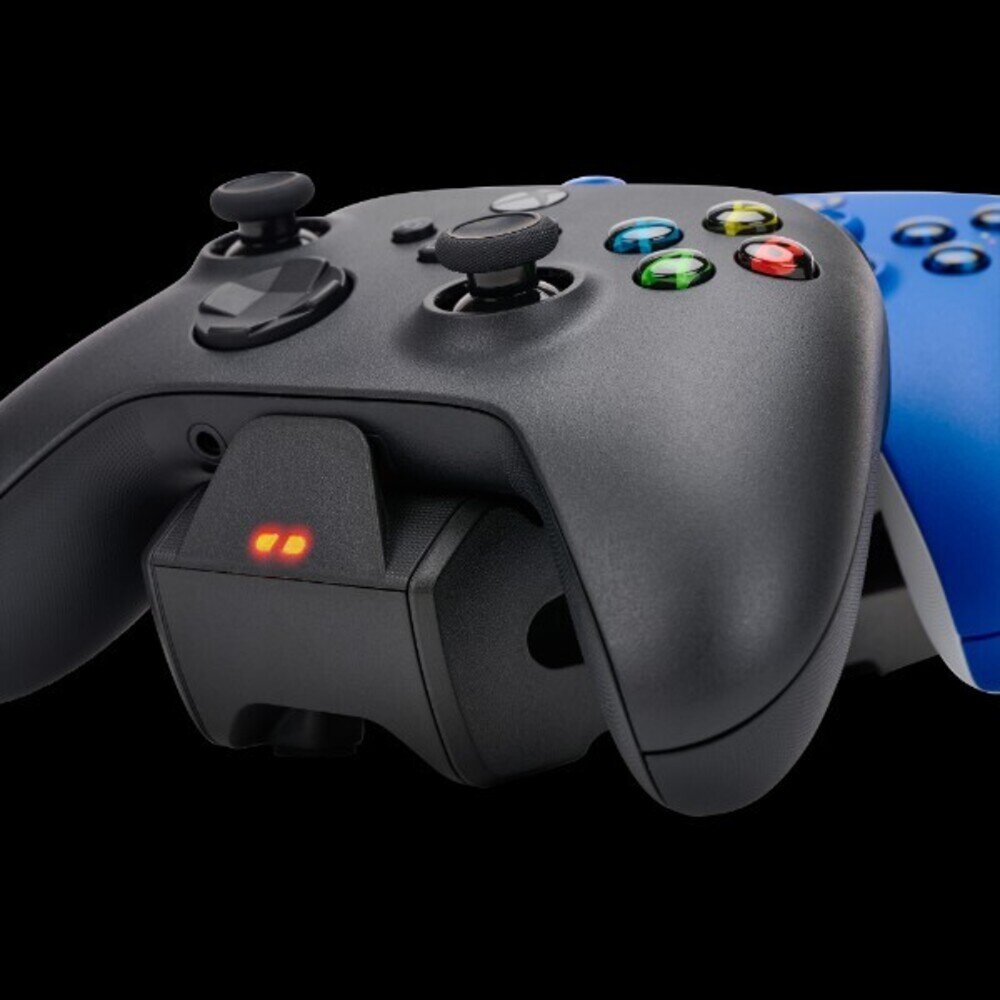
Modern stations have indicator lights to show charging status. A steady green means charging is normal. A blinking orange is a warning. Understanding these lights is important for safe charging.
Why Is Your Dual Charging Station Blinking Orange?
The blinking orange light is not just for looks. It’s a signal that something is wrong or needs attention. Here are the most common reasons:
- Power Supply Issues: The station isn’t getting enough power. Maybe the wall outlet is weak, or the adapter doesn’t match the station’s requirements.
- Overheating: If devices or the station get too hot, the light blinks to warn you.
- Device Compatibility: Some gadgets may not work well with the station. This can cause the light to blink.
- Cable Problems: Damaged or low-quality cables lead to unstable charging.
- Foreign Objects: Dust or metal between the charging pad and device can trigger the warning.
- Firmware Error: Some stations have software. Bugs or glitches can cause blinking lights.
- Charging Port Issues: Loose or dirty ports cause poor connections.
These issues affect both USB and wireless charging stations. A blinking orange light is often a sign to stop charging and check for problems.

Credit: www.youtube.com
Common Dual Charging Station Brands And Their Warning Lights
Different brands use different lights and signals. Here’s a comparison of popular brands and what their blinking orange light means:
| Brand | Orange Light Meaning | Action Required |
|---|---|---|
| Belkin | Power issue or device misalignment | Check power source and device placement |
| Anker | Overheating or incompatible device | Let it cool, check device compatibility |
| Mophie | Foreign object detected | Remove object, clean station |
| Seneo | Cable or adapter problem | Replace cable/adapter |
| Samsung Wireless Charger | Firmware error or device issue | Reset station, check device |
Knowing your station’s signals helps you act fast and prevent damage.
Troubleshooting Steps For A Blinking Orange Light
When your dual charging station blinks orange, don’t panic. Follow these steps to find the cause and fix it:
1. Check Power Source
Make sure your station is plugged into a reliable outlet. If possible, try another outlet or use a different adapter. Some stations need a specific voltage and amperage.
2. Inspect Cables And Adapters
Look for frayed wires, loose connections, or bent USB heads. Use high-quality, original cables and adapters.
3. Remove Devices And Restart
Unplug both devices and unplug the station from the wall. Wait 30 seconds. Plug the station back in and see if the orange light stops blinking.
4. Clean Charging Pads And Ports
Dust, lint, or metal pieces can block charging. Use a soft cloth or compressed air to clean pads and ports.
5. Check Device Compatibility
Some stations only work with certain devices. Check the manual or product website to make sure your devices are supported.
6. Let The Station Cool Down
If the station feels warm, let it rest for 10–20 minutes. Overheating is a common cause of blinking lights.
7. Update Firmware (if Available)
For stations with smart features, check for firmware updates. Visit the manufacturer’s website for instructions.
8. Test With One Device
Try charging one device at a time. If the orange light blinks with one device, that gadget may be the problem.
9. Replace Faulty Components
If cables or adapters are damaged, replace them. Avoid using cheap or counterfeit accessories.
10. Contact Support
If all else fails, contact the manufacturer’s support team. They can offer advanced troubleshooting or warranty help.
Data: Dual Charging Station Failure Rates
Studies show that charging stations are reliable, but problems do happen. Here’s a quick look at failure rates:
| Station Type | Annual Failure Rate | Main Cause |
|---|---|---|
| USB Dual Station | 2.5% | Power supply issues |
| Wireless Dual Station | 4.1% | Device misalignment |
| Smart Dual Station | 3.7% | Firmware errors |
Wireless stations fail more often, mostly due to misalignment or foreign objects.
How To Prevent Blinking Orange Light Problems
You can avoid most problems with good habits and care. Here are practical tips:
- Use Original Accessories: Always use original or certified cables and adapters.
- Keep It Clean: Dust the station and devices regularly.
- Avoid Overloading: Don’t charge devices that draw too much power together.
- Place Devices Correctly: Align devices on pads or ports for best contact.
- Don’t Cover Vents: Let air flow around the station to prevent overheating.
- Update Firmware: Check for updates if your station is smart-enabled.
- Store Safely: Don’t leave stations in hot or humid places.
- Read the Manual: Follow manufacturer instructions for safe use.
Many beginners ignore the importance of using the right adapter. For example, a station rated for 18W might blink orange if you use a 10W adapter. Also, wireless pads often need devices placed in the center—misalignment causes blinking lights.
Credit: www.windowscentral.com
Real-world Example: Fixing A Blinking Orange Light
Let’s look at a real case. Maria bought a wireless dual charging station for her phone and watch. After a month, the station started blinking orange. She tried moving her devices, but the light kept blinking. Here’s what she did:
- Checked the power adapter. It was the wrong wattage.
- Switched to the original adapter. The light stopped blinking.
- Cleaned the charging pad. No dust found.
- Tried charging one device at a time. Both worked fine.
Maria’s mistake was using a third-party adapter that didn’t meet the station’s needs. This is a common beginner error. Always match adapter specs to the station’s requirements.
Comparing Usb Vs Wireless Dual Charging Stations
Let’s compare key features of USB and wireless stations:
| Feature | USB Dual Station | Wireless Dual Station |
|---|---|---|
| Charging Speed | Faster (up to 30W) | Slower (up to 15W) |
| Device Compatibility | Almost all devices | Only wireless-enabled devices |
| Placement Sensitivity | Low | High |
| Failure Rate | Lower | Higher |
| Convenience | Wires needed | Wire-free |
Wireless stations are more convenient but need careful placement. USB stations are faster and more reliable.
Advanced Tips: What Most Beginners Miss
Most users know basic troubleshooting, but here are two advanced tips:
- Check for Hidden Foreign Objects: Even small metal pieces or coins can trigger the orange light. Some stations have sensitive sensors. Always check under devices and inside ports.
- Reset Smart Stations: Many smart stations have a reset button or a process (hold power for 10 seconds). This can solve firmware errors. Beginners often skip this step.
Another insight: Charging stations often blink orange when charging two high-power devices at once. For example, two tablets may draw too much power. Try charging one device at a time if you see the blinking light.
When To Replace Your Dual Charging Station
Sometimes, a blinking orange light means your station is failing. Signs you need a replacement:
- The light blinks even with correct setup.
- Devices charge slowly or not at all.
- Ports feel loose or damaged.
- Station gets hot often.
- Firmware updates don’t fix issues.
Most stations last 2–3 years with normal use. If problems are frequent, consider buying a new one from a trusted brand.
Credit: www.powera.com
Trusted Resources For Charging Station Care
For more detailed information, visit the official Consumer Reports guide. It covers safety, compatibility, and product reviews.
Frequently Asked Questions
What Does The Blinking Orange Light Mean On My Dual Charging Station?
The blinking orange light is a warning. It usually means there’s a problem—power supply, overheating, device misalignment, cable issues, or foreign objects. Check your station’s manual for specific meanings.
Can I Keep Charging My Devices When The Station Blinks Orange?
No. Stop charging and troubleshoot. The orange light signals risk—overheating, power problems, or device incompatibility. Charging during a warning can damage your devices or the station.
How Do I Fix A Blinking Orange Light?
Follow these steps:
- Check power source and adapter.
- Inspect cables and ports.
- Clean the station.
- Remove and re-align devices.
- Let the station cool.
- Update firmware if available.
If the light continues, contact support or replace the station.
Is It Safe To Use Third-party Cables And Adapters?
Only use certified accessories. Cheap or fake cables may cause blinking lights, slow charging, or damage. Always match the adapter’s power rating to your station’s needs.
Why Does My Station Blink Orange When Charging Two Devices?
Charging two high-power devices can overload the station. Make sure your adapter meets the station’s wattage requirements. Try charging one device at a time to see if the problem stops.
Conclusion
A dual charging station is a useful tool, but a blinking orange light signals a problem. By understanding the warning and following the steps above, you can keep your devices safe and avoid frustration. Remember, prevention is the best strategy—use original accessories, keep your station clean, and stay informed about your station’s features.
If issues persist, don’t hesitate to replace the station or seek expert help. With the right habits, your devices will stay powered and ready when you need them most.