
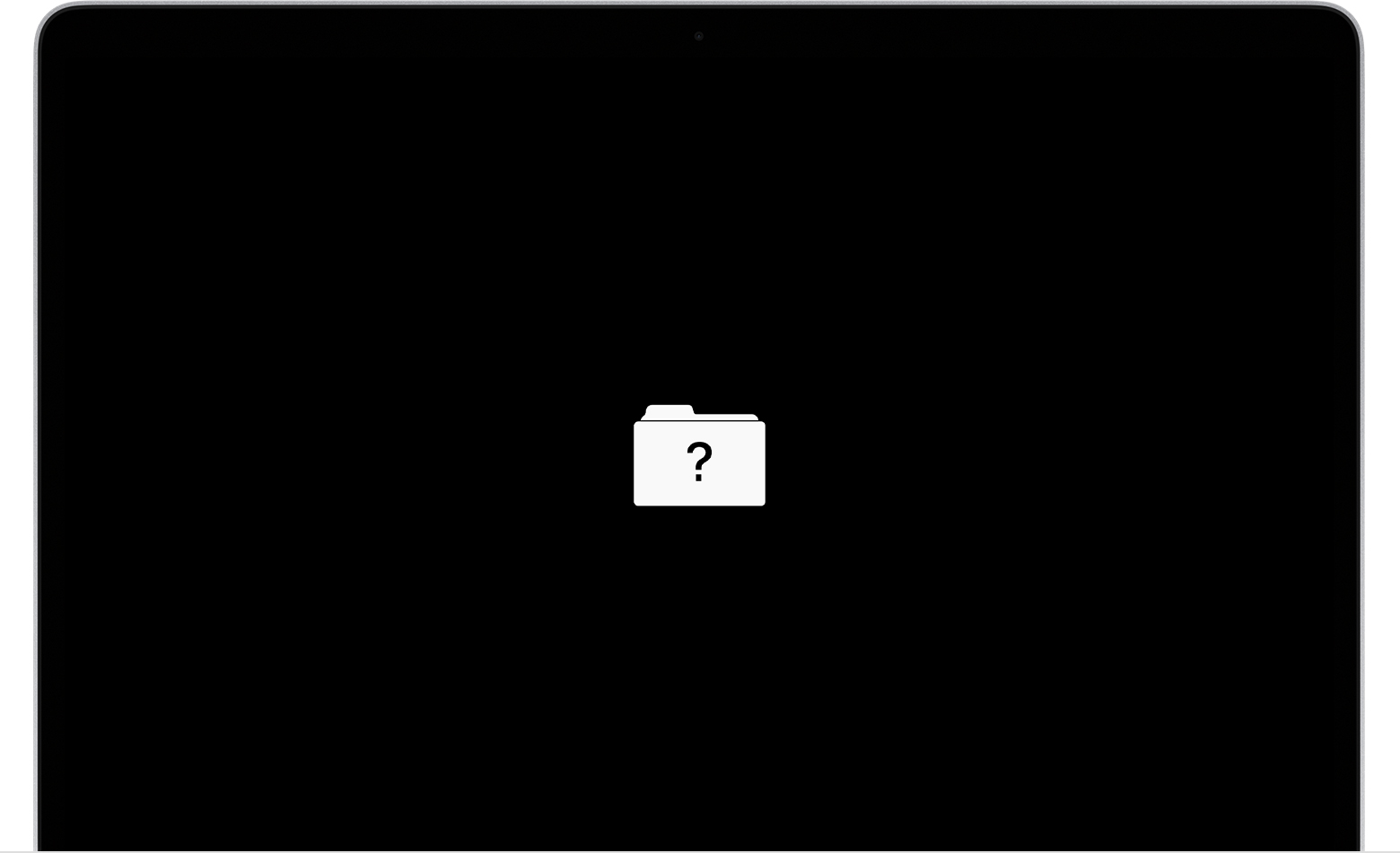
If your MacBook suddenly shows a blinking file icon with a question mark, it can be stressful. This symbol means your Mac cannot find a usable startup disk. For many users, especially those new to Macs, this looks scary and confusing. But you don’t need to panic. With the right steps, you can often fix this problem and recover your data.
Below, you’ll learn what causes the blinking file with question mark, how to fix it, and tips to prevent this problem in the future. The article also includes practical tables and a detailed FAQ section to help you understand everything clearly.
What Does The Blinking File With Question Mark Mean?
When you see the blinking file with a question mark on your MacBook screen, it usually means your Mac cannot find the operating system. This icon appears during startup if your Mac’s firmware doesn’t detect a valid system folder. The most common reasons are:
- The startup disk is missing or damaged
- The macOS system folder is corrupted
- The disk is not set as the startup disk
- The disk has hardware issues
This symbol is a warning. It doesn’t tell you exactly what’s wrong but signals your Mac cannot load macOS.
Common Causes Behind The Blinking File
Understanding why this icon appears is key to fixing it. Here are the main causes:
- Startup Disk Not Detected: The internal storage (SSD or HDD) is not recognized. This could be due to physical damage or loose connections.
- Corrupted System Folder: The macOS system folder is missing or damaged. If system files are deleted or corrupted, your Mac cannot boot.
- Wrong Startup Disk Selection: Sometimes, your Mac tries to boot from the wrong disk (external or network disk) and fails.
- MacOS Update Issues: Failed or interrupted updates can corrupt system files, causing startup errors.
- Disk Failure: Hardware issues like bad sectors or a failing drive can prevent the disk from working properly.
Credit: www.salvagedata.com
How To Fix A Macbook Blinking File With Question Mark
As a friendly mentor, I’ll guide you through practical steps to fix this issue. Try these solutions in order, starting with the simplest.
1. Restart Your Macbook
Sometimes, a simple restart solves the problem. Press and hold the power button until your Mac turns off. Wait a few seconds, then turn it back on. If the issue was temporary, your Mac may start normally.
2. Check Startup Disk Settings
Your Mac might be trying to boot from the wrong disk. To set the correct startup disk:
- Turn off your MacBook.
- Turn it on and immediately press and hold the Option (⌥) key.
- Release the key when you see the disk selection screen.
- Select your internal disk (usually labeled “Macintosh HD” or “Mac SSD”).
- Click the arrow to continue booting.
If your disk appears here, choose it and try to boot. If not, proceed to the next steps.
3. Try Recovery Mode
macOS has a built-in Recovery Mode that helps fix startup problems.
- Turn off your Mac.
- Turn it on and immediately press and hold Command (⌘) + R.
- Release the keys when you see the Apple logo or a spinning globe.
Recovery Mode allows you to:
- Repair disk errors using Disk Utility
- Reinstall macOS
- Restore from Time Machine backup
If Recovery Mode loads, try Disk Utility first.
4. Use Disk Utility To Repair The Disk
Disk Utility checks and repairs disk errors.
- In Recovery Mode, select “Disk Utility.”
- Choose your startup disk from the sidebar.
- Click “First Aid” and then “Run.”
If Disk Utility finds errors, it will try to fix them. If the disk cannot be repaired, you may need to erase it and reinstall macOS.
5. Reinstall Macos
If repairing the disk doesn’t help, reinstall macOS.
- In Recovery Mode, choose “Reinstall macOS.”
- Follow the on-screen instructions.
This process installs a fresh copy of macOS without deleting your files (unless you erased the disk). If you have a backup, you can restore your data later.
6. Check For Hardware Problems
If none of the software fixes work, your disk may have hardware issues. You can:
- Run Apple Diagnostics: Turn off your Mac, turn it on, and immediately hold D.
- If diagnostics show disk errors, contact Apple Support or visit an authorized repair center.
7. Restore Data From Backup
If you lose data, restore from a Time Machine backup or other saved copies. Always back up your Mac regularly to avoid losing important files.
Comparing Recovery Methods
Below is a comparison of different recovery methods for solving the blinking file with question mark:
| Method | Success Rate | Time Required | Difficulty |
|---|---|---|---|
| Restart | Low | 1-2 min | Easy |
| Startup Disk Selection | Medium | 5 min | Easy |
| Recovery Mode & Disk Utility | High | 10-30 min | Moderate |
| Reinstall macOS | Very High | 30-60 min | Moderate |
| Hardware Repair | Varies | Hours to days | Advanced |
Preventing The Blinking File With Question Mark
You can avoid this problem with a few simple habits. Here’s how:
- Backup Regularly: Use Time Machine or another backup tool to keep your data safe. Backup at least once a week.
- Update macOS Carefully: Install updates only when your Mac is plugged in and you have time to complete them.
- Avoid Sudden Shutdowns: Don’t force shutdown your Mac unless necessary. Sudden power loss can damage system files.
- Check Disk Health: Use Disk Utility every few months to check for disk errors.
- Store Your Mac Properly: Keep your MacBook away from extreme heat, moisture, and dust.
Data Recovery Options
If you cannot fix the blinking file icon and need your files, consider data recovery solutions.
| Option | Cost | Success Rate | Suitable For |
|---|---|---|---|
| Time Machine Backup | Free | Very High | All users |
| Third-party Recovery Tools | $50–$100 | High | Deleted files, corrupted system |
| Professional Data Recovery | $300–$1000 | Medium | Physical disk damage |
Most users can recover files with a backup. If you don’t have one, third-party tools can help, but success is not guaranteed. For hardware issues, professional help is best.

Credit: www.yellowbrickdatarecovery.com
Real-world Example: Fixing The Question Mark Icon
Let’s look at a practical case. Anna, a college student, saw the blinking file with question mark after a failed macOS update. She tried restarting but the icon remained. Anna entered Recovery Mode and ran Disk Utility, which showed disk errors.
After repairs, her Mac started normally.
Anna’s experience shows the value of knowing recovery steps. Beginners often miss that Disk Utility can repair more than just simple errors. Also, many forget to check startup disk selection, which is a quick fix if you recently used an external drive.
When To Contact Apple Support
If your MacBook still shows the blinking file with question mark after trying all the steps above, professional help is needed. Signs you need Apple Support:
- Disk Utility cannot repair the disk
- Your disk does not appear in the startup disk selection
- You hear strange noises from your MacBook (clicking, buzzing)
- Recovery Mode does not load
Visit an Apple Store or authorized repair center. Sometimes, hardware repairs are the only solution.
Useful Resources
Apple’s official support pages have step-by-step guides for fixing startup issues. For more information, visit Apple Support.
Frequently Asked Questions
What Causes The Blinking File With Question Mark On Macbook?
The icon appears when your Mac cannot find a valid startup disk or system folder. This can be due to disk errors, corrupted system files, wrong disk selection, or hardware failure.
Can I Fix The Blinking File Without Losing My Data?
Yes, often you can fix the problem without losing data. Use Recovery Mode and Disk Utility first. If you need to reinstall macOS, your files may stay intact unless you erase the disk. Always back up before making changes.
How Do I Know If My Macbook’s Disk Is Physically Damaged?
Signs include the disk not appearing anywhere (in Recovery Mode or Disk Utility), strange noises, or repeated failures. Apple Diagnostics can help check for hardware problems.
Is It Possible To Recover Files If My Macbook Won’t Boot?
If you have a backup, recovery is easy. Without a backup, third-party data recovery tools may help. For physical damage, professional recovery services are needed.
Should I Try To Fix Hardware Problems Myself?
It’s not recommended for beginners. Opening a MacBook can void warranty and damage parts. If you suspect hardware failure, contact Apple Support or a certified repair center.

Credit: www.reddit.com
Final Thoughts
Seeing a blinking file with a question mark on your MacBook is worrying, but it’s usually fixable. Understanding the causes and following the right steps can save you time and stress. Start with the simplest solutions, and don’t hesitate to ask for help if needed.
Prevent future problems by backing up regularly and caring for your MacBook. With a calm approach and the guidance above, you can keep your Mac running smoothly and avoid data loss.