
If you use Verizon’s home internet service, your equipment is your lifeline to the web. So, when your Verizon Internet Box (like the Verizon Fios router or 5G Home Internet Gateway) starts blinking white, it’s hard not to worry. Is it a minor hiccup or a sign of a bigger problem? This article will help you understand what the blinking white light means, what causes it, and—most importantly—how to fix it step by step. Whether you’re working from home, streaming, or just trying to get online, knowing how to handle this issue can save you time and stress.
What Does The Blinking White Light Mean?
Verizon Internet Boxes use colored lights to show their status. Each color and blinking pattern tells a different story about what’s happening inside your device.
- Solid white light: The device is working properly and connected to the internet.
- Blinking white light: The device is starting up, updating firmware, or trying to connect to Verizon’s network.
- Solid red or blinking red: There’s a major problem, like a network outage or hardware issue.
- Other colors (blue, yellow, green): These usually signal pairing, Wi-Fi activity, or other specific modes.
A blinking white light is most often seen during:
- Startup or reboot: After you plug in or restart the box.
- Firmware update: When the device downloads and installs new software.
- Network reconnection: When there’s a brief interruption in your service, and the device is trying to reconnect.
If the white light keeps blinking for more than 5–10 minutes, it’s usually a sign of trouble—something is blocking your box from connecting to Verizon’s service.
Common Reasons For A Blinking White Light
Understanding what causes this issue helps you solve it faster. Here are the most frequent reasons your Verizon Internet Box might blink white longer than usual:
1. Firmware Update In Progress
Verizon sends out updates to improve security and features. During this time, your box will blink white. Normally, this only lasts 5–10 minutes. Unplugging during an update can cause more problems, so patience is key.
2. Power Cycle Or Reboot
If you just restarted your device, it will blink white while it reconnects. This should resolve in a few minutes.
3. Internet Service Outage
Sometimes the problem isn’t at your home at all. If Verizon’s network is down in your area, your box can’t connect and will keep blinking white. Check online or call Verizon to see if there’s an outage reported.
4. Loose Or Damaged Cables
A loose Ethernet, coaxial, or power cable can break the connection between your box and the network. The device keeps trying to connect, causing the white light to blink.
5. Incorrect Setup Or Configuration
Moving your box to a new location, changing settings, or switching cables can sometimes cause confusion in the device. It may get stuck trying to find the right network.
6. Hardware Malfunction
Less common, but possible. If the device is faulty (e. g. , overheating, internal failure), it might never finish its startup or connection process.
7. Account Or Service Issues
Unpaid bills, expired subscriptions, or account changes can sometimes block your service. The box keeps trying to connect but can’t.

Credit: www.youtube.com
How To Fix Verizon Internet Box Blinking White
When the white light won’t stop blinking, follow these steps. Start with the simplest solutions and move to the more technical as needed.
Step 1: Wait And Observe
If you just rebooted your device or know there was a recent update, wait 10–15 minutes. Interrupting during a firmware update can damage your box. If the blinking continues beyond this, move to the next step.
Step 2: Check For Service Outages
Use your smartphone’s mobile data or another connection to check if Verizon is down in your area. Visit the official Verizon Outage page or call their support.
If there’s an outage, the only solution is to wait until Verizon fixes the network.
Step 3: Inspect All Cables And Connections
Loose or damaged cables are a very common cause.
- Unplug the power cable from the box and wall outlet.
- Check the Ethernet cable (if using wired) and make sure both ends are secure.
- For Fios, check the coaxial cable.
- Look for any bends, cuts, or fraying in the cables.
- Plug everything back in securely.
A surprising number of connection issues are fixed just by reseating cables.
Step 4: Power Cycle The Device
Unplug the power cord from the box and wall. Wait at least 30 seconds. This lets any temporary glitches clear. Plug it back in and let the device restart.
If the white light blinks for a few minutes, then turns solid, you’re back online.
Step 5: Restart All Network Equipment
If you have a separate modem and router, unplug both. Wait 30 seconds, then plug in the modem first, wait for lights to stabilize, then the router. This resets your whole connection.
Step 6: Try A Different Power Outlet
Sometimes, the problem isn’t the box, but the wall socket. Try plugging the Verizon Internet Box into a different outlet to rule out power issues.
Step 7: Reset To Factory Settings
If nothing else works, a factory reset may solve deeper issues:
- Find the small reset button (usually on the back).
- Use a paperclip to press and hold it for 15 seconds.
- Wait for the device to restart.
Warning: This erases all custom settings, including Wi-Fi names and passwords.
Step 8: Contact Verizon Support
If you’ve tried everything above, and the white light still blinks, it’s time to call Verizon support. They can check for account issues, remote problems, or send a technician if needed.
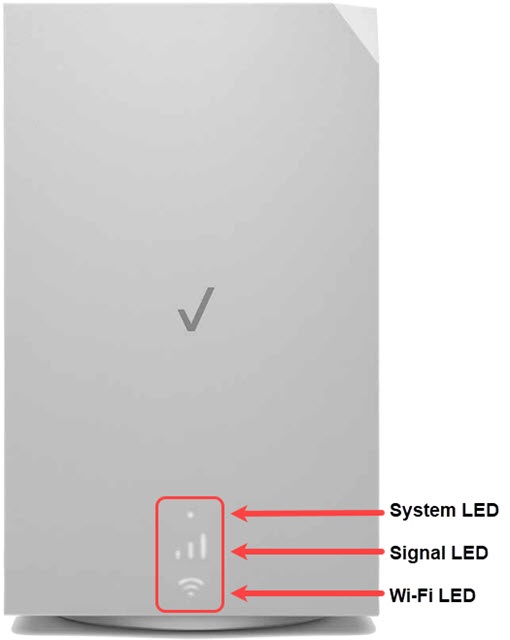
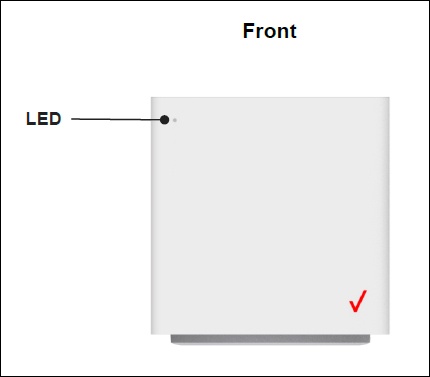
Understanding Verizon Device Light Patterns
To better troubleshoot, it helps to know what each light color and pattern means on the most common Verizon Internet Boxes.
Verizon Fios Home Router (g3100 And G1100)
| Light Color | Status | Meaning |
|---|---|---|
| Solid White | Normal | Online and working |
| Blinking White | Booting/Updating | Starting up, updating, or connecting |
| Solid Red | Error | No internet connection |
| Blinking Blue | Pairing | WPS pairing active |
Verizon 5g Home Internet Gateway
| Light Pattern | What It Means |
|---|---|
| Solid White | Normal operation |
| Blinking White | Booting, updating, or connecting |
| Solid Red | Major error |
| Blinking Red | Critical hardware issue |
Knowing these patterns helps you decide if you need to act or just wait.
Credit: www.verizon.com
When Should You Worry?
A blinking white light isn’t always a big problem. Here’s when you should take action:
- The blinking lasts longer than 10–15 minutes for no clear reason.
- Internet is down for everyone in your home.
- The light keeps blinking after multiple restarts.
- You notice other warning lights (red, orange, etc. ).
- The device feels very hot to the touch.
Ignoring a persistent blinking white light can lead to longer downtimes or hidden issues, so it’s best to address it early.
Advanced Troubleshooting Steps
If you’re comfortable, you can try these more detailed fixes before calling for help.
Check Device Logs (fios Routers Only)
Some Verizon routers let you access logs through the web interface:
- Connect a laptop or phone to the router’s Wi-Fi.
- Visit http: //192.168.1.1 in your browser.
- Log in (the default password is often on the router label).
- Look for a “System Log” or “Event Log” section.
Here, you might see errors or warnings that can hint at what’s wrong.
Update Your Router Firmware Manually
If the device is stuck updating, you can sometimes force a manual firmware update:
- Visit Verizon’s support website for your model.
- Download the latest firmware file.
- Access your router’s web interface.
- Upload the firmware manually.
This is advanced and should be used with caution, as incorrect updates can “brick” your device.
Test With Different Cables
A faulty Ethernet or coaxial cable can cause connection issues. Swap with a known good cable to rule out this simple problem.
Reduce Network Load
If too many devices try to connect at once, your router may get overloaded during startup. Try unplugging extra devices and see if the light turns solid faster.
Try A Different Location
Electronic interference from microwaves, cordless phones, or thick walls can disrupt the signal. Move the box away from these sources if possible.
Comparing Common Verizon Internet Box Models
Choosing the right model can also affect how often you experience issues. Here’s a quick comparison of the most popular Verizon routers.
| Model | Wi-Fi Standard | Typical Speed | Best For |
|---|---|---|---|
| G3100 | Wi-Fi 6 | Up to 1 Gbps | Large homes, many devices |
| G1100 | Wi-Fi 5 | Up to 800 Mbps | Medium homes |
| 5G Home Gateway | Wi-Fi 6 | Up to 1 Gbps | Wireless internet, mobile users |
Older models may be more likely to encounter connection and update issues. Upgrading can sometimes prevent future headaches.
Non-obvious Insights Beginners Miss
Many new users overlook these important details when troubleshooting a blinking white light:
- Firmware updates often happen at night: Verizon sometimes schedules updates for overnight hours. If you notice the blinking in the morning, it may be finishing an update you didn’t start.
- Power interruptions can corrupt updates: If there’s a brief power outage or you unplug the device during an update, the firmware might not install correctly. This can trap the box in a blinking loop that only a reset can fix.
- Splitters and extenders can cause issues: If you use coaxial splitters or Wi-Fi extenders, these can introduce connection problems. Try connecting directly to the main line or removing extra devices.
- Account holds or blocks: Sometimes, Verizon puts a temporary block on your account for security or billing reasons. You won’t always get an email or text, so it’s worth checking your Verizon account online.
Preventing Future Blinking White Light Issues
You can avoid many connection problems by following these best practices:
- Keep firmware updated: Let the device update when it prompts you.
- Secure cables: Make sure all connections are tight and undamaged.
- Protect from power surges: Use a surge protector to avoid electrical damage.
- Avoid overheating: Place the box in a cool, open area.
- Pay bills on time: Log in regularly to check your account status.
Small steps make a big difference in keeping your service stable.
When To Replace Your Verizon Internet Box
If you’ve tried all troubleshooting steps and still see a blinking white light, your device may be failing. Signs you need a replacement include:
- The box is more than 5 years old.
- Visible damage or heavy wear.
- Repeated connection drops.
- Support confirms a hardware issue.
You can request a replacement through Verizon’s support page or retail store. Newer models are often more reliable and faster.
Contacting Verizon Support: What To Expect
When you reach out to Verizon, be prepared to:
- Describe the light pattern and how long it’s been blinking.
- List steps you’ve already tried (reboot, cable check, reset).
- Provide your account number and device model.
- Wait for remote diagnostics or a possible technician visit.
Verizon’s support is available by phone, chat, and sometimes social media. Having details ready speeds up the process.
Additional Resources
If you want to dig deeper, Verizon’s official support site offers up-to-date guides and troubleshooting tips. For more technical background on routers and connection issues, check out the Wikipedia page on routers.
Credit: www.verizon.com
Frequently Asked Questions
Why Is My Verizon Internet Box Blinking White For Hours?
If the white light blinks for more than 30 minutes, it usually means the box can’t finish updating, connecting, or has a hardware issue. Try all troubleshooting steps above. If it continues, contact Verizon support.
Can A Blinking White Light Mean My Service Is Suspended?
Yes, if there are billing issues or your account is on hold, the device can’t connect and will keep blinking white. Log in to your Verizon account to check for any alerts.
Is It Safe To Unplug The Box During A Blinking White Light?
No, especially if it’s updating firmware. Interrupting can damage the device. Wait at least 10–15 minutes before unplugging, unless the device is overheating.
Will A Factory Reset Always Fix The Blinking White Light?
Not always. A reset helps if the issue is due to configuration or a corrupt update. But if there’s a hardware failure or network outage, a reset won’t help.
Can Old Cables Cause The Blinking White Light?
Absolutely. Damaged or loose cables are a leading cause of connection problems. Always check and replace cables if the light stays blinking.
Final Thoughts
A blinking white light on your Verizon Internet Box is a common but frustrating issue. Most of the time, it’s caused by simple connection problems, updates, or outages—and can be fixed with careful troubleshooting. Knowing what the light means and following the right steps keeps your internet running smoothly. If you ever get stuck, don’t hesitate to reach out to Verizon for help. Staying informed and proactive ensures you spend less time offline and more time enjoying your connection.