
When you see your router or device’s WPS button blinking red, it can be worrying. Many people think it means something is broken. But often, a blinking red WPS light is a simple problem you can fix yourself. This article explains what a WPS blinking red light means, why it happens, and how you can solve it. You’ll also learn how WPS works, what to watch out for, and how to avoid common mistakes. If you’re confused about your Wi-Fi, or just want to know more, you’ll find clear answers here.
What Is Wps And How Does It Work?
WPS stands for Wi-Fi Protected Setup. It’s a feature on many routers that helps devices connect to Wi-Fi without needing to type in a long password. Usually, you press the WPS button on your router, then connect your device. This makes setting up printers, smart TVs, or other gadgets much easier, especially if you struggle with passwords.
How Wps Connects Devices
- You press the WPS button on your router.
- Within two minutes, you select the WPS option on your device (like a printer or phone).
- The router and device “talk” to each other and connect automatically.
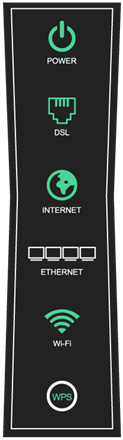
This process avoids typing passwords, but it only works for a short window (usually two minutes). The WPS light on your router will blink during this time.
Wps Light Colors And What They Mean
Routers often use different light colors to show what’s happening:
- Blinking white or blue: WPS is trying to connect.
- Solid white/blue: WPS connection successful.
- Blinking red: There’s a problem with WPS.
- Solid red: WPS failed.
Each brand may use slightly different colors, but blinking red almost always means trouble.
Why Is My Wps Blinking Red?
A blinking red WPS light tells you something went wrong when trying to connect a device. This signal is useful, but it doesn’t tell you the exact problem. Here are the most common reasons:
- WPS Connection Failed: The device or router could not communicate properly.
- Timeout: The two-minute WPS window ended before the device connected.
- Wrong PIN: Some devices use a PIN for WPS. If it’s entered incorrectly, you’ll see red.
- Interference: Too many wireless signals nearby can confuse the connection.
- Outdated Firmware: Your router’s software may need an update.
- Device Compatibility: Not all devices support the same WPS method.
- Hardware Problems: Rarely, a router or device may have a physical issue.
Here’s a quick comparison of what different WPS light colors mean on most routers:
| WPS Light Color | Meaning |
|---|---|
| Blinking White/Blue | WPS is attempting to connect |
| Solid White/Blue | WPS connection successful |
| Blinking Red | WPS connection failed or error |
| Solid Red | Permanent failure or hardware issue |
Common Causes Of Wps Blinking Red
Understanding the cause is the first step to fixing the problem. Let’s look at each reason in more detail.
1. Failed Wps Connection
The most common cause is a failed attempt to connect. This can happen if the device is too far from the router, or if there’s too much interference from other electronics. Sometimes, pressing the WPS button at the wrong time can also cause failure.
2. Timeout
WPS is only active for a short period (usually two minutes). If you don’t start the connection on your device quickly enough, the WPS process times out. The router blinks red to show it didn’t complete the process.
3. Wrong Pin Entry
Some devices, like printers, ask you to enter a WPS PIN. If you enter the wrong number or take too long, the connection will fail.
4. Wireless Interference
Things like microwaves, cordless phones, or even too many Wi-Fi networks nearby can disturb the WPS signal. This can cause the process to fail and the red light to blink.
5. Outdated Router Firmware
Routers run on software called firmware. If it’s old or buggy, WPS may not work well. Firmware updates can fix this.
6. Incompatible Devices
Not every device uses the same WPS method. Some use a physical button, others use a PIN, and a few may not support WPS at all. If your device and router aren’t compatible, the process will fail.
7. Hardware Faults
While rare, sometimes the router’s WPS button or internal parts break. If every attempt fails and your router is old, this could be the reason.
How To Fix Wps Blinking Red
You don’t need to be a tech expert to fix most WPS problems. Try these steps in order. Usually, one of them will solve your issue.
1. Move Devices Closer
Distance can weaken the WPS signal. Place your device and router close together. Try connecting again.
2. Restart Both Devices
Power off your router and the device you’re trying to connect. Wait 30 seconds, then turn them back on. This simple step fixes many common errors.
3. Try Wps Again
Press the WPS button on your router. Within two minutes, start WPS on your device. Watch the lights closely.
4. Check For Pin Entry
If your device asks for a WPS PIN, make sure you enter it correctly and quickly. Double-check for typos.
5. Update Router Firmware
Older routers can have bugs that break WPS. Check your router’s settings for a firmware update option. Most brands make this easy online.
6. Reduce Interference
Turn off other wireless devices nearby, like baby monitors or cordless phones. Avoid using microwaves during setup.
7. Reset Wps
Some routers let you reset just the WPS feature. Check your router’s manual or settings page. Resetting can clear up stuck connections.
8. Factory Reset (advanced)
If nothing else works, you can factory reset your router. This erases all settings and returns it to default. Only do this if you’re comfortable setting up your Wi-Fi from scratch, as you will need to reconnect all devices.
9. Check Device Compatibility
Double-check if your device supports WPS, and which method it uses (button or PIN). Some new devices no longer support WPS for security reasons.
10. Contact Support
If all else fails, contact your router’s support team. Sometimes, a hardware issue is the only explanation.
Here’s a troubleshooting checklist for quick reference:
| Step | What to Do | Why It Helps |
|---|---|---|
| 1 | Move devices closer | Improves signal strength |
| 2 | Restart router and device | Clears temporary errors |
| 3 | Press WPS button again | Retries connection |
| 4 | Check PIN entry | Ensures correct setup |
| 5 | Update firmware | Fixes bugs |
| 6 | Reduce interference | Removes signal blockers |
| 7 | Reset WPS | Clears stuck connections |
| 8 | Factory reset (if needed) | Solves deep problems |
| 9 | Check compatibility | Confirms support |
| 10 | Contact support | Expert help |
Wps Security Risks You Should Know
While WPS makes connecting easy, it’s not the safest method. Many experts recommend turning off WPS after setup for better security. Here’s why:
- WPS PINs are easy to guess: Hackers can sometimes break into your Wi-Fi using brute-force attacks.
- Physical buttons are safer, but not perfect: Someone with access to your router could connect without your permission.
- Some routers have WPS bugs: These can leave you open to attack.
If you’re worried about security, set up devices manually with a strong password, and disable WPS in your router’s settings after you finish.
When To Use Wps (and When To Avoid It)
WPS is helpful for:
- Quickly adding devices: Like smart printers or TVs.
- People who struggle with passwords: Especially older adults or young children.
But avoid WPS if:
- You have many unknown visitors: WPS makes it easier for guests to connect without you knowing.
- You want maximum security: Manual setup is best.
If you only use WPS once, then turn it off, you get the convenience without most risks.

Credit: www.wikihow.com
Wps On Different Router Brands
Each router brand handles WPS a little differently. Here’s a quick look at some of the most popular brands and their WPS features.
| Brand | WPS Button Location | Indicator Light | Special Notes |
|---|---|---|---|
| Netgear | Back or side | Blue/Red LED | App can show WPS status |
| TP-Link | Front or side | Green/Red LED | Some models combine with reset button |
| Linksys | Front panel | White/Red LED | Use app for advanced settings |
| ASUS | Rear panel | Blue/Red LED | WPS can be toggled in web interface |
| Arris | Top or side | Red LED | Often combined with reset |
Always check your router’s manual or the manufacturer’s website for the exact steps.
Advanced Tips For Troubleshooting Wps
Most people can fix WPS blinking red with the steps above. But if you’re still having trouble, try these less obvious solutions:
- Check for overlapping Wi-Fi channels: Use your router’s app or a free Wi-Fi analyzer to see if your network is crowded. Changing your channel can help.
- Try a different device: If one device won’t connect, but another does, the problem is probably with the first device.
- Test with WPS PIN method: If the button method fails, try using the PIN method (find the PIN in your router’s settings).
- Update the device’s software: Sometimes, the device you’re trying to connect also needs an update.
- Disable and re-enable WPS: In your router’s web settings, turn WPS off, save, then turn it on and try again.
- Check for MAC address filtering: Some routers block new devices unless their MAC address is approved. Turn off filtering while setting up WPS.
One insight many beginners miss: WPS only helps with the connection step. After your device is connected, the WPS light and button don’t affect ongoing Wi-Fi performance. If you have Wi-Fi issues after connecting, the problem likely isn’t WPS.
Another tip: Some ISPs disable WPS by default for security. If you can’t get WPS to work, check your ISP’s support page to see if it’s supported.

Credit: www.youtube.com
Should You Keep Wps On?
After connecting your devices, it’s smart to turn off WPS. Here’s why:
- Reduces risk of hackers.
- Prevents unwanted devices from joining.
- Makes your network more secure overall.
To turn off WPS, log into your router’s admin page (often found at 192. 168. 1. 1 or 192. 168. 0. 1 in your browser). Look for “WPS” under wireless or advanced settings. Uncheck or disable the feature, then save your changes.
If you need more information on WPS and its security, the Wi-Fi Protected Setup Wikipedia page offers detailed background and technical details.
Frequently Asked Questions
What Does It Mean If My Router’s Wps Light Is Blinking Red?
A blinking red WPS light means the WPS connection process failed. This could be because the connection timed out, the device is too far away, the wrong PIN was entered, or there’s interference. Try moving the device closer, restarting both devices, and starting the process again.
Is It Safe To Leave Wps Turned On All The Time?
No, it’s safer to turn off WPS when you aren’t using it. WPS has some security risks that allow hackers to try and guess your PIN. After you’ve connected your devices, disable WPS in your router settings.
Can Wps Blinking Red Mean My Router Is Broken?
Usually, it does not mean your router is broken. Most of the time, the issue is with the connection process or interference. But if you try all solutions and WPS still won’t work, your router’s hardware could have a fault.
Contact support if you suspect this.
What Should I Do If Wps Still Blinks Red After Trying All Steps?
If nothing works, try a factory reset as a last resort. This erases all settings and can fix deep software problems. If the problem remains after a factory reset, it’s time to contact your router’s customer support.
Is There An Alternative To Wps For Easy Device Connection?
Yes. Many modern devices use QR codes, Bluetooth, or smart setup apps to make connecting easier. These methods are often more secure than WPS. Check your device’s manual or settings for alternative connection options.
A WPS blinking red light can be stressful, but with the right steps, you can usually fix it in minutes. Remember to turn off WPS when you’re finished, and don’t be afraid to contact support if you need more help.
With this guide, you’re ready to solve most WPS problems and keep your Wi-Fi running smoothly.
Credit: www.centurylink.com