
If you own an Xbox, you know how important the controller is for your gaming experience. But what happens when you pick up your controller, press the Xbox button, and it starts blinking slowly—without connecting? This frustrating problem leaves many gamers searching for solutions. Whether you play on an Xbox Series X|S, Xbox One, or use the controller on a PC, a slow blinking light means something needs attention. Understanding why this happens—and what you can do about it—can save you time, money, and plenty of headaches.
This article will explain what a slow blinking Xbox controller means, the most common causes, step-by-step troubleshooting, and some advanced tips you might not find elsewhere. You’ll also see real examples, comparison tables, and practical advice to get you back in the game fast. Let’s solve the Xbox controller blinking slow problem once and for all.
What Does A Slow Blinking Xbox Controller Mean?
When your Xbox controller blinks slowly, the meaning is usually clear: it’s having trouble connecting. But not all blinking is the same. Here’s what a slow blink usually signals:
- Searching for a connection: The controller can’t find your Xbox or PC.
- Pairing mode: The controller is ready to connect but hasn’t found a device.
- Low battery warning: Less common, but sometimes the blink pattern is slower when batteries are nearly drained.
A slow blink is different from a fast blink (which often shows pairing mode) or a steady light (which means a successful connection). Understanding these signals helps you find the right fix quickly.
Common Causes Of Slow Blinking
Let’s explore why your controller might start blinking slowly. The main reasons include:
- Controller isn’t paired: It may have lost pairing after a software update or if used with another device.
- Out of range: If you’re too far from the console or there are obstacles, the connection can drop.
- Low or dead batteries: Weak power often causes connectivity problems.
- Firmware issues: Outdated or corrupted firmware can prevent proper pairing.
- Wireless interference: Other devices using the same frequency (like Wi-Fi routers) can interfere.
- Hardware faults: Rare, but a damaged controller or USB port can be the root cause.
Let’s compare these scenarios for clarity.
| Cause | How to Identify | How to Fix |
|---|---|---|
| Not Paired | Slow blinking, doesn’t respond | Re-pair the controller |
| Out of Range | Moves further from console, loses connection | Move closer, remove obstacles |
| Low Battery | Blinking plus weak vibration or no power | Replace or charge batteries |
| Firmware Issue | Blinking after update or on all devices | Update firmware via Xbox Accessories app |
| Wireless Interference | Works in some rooms, not others | Change location, reduce interference |
| Hardware Fault | None of the above work | Test with another device, consider repair |
Basic Troubleshooting Steps
If your Xbox controller is blinking slowly, start with these simple checks. Most users solve the problem with one of these steps.
1. Check And Replace Batteries
Low battery power can cause weak connections. Remove the battery cover, replace the batteries with new ones, or recharge your battery pack. Use only high-quality AA batteries or the official Xbox rechargeable battery.
2. Power Cycle The Controller
Hold down the Xbox button for about 10 seconds until the controller turns off. Wait a few seconds, then press the button again to turn it on. This resets the internal connection.
3. Reconnect The Controller
For wireless controllers:
- Press and hold the sync button on the controller until the Xbox button blinks rapidly.
- Press the sync button on your console (or follow PC pairing steps).
- Wait for the controller to connect. The light should turn solid.
For wired connection:
- Plug the controller into the console or PC using a USB cable. The light should become steady if connected.
4. Move Closer To Your Console
Walls, furniture, and other electronics can block the signal. Try moving closer and removing possible barriers.
5. Try A Different Usb Cable Or Port
If you’re connecting with a wire, a bad cable or USB port might be the issue. Try another cable or test the controller on a different device.
Advanced Troubleshooting
If basic steps don’t work, these advanced solutions can help.
Update Controller Firmware
Outdated firmware can cause strange behavior. You can update your controller’s firmware using your Xbox or the Xbox Accessories app on Windows.
- Connect the controller via USB.
- Open the app.
- Follow the prompts to update firmware.
This often solves issues after system updates.
Remove Wireless Interference
Other devices on the 2.4GHz band (like Wi-Fi routers, microwaves, or Bluetooth headsets) can interfere with the controller’s signal. Try these tips:
- Move your console and controller away from Wi-Fi routers and large metal objects.
- Turn off other nearby wireless devices.
- If possible, switch your Wi-Fi to the 5GHz band.
Reset Console’s Wireless Settings
Sometimes, the Xbox console itself needs a reset. Power off the console completely (unplug it for 30 seconds), then turn it back on. Re-pair the controller.
Test The Controller On Another Device
Try connecting your controller to another Xbox, PC, or even a phone (if Bluetooth is supported). If it works elsewhere, the issue is likely with the original console, not the controller.
Factory Reset The Controller
This is rarely needed, but possible for some models using the Xbox Accessories app. Follow the app’s instructions to reset all settings. Note: This will erase custom profiles.
Xbox Controller Blinking Patterns Explained
Not all blinks are the same. Understanding the signals helps you troubleshoot faster.
| Blinking Pattern | Meaning | Next Action |
|---|---|---|
| Slow, steady blink | Searching for connection | Re-pair or check batteries |
| Fast blink | Pairing mode | Finish pairing process |
| Solid light | Successfully connected | Ready to use |
| No light | Power off or dead battery | Replace batteries or recharge |
Special Cases: Xbox Controller On Windows Pc
Many gamers use Xbox controllers on Windows PCs, but there are a few unique things to know.
- Bluetooth pairing: Make sure your controller supports Bluetooth (not all older models do). Use Windows settings to pair.
- USB connection: Always try a different USB port if you have problems. Some ports don’t provide enough power.
- Third-party drivers: Avoid unofficial drivers. They can cause connection issues and slow blinking.
If your controller blinks slowly on PC but works on Xbox, update your Windows and Xbox Accessories app. Sometimes, a system update is needed for full compatibility.
When To Replace Or Repair Your Controller
If you’ve tried all troubleshooting steps and your controller still blinks slowly, it may be time to consider a replacement or repair. Here’s how to decide:
Signs Your Controller Needs Replacement
- No response after trying on multiple devices.
- Physical damage (cracked case, broken buttons).
- Battery won’t hold charge even after replacement.
- Frequent disconnects not fixed by updates.
Repair Vs. Replace
- Under warranty? Xbox controllers come with a limited warranty. Check your purchase date and contact support if you’re eligible.
- Out of warranty? Repairs may cost almost as much as a new controller. Weigh the cost before sending it in.
- DIY repair: For tech-savvy users, joystick drift or button problems are repairable, but wireless issues are more complex.
For official guidance, visit the Xbox Support site.
Non-obvious Insights And Pro Tips
Many guides cover the basics, but here are some expert tips most beginners miss:
- Batteries can be the silent problem: Even fresh batteries can be faulty. Try different brands or a rechargeable pack.
- Firmware mismatches after updates: After major Xbox or Windows updates, the controller may need a firmware update—even if it worked before.
- Unpairing from other devices: If you paired your controller with a friend’s Xbox or a mobile device, it won’t auto-connect to your home console. You must re-pair each time.
- Hidden interference: Devices like baby monitors or cordless phones can cause random disconnects. Test your setup by turning these off.
- Don’t forget the console: Sometimes, the issue is with your Xbox’s wireless module, not the controller. Testing another controller or resetting the console can save hours of frustration.
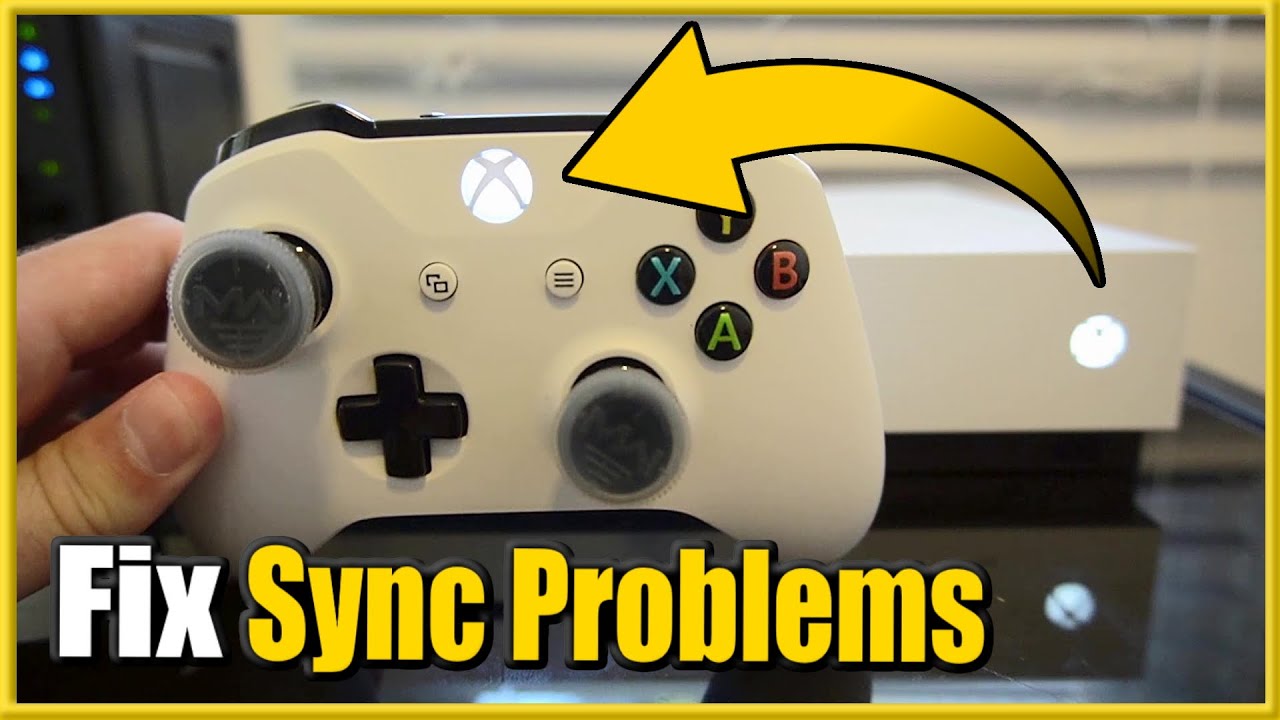
Credit: www.youtube.com
Real-life Example
Sarah loves playing Xbox after work. One evening, her controller started blinking slowly and wouldn’t connect. She tried new batteries—no luck. Next, she realized her Wi-Fi router was now beside the console. After moving the router away, the controller connected instantly. This shows how wireless interference can be an invisible problem.
Preventing Future Xbox Controller Problems
Here’s how you can avoid slow blinking issues in the future:
- Update firmware regularly: Whenever you see a prompt on Xbox or PC, update your controller.
- Use quality batteries: Cheap batteries often cause connection drops.
- Store controller properly: Don’t leave it in extreme temperatures.
- Pair with one device at a time: Re-pair after using with another device.
- Keep your console’s software up to date: System updates often improve connectivity.
- Avoid clutter: Keep the area around your console free of other electronics.

Credit: www.softwaretestinghelp.com
Xbox Controller Model Differences
Not all Xbox controllers are the same. Here’s a comparison of key features affecting connection and blinking patterns.
| Controller Model | Wireless Support | Bluetooth | Firmware Updates | Unique Issues |
|---|---|---|---|---|
| Xbox One (original) | Yes | No | Via Xbox only | No Bluetooth, older firmware issues |
| Xbox One S/X | Yes | Yes | Xbox & PC | Sometimes needs re-pairing |
| Xbox Series X|S | Yes | Yes | Xbox & PC | Fewest issues, but firmware updates important |
Older controllers are more likely to have pairing or blinking problems—especially on PC—because they lack Bluetooth and sometimes use outdated firmware.
When To Contact Xbox Support
If you’ve tried everything and your controller still blinks slowly, it’s time to contact Xbox Support. Before you do:
- Write down everything you’ve tried.
- Note any patterns (like blinking only after updates).
- Check warranty status.
Support can guide you through warranty claims, repairs, or advanced troubleshooting.

Credit: www.reddit.com
Frequently Asked Questions
Why Does My Xbox Controller Blink Slowly But Not Connect?
A slow blinking Xbox controller usually means it’s searching for a connection or has lost pairing. It can also be caused by low batteries, firmware issues, or wireless interference. Try re-pairing, replacing the batteries, and updating firmware first.
Can I Fix A Slow Blinking Xbox Controller Without A Console?
Yes, you can connect your controller to a PC using a USB cable or Bluetooth (if supported). Use the Xbox Accessories app to update firmware. If the problem continues on different devices, the controller may have a hardware issue.
What’s The Difference Between Slow And Fast Blinking?
Slow blinking means the controller is searching for a connection or has low power. Fast blinking usually means the controller is in pairing mode and ready to connect to a device.
How Can I Prevent My Xbox Controller From Blinking Slowly In The Future?
Keep your controller’s firmware updated, use quality batteries, avoid wireless interference, and always re-pair the controller after using it with another device. Store your controller in a safe, dry place.
Will Using Third-party Batteries Or Chargers Cause Blinking Problems?
Cheap or incompatible third-party batteries and chargers can cause connection issues, including slow blinking. Always use official or high-quality accessories for best results.
A slow blinking Xbox controller can be annoying, but it’s rarely a sign of a serious problem. Most issues are easy to fix with a few simple steps. By understanding what the blinking means, following the right troubleshooting process, and keeping your controller updated, you can enjoy smooth gaming sessions with minimal interruptions. If nothing works, don’t hesitate to reach out to support or check the official Xbox resources for more help. Happy gaming!