
When you see the Vizio logo blinking on your TV, it can be confusing and frustrating. Many people worry that their TV is broken or needs expensive repairs. But a blinking logo is actually a helpful signal. It’s your TV’s way of telling you something is wrong or needs your attention. Sometimes, the fix is simple. Other times, it may need a bit more work. But with the right steps, most people can solve this problem on their own. This article explains what the blinking Vizio logo means, the common causes, practical solutions, and ways to prevent it from happening again.
Understanding The Blinking Vizio Logo
The blinking logo on a Vizio TV is not just a random light. It’s a built-in feature designed to show the TV’s status. When everything is working fine, the logo usually lights up briefly when you turn the TV on or off. If it starts blinking and does not stop, the TV is trying to tell you something important.
What Does The Blinking Mean?
Usually, a blinking logo means:
- The TV is stuck in standby mode
- There is a problem with the power supply
- The TV is having trouble starting up
- There is a firmware or software issue
The speed and pattern of the blinking can sometimes give clues. For example, a slow, steady blink might mean something different than a fast, repeated blink.
When Is Blinking Normal?
- When you turn the TV on or off, a brief blink is normal.
- During a firmware update, the logo may blink. Do not unplug the TV during this time.
- Some Vizio models blink briefly as a sign that the TV is receiving a command.
But if the logo keeps blinking for several minutes or never stops, it’s a sign of a problem.
Common Causes Of A Blinking Vizio Logo
Understanding the possible reasons helps you fix the issue faster. Here are the most common causes:
- Power Supply Problems: Faulty power boards or loose power cables are a top reason.
- Software or Firmware Glitch: Updates gone wrong or corrupted software can cause startup errors.
- Remote Control Issues: A stuck button or bad batteries can confuse the TV.
- Internal Hardware Faults: Problems with the main board, LED drivers, or other internal parts.
- Overheating: If the TV is too hot, it may refuse to start to avoid damage.
- HDMI or External Device Issues: Bad devices or cables can prevent the TV from starting correctly.
- Voltage Fluctuations: Power surges or dips can stop the TV from working.
- Capacitor Failure: Especially in older models, failed capacitors on the power board can cause blinking.
Some of these problems are easy to fix. Others may need help from a professional.
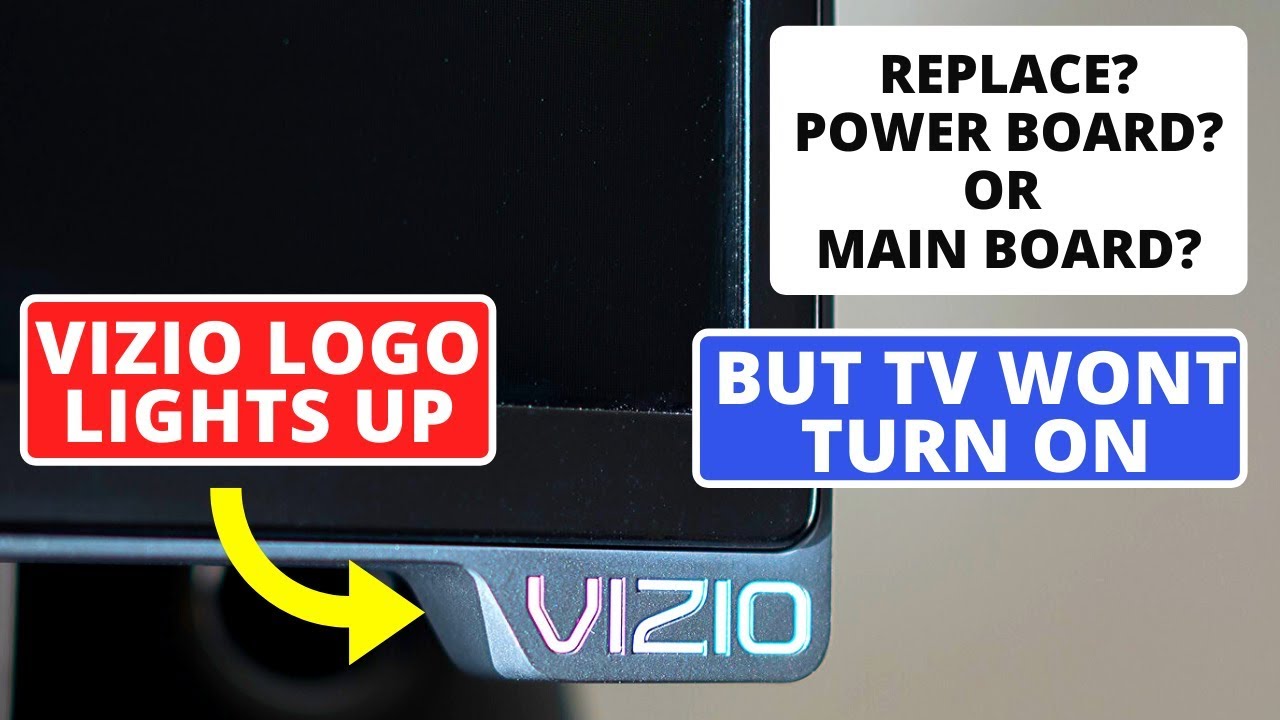
Credit: www.youtube.com
Step-by-step Fixes For A Blinking Vizio Logo
Most blinking logo issues can be fixed with simple troubleshooting. Try these steps in order. After each step, check if the problem is solved before moving to the next.
1. Basic Power Cycle
Often, a power cycle solves the problem.
- Unplug the TV from the wall.
- Wait at least 60 seconds (longer is better—try 2-5 minutes).
- While unplugged, press and hold the TV’s power button (on the TV, not the remote) for 30 seconds.
- Plug the TV back in and turn it on.
This simple step drains any leftover charge and resets the TV’s main board.
2. Check The Power Source
A bad outlet or power strip can cause blinking.
- Plug the TV directly into a known good wall outlet (not a power strip or surge protector).
- Try a different outlet if possible.
- Check the power cable for damage or loose connections.
3. Inspect Remote Control
A remote stuck in sending a signal may cause the TV to stay in standby.
- Remove the batteries from the remote.
- Press every button once to make sure none are stuck.
- Try turning on the TV using the button on the TV itself.
4. Disconnect External Devices
Sometimes a bad HDMI device or cable can stop the TV from starting.
- Unplug all HDMI, USB, and other devices from the TV.
- Turn the TV on with nothing connected.
If the TV works, plug devices back in one by one to find the faulty one.
5. Let The Tv Cool Down
If your TV feels hot or you have used it for a long time, let it cool for 30 minutes and try again. Overheating can cause the TV to protect itself by not turning on.
6. Factory Reset
If nothing else works, a factory reset may solve software problems. This will remove all your settings and apps.
- Find the reset button (often a small hole on the back or side of the TV).
- Use a paperclip to press and hold the button for 10-15 seconds.
- The TV should restart and the logo should stop blinking.
If you cannot find the reset button, check your user manual or Vizio’s official website.
7. Update The Firmware
Outdated firmware can cause problems. If you can access the TV’s menu:
- Go to Menu > System > Check for Updates.
- Follow the steps to update.
If you cannot access the menu, try using the Vizio SmartCast app on your phone.
8. Inspect For Internal Damage
If all else fails, there may be a hardware problem.
- Listen for strange noises (clicking, buzzing).
- Look for bulged or leaking capacitors on the back of the TV (only if you know how to safely open the TV).
- If you suspect hardware failure, contact Vizio support or a local repair shop.
Vizio Tv Blinking Logo: Model Differences
Not all Vizio TVs act the same way. Newer models and older models can have different causes for blinking.
Here’s a comparison of common blinking patterns by model type:
| Vizio Model | Blinking Pattern | Common Cause | Best Fix |
|---|---|---|---|
| 2015-2018 D-Series | Slow, steady blink | Power board or main board failure | Power cycle; check power board |
| 2019+ SmartCast | Fast, repeated blink | Firmware update error | Factory reset, update firmware |
| E-Series (older) | No logo, power light blinks | Capacitor failure | Professional repair |
| OLED Models | Logo blinks during startup | Normal during update | Wait, do not unplug |
If you are not sure which model you have, check the label on the back of your TV.

Credit: www.reddit.com
How To Prevent Future Blinking Logo Issues
Prevention is easier than repair. Here are some habits to help your Vizio TV last longer and avoid blinking logo problems:
- Use a surge protector to protect against power spikes.
- Keep the TV well-ventilated and dust-free to avoid overheating.
- Update firmware regularly to fix bugs and improve stability.
- Unplug the TV during storms or if you’ll be away for a long time.
- Do not overload power strips with too many devices.
- Use only original Vizio power cables for best performance.
Many people forget about firmware updates. Keeping your TV updated is one of the best ways to avoid software-related issues.
When To Call For Professional Help
Some problems need expert attention. If you notice these signs, contact Vizio support or a qualified repair shop:
- The logo blinks but the screen stays black, even after all resets.
- You hear clicking or buzzing noises inside the TV.
- The TV shuts off by itself after blinking for a while.
- There are visible bulges or leaks on internal components (if you open the TV safely).
- The logo blinks in an unusual pattern not listed in the manual.
Don’t try to repair the TV’s internal hardware unless you have experience. Modern TVs can carry dangerous voltages, even when unplugged.
Is It Worth Repairing A Blinking Vizio Tv?
Many people ask if they should repair or replace their TV when the logo blinks. Here are some points to consider:
- Age of the TV: TVs over 5-7 years old may not be worth fixing if parts are expensive.
- Cost of repair: Power board or main board replacements usually cost $100–$250.
- Warranty status: If under warranty, repairs are usually free.
- TV size and features: Larger, newer TVs are often worth fixing.
- DIY skills: If you can replace a power board yourself, it can be much cheaper.
Here’s a comparison of repair vs. replacement:
| Option | Average Cost | Time Required | Recommended For |
|---|---|---|---|
| DIY Power Board Replacement | $40–$80 | 1–2 hours | Tech-savvy users, out-of-warranty TVs |
| Professional Repair | $120–$250 | 3–7 days | In-warranty TVs, non-DIY users |
| Buy New TV | $250–$1000+ | 1–2 hours (setup) | Older TVs, expensive repairs |
For many, the decision comes down to cost and the age of the TV.
Real-world Examples And Insights
It’s easy to feel alone when your TV acts up, but blinking logo issues are common. Here are two real-world stories:
- Case 1: A family noticed their Vizio logo blinking after a thunderstorm. After unplugging the TV and letting it rest, the problem was solved. The cause was a minor power surge.
- Case 2: A gamer found the logo blinking after a failed firmware update. A factory reset fixed the issue, but they lost all their settings.
Non-obvious insight: Sometimes, even a smart wall outlet with energy-saving features can cut power briefly and trigger the blinking logo. Try plugging your TV into a basic, always-on outlet if the issue keeps coming back.
Another detail many users miss: HDMI-CEC (a feature that lets devices control each other) can sometimes confuse the TV. Disabling HDMI-CEC in settings has stopped the blinking logo for some people.

Credit: www.reddit.com
What Vizio Support Recommends
According to Vizio’s official guidance, the best first step is always a full power cycle. If that fails, they suggest disconnecting all devices, then a factory reset. Only after those steps do they recommend professional repair.
You can find more detailed steps and support at the Vizio Support Center.
Frequently Asked Questions
Why Does My Vizio Tv’s Logo Keep Blinking And Won’t Turn On?
A blinking logo usually means the TV is stuck in standby or has a power issue. Try unplugging the TV, waiting a minute, and plugging it back in. If that doesn’t work, check the power cable, try a different outlet, and remove external devices.
If the issue continues, a factory reset or professional repair may be needed.
How Do I Reset My Vizio Tv If The Logo Is Blinking?
Find the reset button on your TV (often a small hole on the back or side). Press and hold it with a paperclip for 10-15 seconds. If your TV does not have a button, unplug it, hold the power button for 30 seconds, and plug it back in.
This resets most models.
Can A Firmware Update Cause The Blinking Logo Problem?
Yes. If a firmware update fails or is interrupted, the TV may get stuck with a blinking logo. Always let updates finish before unplugging your TV. If your TV is stuck, try a power cycle or factory reset.
Is It Safe To Open My Vizio Tv To Check For Hardware Issues?
It’s not recommended unless you have experience with electronics. TVs can hold high voltage even when unplugged. If you suspect a hardware problem (like bulging capacitors), contact a professional repair shop for safety.
How Can I Prevent The Blinking Logo Issue In The Future?
Use a surge protector, keep your TV clean and cool, update firmware regularly, and unplug your TV during storms. Avoid using faulty power strips or cheap power cables. These habits help prevent most causes of the blinking logo.
If you follow these steps, you’ll be much less likely to see the Vizio logo blinking on your TV again. And if it does happen, you’ll know what to do next—confidently and safely.