
If you own a TP-Link Deco mesh Wi-Fi system, you may have noticed the LED light on your Deco device blinking blue at some point. For many users, this simple color change leads to worry and confusion. Is something wrong with your internet?
Is the Deco trying to tell you about a problem? Or is it just a normal part of setup? Understanding what the blinking blue light means is important for keeping your home network running smoothly.
Let’s look closely at why your Deco blinks blue, what it signals, and what you should do about it. This guide will use clear, simple language so you can easily solve the issue—even if you are not a tech expert.
By the end, you will know exactly what steps to take and when to seek further help.
What Does The Deco Blinking Blue Mean?
The blinking blue light on your Deco is a way for the device to communicate its current status. TP-Link uses different LED colors and patterns to show what is happening with the device. The blinking blue pattern is one of the most common signals, and it can have a few meanings depending on when you see it.
Most often, a Deco blinking blue means:
- The Deco unit is ready for setup (pairing mode)
- The device is waiting to be added to your network
- Sometimes, it can mean the device is resetting or restarting
If your Deco has never been set up or has just been reset, a blinking blue light is normal. It is simply waiting for you to connect it to your network using the TP-Link Deco app.
The Difference Between Steady Blue And Blinking Blue
It is important to know that Deco devices can show both steady blue and blinking blue lights.
- Steady blue: The Deco is starting up or rebooting.
- Blinking blue: The Deco is in setup (pairing) mode and ready for configuration.
If the light is blinking blue, the device is waiting for action from you—usually setup or adding to a mesh network.
Why Does My Deco Start Blinking Blue Unexpectedly?
Sometimes, you might find your Deco blinking blue even when you did not plan to set it up again. Here are the most common causes for this:
- Power interruption: If your Deco loses power suddenly (like during a power outage), it might restart in setup mode.
- Manual reset: Someone may have pressed the reset button on the Deco, putting it back into setup mode.
- Firmware update: After some updates, the Deco restarts and may briefly enter pairing mode.
- Network configuration changes: Major changes in your home network can sometimes cause a Deco to re-enter setup mode.
- Hardware issues: Rarely, a hardware problem can cause the device to lose its configuration.
Understanding which situation fits your case can help you fix the issue faster.

Credit: tplnkdecomeeh.home.blog
Step-by-step: What To Do When Deco Blinks Blue
Seeing a blinking blue Deco is not always a problem. Sometimes it is part of normal setup or reset. But if it happens when you are not expecting it, follow these steps to solve it quickly.
1. Check If The Deco Is New Or Recently Reset
If you are setting up your Deco for the first time, or if you (or someone else) pressed the reset button, the blinking blue light is normal. Simply open the TP-Link Deco app and follow the instructions to add the Deco to your network.
Tip: The reset button is usually a small pinhole. If you see a blinking blue light and did not press it, check if someone else in your home did it by accident.
2. Confirm Your Internet And Power Connections
A power surge or loose cable can make the Deco restart. Check:
- The power cord is plugged in tightly
- The power outlet is working
- The Ethernet cable (if used) is connected securely
If everything is connected but the Deco keeps blinking blue, move to the next step.
3. Use The Deco App To Re-add The Device
Open the TP-Link Deco app on your phone or tablet. Follow these steps:
- Tap the “+” or Add button.
- Select the Deco model you own.
- Follow the on-screen steps to add the Deco to your network.
The app will scan for the blinking blue Deco and guide you to finish setup.
4. Restart Your Whole Mesh Network
Sometimes, a simple restart helps:
- Power off all your Deco units.
- Wait 30 seconds.
- Power them back on, starting with the main unit.
Give each device a few minutes to start up fully before moving to the next one.
5. Reset The Deco (if Needed)
If the above steps do not work, try resetting the Deco:
- Use a paperclip to hold the reset button for about 10 seconds.
- Wait for the light to blink yellow and then blue.
- Use the app to add the device again.
Resetting will remove all previous settings from that Deco unit, so only do this if nothing else works.
Common Problems That Cause Deco To Blink Blue
Not every blinking blue light means a hardware failure. Most issues are easy to fix. Here are some common reasons and what you can do:
Firmware Updates
Sometimes, a Deco will blink blue after a software update. This usually lasts only a few minutes while the device restarts and applies changes. If it continues for more than 10 minutes, try restarting the device using the power button or by unplugging it.
Accidental Factory Reset
If a child or someone accidentally presses the reset button, your Deco will lose its settings and return to setup mode (blinking blue). In this case, use the app to set it up again.
Main Deco Vs. Satellite Deco
In a Deco mesh, one device acts as the main Deco (connected to your modem or router), while others act as satellites. If only a satellite Deco blinks blue, it may have lost its connection to the main Deco. Try moving the satellite Deco closer to the main unit during setup.
Network Loop Or Ip Conflict
A network loop (when two network cables form a circle) or an IP address conflict can cause mesh devices to misbehave. Unplug all Ethernet cables except the one from the modem to the main Deco and try again.
Hardware Failure
In rare cases, hardware problems can cause blinking blue. If your Deco is under warranty and none of the above steps work, contact TP-Link support for help.
Decoding Deco’s Led Light Patterns
Understanding all the LED light signals can help you spot issues before they become big problems. Here is a quick comparison of common Deco LED signals:
| LED Color/Pattern | What It Means | What To Do |
|---|---|---|
| Blinking Blue | Setup mode / waiting for configuration | Set up using the Deco app |
| Steady Blue | Starting up / rebooting | Wait until it changes |
| Green | Working normally / connected | No action needed |
| Red | Error / disconnected | Check cables and internet connection |
| Yellow | Booting up or resetting | Wait or set up again |
| White | Ready to use (some models) | No action needed |
Keep this table handy when checking your Deco’s lights. It can save you time and guesswork.
When Should You Worry About A Blinking Blue Deco?
Most of the time, a blinking blue light is not a cause for panic. But there are situations when you should take action quickly:
- The Deco blinks blue for more than 10 minutes without stopping
- Your internet connection is down, and you did not reset anything
- The Deco restarts and blinks blue frequently without reason
- All Deco units are blinking blue at the same time (not just one)
If you see any of these signs, follow the troubleshooting steps above. If the problem continues, it may be time to contact TP-Link support or check your internet service.
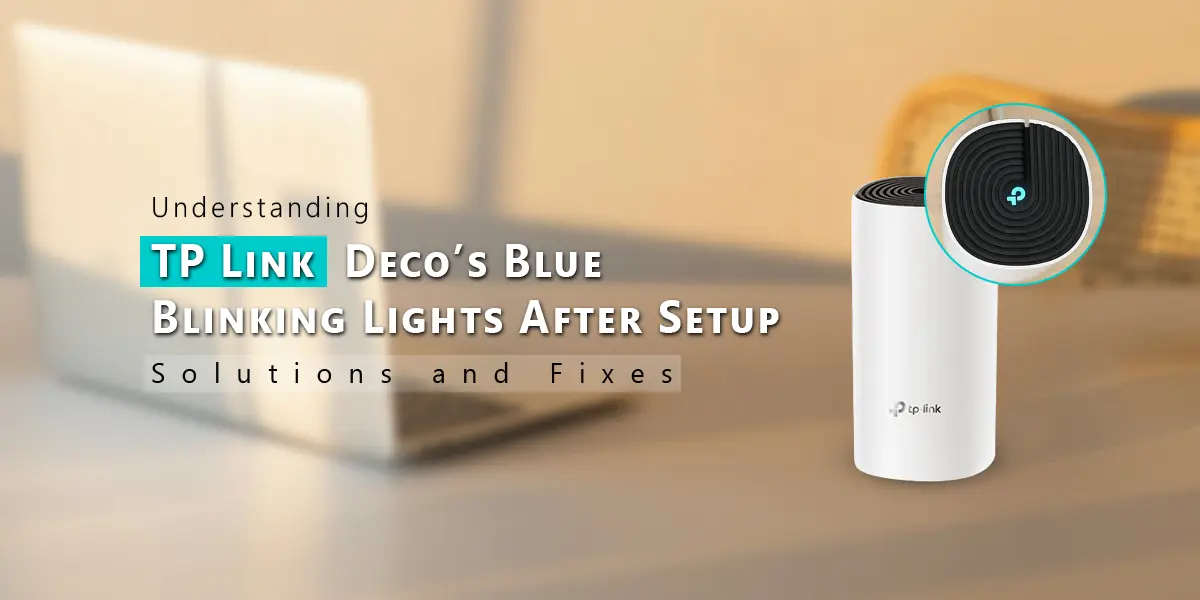
Credit: tplnkdecomesh.com
Tips To Prevent Deco Blinking Blue Issues
Prevention is often easier than fixing. Here are some simple tips to avoid unwanted blinking blue lights on your Deco units:
- Place Deco units in safe locations where the reset button will not be pressed by mistake.
- Use surge protectors for your Deco power supplies to avoid issues during power outages.
- Update firmware regularly using the Deco app, but do so when you are home in case you need to troubleshoot.
- Avoid moving Deco units when powered on, as this can sometimes cause connection issues.
- Label your cables and units if you have a complex setup, so you know which device is the main Deco.
These steps can help reduce the risk of unexpected resets or connection problems.
How The Deco Mesh System Works
To understand why the blinking blue light happens, it helps to know how the Deco mesh system works.
Mesh Basics
Unlike traditional routers, mesh Wi-Fi systems use multiple devices (Decos) to cover your home with a single Wi-Fi network. One Deco connects to your modem (the main Deco), and the others (satellite Decos) connect to it wirelessly or by cable.
If a satellite Deco loses contact with the main Deco (due to distance, interference, or power loss), it may restart and blink blue, waiting to reconnect.
Example Of A Mesh Network At Home
Let’s say you have a three-story house:
- Main Deco: Living room, connected to the modem
- Satellite Deco 1: Second floor, covers bedrooms
- Satellite Deco 2: Third floor, covers office
If the satellite on the third floor loses connection (maybe you unplugged it to move furniture), when you plug it back in, it may blink blue until it finds the main Deco again.
Comparing Deco Blinking Blue With Other Mesh Brands
Other mesh Wi-Fi brands also use colored LEDs to communicate device status, but their signals may differ. Here is a quick comparison of how TP-Link Deco’s blinking blue compares to other popular brands:
| Brand | Blinking Blue Meaning | Setup Process |
|---|---|---|
| TP-Link Deco | Setup mode / ready for pairing | Via Deco app |
| Google Nest Wifi | Pairing or adding a new point | Via Google Home app |
| Netgear Orbi | Syncing or updating firmware | Via Orbi app |
| Amazon eero | Ready to set up or updating | Via eero app |
While the color patterns may look similar, always check your specific device manual for the exact meaning.
Advanced Troubleshooting: What If Nothing Works?
Most users solve the blinking blue issue with a simple reset or by following the app setup process. But if your Deco keeps blinking blue and refuses to connect, try these advanced steps:
Check For Interference
Wi-Fi signals can be blocked by thick walls, metal furniture, or other electronics. Try moving your Deco units closer together and away from large metal objects or microwaves during setup.
Use Ethernet Backhaul
If possible, connect your Deco units with Ethernet cables. This creates a more stable connection and can help a satellite Deco stop blinking blue more quickly.
Update The Deco App
Make sure you are using the latest version of the TP-Link Deco app. An outdated app may not detect the device properly during setup.
Test With A Different Power Supply
A failing power adapter can make the Deco unstable. Swap the adapter with one from another Deco unit to see if the problem continues.
Contact Tp-link Support
If none of these steps work, visit the TP-Link support page or use their live chat. Sometimes, a device replacement is needed if there is a hardware fault.
For more technical details and troubleshooting tips, you can visit the TP-Link Community Forum.

Credit: community.tp-link.com
Frequently Asked Questions
Why Does My Deco Keep Blinking Blue After Setup?
If your Deco keeps blinking blue after you finish setup, it usually means the device did not pair successfully with your network. Try resetting the Deco, then add it again using the Deco app. If it still blinks blue, check your internet connection and make sure the main Deco is working.
Can A Power Outage Cause My Deco To Blink Blue?
Yes, a power outage can make your Deco restart and enter setup mode, especially if the device loses contact with the main Deco. After power is restored, use the Deco app to re-add the device if needed.
What Should I Do If All My Deco Units Are Blinking Blue?
If every Deco in your network is blinking blue, it could be a sign of a major network problem, such as a faulty main Deco or a network loop. Restart your modem and main Deco first, then add the satellite units one by one using the app.
Is It Safe To Use My Deco When The Light Is Blinking Blue?
A blinking blue light means the Deco is not fully set up yet, so it will not provide a stable Wi-Fi connection. Wait until the light turns green (or white, depending on your model) before using the network.
How Do I Avoid Accidental Resets Causing The Blue Blinking Light?
Place your Deco units in spots where the reset button is not easily touched. You can also inform family members about the button’s purpose, and use a label to prevent accidental presses.
—
Knowing what the blinking blue light on your Deco means can take away a lot of stress and confusion. In most cases, it is simply the device’s way of asking for setup or telling you it lost its network connection.
By following the steps above, you can get your network running again in just a few minutes. Remember, Wi-Fi mesh systems are designed for easy troubleshooting—even if you are not a tech expert. If all else fails, TP-Link support is just a call or chat away.
With a little patience, your Deco will be back to providing seamless, whole-home Wi-Fi in no time.