
A small white blinking light on your Chromecast can be confusing. You may wonder if it’s broken, updating, or having network problems. Many users see this issue and search for answers, but few guides explain everything clearly. This article will help you understand why your Chromecast blinks white, what it means, and how you can fix it. You’ll find practical solutions, troubleshooting steps, and insights most beginners miss. Whether you use Chromecast for streaming movies, music, or screen mirroring, this guide will help you get back to smooth viewing.
What Does Chromecast Blinking White Mean?
When the LED light on your Chromecast blinks white, it signals that something is happening inside the device. But the meaning depends on the pattern, speed, and context. Here’s what each pattern usually means:
- Pulsing/blinking white (slow): The device is trying to connect to Wi-Fi or the internet.
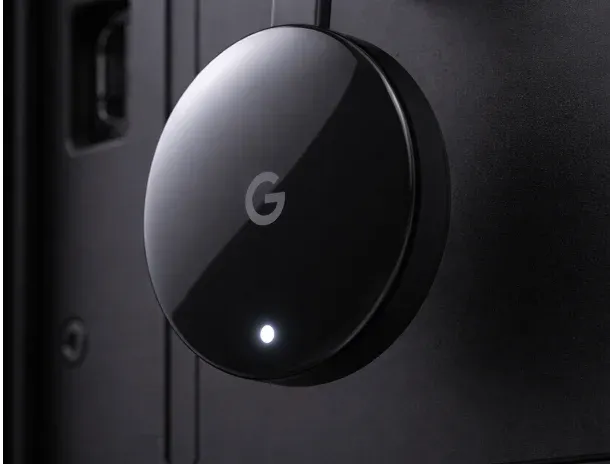
- Solid white: Chromecast is working normally and is ready.
- Blinking white (fast): The device is updating, rebooting, or has encountered an error.
- No light: Chromecast is off, not powered, or possibly broken.
Sometimes, the blinking white light is normal, like during updates. Other times, it signals a problem that needs your attention.
Example Scenarios
- You just plugged in Chromecast: A white blink for a few seconds is normal.
- You changed your Wi-Fi password: Chromecast blinks white because it can’t connect.
- You see a white light for minutes or hours: This usually means a connection or software problem.
Understanding the blinking pattern is the first step toward fixing your device.
Main Reasons For Chromecast Blinking White
Several issues can cause your Chromecast to blink white. Each has different solutions, so it’s important to identify the cause.
1. Network Connection Issues
If your router is far away, the Wi-Fi password changed, or the signal is weak, Chromecast will blink white as it tries to reconnect.
2. Software Updates
Chromecast updates its software regularly. During updates, the light may blink white. This is usually temporary.
3. Power Problems
If your Chromecast isn’t getting enough power, it may blink white. This can happen with weak chargers, USB ports on old TVs, or loose cables.
4. Hardware Faults
Overheating, physical damage, or manufacturing defects can cause blinking. If you’ve tried everything and the light still blinks, hardware could be the problem.
5. Failed Setup Or Configuration
If you set up Chromecast but didn’t finish, or canceled during setup, you may see a blinking white light.
Common Beginner Mistake
Many users think the blinking means the device is updating, but often it’s just struggling to connect to Wi-Fi. Ignoring this can lead to hours of wasted time.

Credit: www.reddit.com
How To Fix Chromecast Blinking White
Let’s go step by step to solve the problem. Start with the most likely and easiest solutions.
1. Check Power Source
First, make sure your Chromecast is getting enough power.
- Use the original power adapter and cable.
- Avoid plugging Chromecast into your TV’s USB port (unless it’s a newer, high-power port).
- Try a different wall outlet.
If the light changes to solid white, the power was the issue.
2. Inspect Cables And Connections
- Check for loose or damaged cables.
- Make sure the micro-USB or USB-C connector is firmly in the Chromecast.
- If you see frayed or bent cables, replace them.
3. Wait For Updates To Finish
If you just set up Chromecast or see “updating” on your TV, let it finish. Updates can take 5–10 minutes.
- Do not unplug during updates.
- If it blinks for more than 30 minutes, move to the next step.
4. Restart Chromecast
Restarting can fix many temporary problems.
- Unplug Chromecast from power.
- Wait at least 30 seconds.
- Plug it back in and wait for it to reboot.
5. Check Your Wi-fi Network
- Make sure your Wi-Fi is working on other devices.
- Move your Chromecast closer to the router if possible.
- Restart your router by unplugging it for 10 seconds.
If you recently changed your Wi-Fi password or network name (SSID), Chromecast will not connect until you set it up again.
6. Re-setup Chromecast
If your network changed or you moved to a new home, do a fresh setup:
- Open the Google Home app on your phone.
- Tap “+” to add a new device.
- Select your Chromecast and follow the on-screen steps.
If your Chromecast doesn’t appear, try resetting it.
7. Factory Reset Chromecast
A factory reset erases all settings and starts fresh. This fixes many stubborn problems.
- Hold the reset button on Chromecast (see the small button next to the power port).
- Hold for about 20 seconds, until the LED changes color or stops blinking.
- Release the button. Chromecast will reboot and show the setup screen.
Tip: After factory reset, you must set up Chromecast again with the Google Home app.
8. Check For Overheating
If Chromecast is hot, unplug it and let it cool for 10 minutes. Overheating can cause blinking and strange behavior.
9. Try A Different Tv Or Hdmi Port
Sometimes, the TV’s HDMI port or settings can interfere.
- Plug Chromecast into another HDMI port.
- Try a different TV if possible.
This helps you find out if the problem is with Chromecast or your TV.
10. Update The Google Home App
An outdated app can cause setup problems.
- Visit the App Store or Google Play Store.
- Update Google Home to the latest version.
11. Replace The Device (if Needed)
If you’ve tried everything and the Chromecast still blinks white, it may be faulty. Consider replacing it, especially if it’s old or damaged.
Chromecast Light Patterns: Quick Reference
Here’s a quick summary of what different light patterns mean for most Chromecast models.
| LED Pattern | Meaning | Action Needed |
|---|---|---|
| Solid White | Ready/Working | None |
| Blinking White (Slow) | Connecting/Setup Issue | Check Wi-Fi, redo setup |
| Blinking White (Fast) | Updating or Error | Wait or reset device |
| No Light | No Power | Check power source |
| Blinking Orange | Serious Error | Factory reset or replace |

Credit: www.youtube.com
Chromecast Models And Blinking Light Differences
Different Chromecast models may have slightly different light codes. Here’s a comparison.
| Model | Typical Blinking White Reason | Reset Button Location |
|---|---|---|
| Chromecast (3rd Gen) | Wi-Fi or update issue | Side of device |
| Chromecast Ultra | Network or power issue | Next to power port |
| Chromecast with Google TV | Update, setup, or hardware issue | Back of device |
Tip: Always check your specific model’s user guide for the most accurate light code meanings.
When To Contact Google Support
If you’ve tried all the steps above and Chromecast still blinks white, it’s time to get help. Contact Google Support if:
- The device is new and won’t set up.
- The white blinking continues after a factory reset.
- You see other error messages on your TV.
- The device is hot or smells burnt.
Google can help with warranty replacements or advanced troubleshooting.
Common Myths And Mistakes About Chromecast Lights
Many users believe myths about what blinking lights mean. Here are a few common ones:
- Myth: Blinking white always means an update.
Fact: It often means a network or setup problem.
- Myth: You must wait hours for the blinking to stop.
Fact: Most updates finish in 10–15 minutes. If it’s longer, something’s wrong.
- Myth: Using any USB charger is fine.
Fact: Low-power chargers cause many problems. Use the official charger.
Non-obvious insight: Many smart TVs have weak USB ports. They may power on Chromecast but not give enough energy for stable streaming. Always try the wall adapter before assuming Chromecast is broken.
Advanced Troubleshooting
If basic steps fail, these advanced tips may help.
Assign A Static Ip To Chromecast
Sometimes, network routers assign changing IP addresses, confusing Chromecast.
- Log in to your router’s admin page.
- Find connected devices; assign Chromecast a static IP.
- Reboot both Chromecast and router.
Update Router Firmware
Old routers may have bugs that prevent Chromecast from connecting.
- Check your router’s brand website for updates.
- Apply the update and reboot.
Use 2.4 Ghz Instead Of 5 Ghz Wi-fi
Some Chromecasts have trouble with 5 GHz networks.
- Log in to your router.
- Enable both 2.4 GHz and 5 GHz bands.
- Connect Chromecast to 2.4 GHz for better range.
Check For Interference
Microwaves, baby monitors, and thick walls can block signals.
- Move Chromecast and router closer together.
- Avoid placing Chromecast behind the TV if possible.
Use Hdmi Extender
The small HDMI extension cable that came with Chromecast can help reduce interference from the TV’s electronics.
- Attach the extender between Chromecast and the TV HDMI port.
- This can improve Wi-Fi reception and signal strength.
Credit: pigeoncast.com
Chromecast Vs. Other Streaming Devices: Reliability Comparison
How does Chromecast compare to other streaming devices when it comes to blinking light issues?
| Device | Common Light Problems | Ease of Troubleshooting |
|---|---|---|
| Chromecast | Blinking white, update stuck | Moderate |
| Amazon Fire Stick | Blinking yellow, frozen screen | Easy |
| Roku | No light, red light | Easy |
| Apple TV | Blinking white, HDMI issues | Moderate |
Insight: While Chromecast is reliable for most users, its blinking light codes are less clear than some competitors. That’s why knowing what each pattern means saves time and frustration.
Preventing Chromecast Blinking White In The Future
After you’ve fixed the blinking white issue, you want to avoid it happening again. Here’s how:
- Use the official power supply: Avoid low-quality chargers.
- Keep Chromecast and router close: Reduces Wi-Fi problems.
- Update Chromecast regularly: Let updates finish.
- Keep Google Home app updated: Prevents setup bugs.
- Don’t overload your Wi-Fi: Too many devices slow connections.
- Avoid moving Chromecast between networks: Set up again if you move homes.
- Handle cables gently: Prevents hardware damage.
- Watch for overheating: Give Chromecast space to breathe.
Non-obvious insight: Sometimes, issues happen after a power outage or lightning storm. If you live in an area with unstable electricity, use a surge protector for your TV and Chromecast.
When To Replace Your Chromecast
If your device is several years old or keeps having problems, replacement is sometimes the best choice.
- Chromecast devices usually last 3–5 years with regular use.
- If your device is slow, overheats, or the blinking white light returns often, consider upgrading.
- Newer Chromecast models support faster Wi-Fi, 4K streaming, and have improved reliability.
Tip: Before you buy a new device, check if your warranty is still valid. Google sometimes replaces devices for free under warranty.
Additional Resources
If you want more technical details, the official Google Chromecast support page is a good place to start:
This resource covers advanced troubleshooting, software updates, and model-specific guides.
Frequently Asked Questions
Why Is My Chromecast Blinking White And Not Showing Up On My Tv?
A blinking white light usually means Chromecast is having trouble connecting to your Wi-Fi or finishing setup. Make sure your TV is set to the correct HDMI input, and check that Chromecast is powered with the original adapter. If the issue continues, try restarting your device and router.
How Long Should I Wait If My Chromecast Is Blinking White?
If you just plugged in Chromecast or see an update message, wait 10–15 minutes. Most updates finish in this time. If the white blinking continues for more than 30 minutes, try restarting or resetting the device.
Will Factory Resetting Chromecast Erase My Apps And Settings?
Yes. A factory reset will erase all saved data, Wi-Fi settings, and account information on your Chromecast. You’ll need to set it up again using the Google Home app, just like a new device.
Can A Bad Power Supply Cause The Blinking White Light?
Absolutely. Using a weak or non-official charger is a common cause of blinking white light. Always use the power adapter that came with your Chromecast for the most reliable results.
What Should I Do If None Of The Fixes Work?
If you’ve tried all troubleshooting steps and your Chromecast still blinks white, it’s likely a hardware problem. Contact Google Support for help or consider replacing your device if it’s out of warranty.
Conclusion
Solving a Chromecast blinking white problem can be frustrating, but following these steps usually gets you back to streaming quickly. By understanding what the light codes mean, checking your power and network setup, and knowing when to reset or replace your device, you can avoid hours of confusion. Stay patient, use the right tools, and enjoy your Chromecast without interruption.