
If you own a Synology NAS, you know how important it is for keeping files safe and accessible. But sometimes, a simple blinking blue light can leave you confused and worried. Is your device starting up, or is something wrong?
Many users face this issue, but the blinking blue light isn’t always bad news. Understanding what it means, how to fix it, and how to prevent future problems is critical for anyone relying on Synology storage.
This article will help you decode the blinking blue light on your Synology NAS, showing you what causes it, how to solve it, and what steps you can take to avoid it. We’ll also cover practical troubleshooting, real examples, and expert advice. If you’re looking for clear, reliable answers, you’re in the right place.
What Does The Synology Blinking Blue Light Mean?
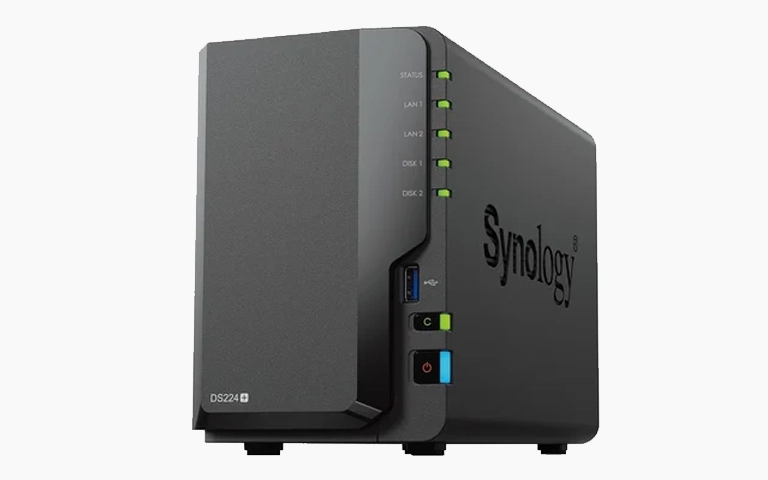
The blinking blue light on your Synology NAS is the power indicator. It’s not just decoration—it tells you what your device is doing.
- Solid blue light: The NAS is powered on and running normally.
- Blinking blue light: The NAS is starting up, shutting down, or stuck in a boot loop.
- Off: The NAS is powered off.
When the blue light blinks for a short time, it usually means the device is booting up. But if it keeps blinking and never turns solid, something is wrong. The most common reasons include:
- Boot process not finishing
- Disk failure or missing disks
- Corrupted operating system
- Power supply problems
- Hardware malfunction
Some users ignore the blinking light, thinking it will fix itself. But if it continues for more than five minutes, you should start troubleshooting.
Common Causes Of Synology Blinking Blue Light
Understanding the root causes is the first step to solving the problem. Let’s look at the main reasons:
1. Boot Loop
A boot loop is when your NAS tries to start up, but keeps failing and restarting. This can be caused by:
- Corrupt DSM (DiskStation Manager) files
- Failed firmware update
- Hardware issues
This is the most frustrating cause, as the device never becomes accessible.
2. Disk Problems
If your NAS can’t detect the hard drives, or if one is failing, the blue light may blink endlessly. Reasons include:
- Loose disk cables
- Dead hard drives
- Incompatible disks
It’s important to check the drive status using the Synology Assistant tool or by listening for unusual sounds.
3. Power Supply Issues
A weak or faulty power adapter can lead to a blinking blue light. Sometimes the NAS receives enough power to try starting but can’t finish.
4. Corrupted Dsm Or System Files
If the operating system files are damaged, the NAS can’t boot properly. This often happens after a failed update or power outage.
5. Hardware Failure
Motherboard issues, RAM problems, or faulty connectors can cause the NAS to blink and fail to start. These are less common but serious.
6. External Devices
Sometimes, connected USB devices (like printers or external drives) can prevent proper startup. Removing these can help diagnose the issue.
Credit: www.pitsdatarecovery.com
Troubleshooting Synology Blinking Blue Light
Fixing the blinking blue light is a step-by-step process. Here’s how to start:
Step 1: Power Cycle The Nas
Turn off the NAS completely. Unplug it for 30 seconds, then plug it back in and turn it on. This simple step solves many issues.
Step 2: Check Hard Drives
Open the NAS and make sure all hard drives are seated properly. Remove and reinsert each drive. Listen for any clicking or beeping noises—these signal disk problems.
Step 3: Disconnect External Devices
Remove all USB devices and SD cards. Sometimes, the NAS can’t boot if it detects a faulty external device.
Step 4: Test The Power Supply
Use the original Synology power adapter. If possible, try a compatible spare. Faulty power supplies cause incomplete startups.
Step 5: Use Synology Assistant
Download Synology Assistant on your computer. This tool can detect if your NAS is on the network, even if the blue light is blinking. If the NAS appears, you might be able to reinstall DSM.
Step 6: Reinstall Dsm
If the NAS is detected but won’t finish booting, reinstall the DSM operating system:
- Go to the Synology website and download the latest DSM.
- Open Synology Assistant and select your NAS.
- Follow the prompts to reinstall DSM.
This process won’t erase your data unless you choose the “Erase All Data” option.
Step 7: Remove All Drives
If nothing works, power off the NAS and remove all hard drives. Turn on the NAS with no disks installed. If the blue light turns solid, the NAS hardware is fine. Add drives one by one to find the faulty disk.
Step 8: Contact Synology Support
If you’ve tried all steps and the blue light still blinks, contact Synology Support. They can help diagnose hardware faults.
Real Examples And Case Studies
Let’s look at real situations where users faced the blinking blue light:
- Example 1: A user experienced a blinking light after a power outage. After unplugging and power cycling, the NAS booted normally.
- Example 2: Another user found that a faulty hard drive was causing the issue. Replacing the drive fixed the problem.
- Example 3: One user had a failed DSM update. Using Synology Assistant, they reinstalled DSM and restored normal operation.
These examples show that simple steps often solve the issue, but sometimes deeper troubleshooting is needed.
Credit: www.reddit.com
Data Protection And Backup Advice
When your NAS shows a blinking blue light, data safety is a concern. Here’s how to protect your files:
- Backup regularly: Always have a backup plan. Use external drives or cloud services.
- Use RAID: RAID configurations protect against single disk failure.
- Enable automatic backups: Synology devices support scheduled backups. Set them up for peace of mind.
- Test your backups: Make sure backup files can be restored.
Many users forget to check their backups until it’s too late. A backup is useless if it can’t be restored.
Preventing The Blinking Blue Light Issue
You can reduce the risk of seeing the blinking blue light by following simple preventive steps:
Keep Dsm Updated
Regularly update the DiskStation Manager. Updates fix bugs and improve stability.
Use Quality Hard Drives
Choose NAS-rated hard drives. These are built for 24/7 operation and have better compatibility.
Protect From Power Surges
Use a UPS (Uninterruptible Power Supply). This protects your NAS from sudden power loss and voltage spikes.
Check Disk Health
Use Synology’s built-in tools to monitor disk health. Replace disks that show warning signs.
Avoid Overloading Usb Ports
Don’t connect too many external devices. Faulty USB drives can cause boot problems.
Synology Blinking Blue Light Vs Other Led Indicators
Synology NAS devices use several LED indicators. Understanding these helps diagnose problems faster.
Here’s a comparison of common LED behaviors:
| Indicator | Color | Status | Meaning |
|---|---|---|---|
| Power | Blue | Blinking | Booting or issue |
| Power | Blue | Solid | Running normally |
| Status | Green | Blinking | Activity |
| Status | Orange/Amber | Blinking | Warning/Error |
| LAN | Green/Orange | Blinking | Network activity |
Comparing Disk Issues: Synology Vs Other Nas Brands
How do Synology NAS devices handle disk issues compared to other brands? Here’s a quick overview:
| Brand | Disk Failure Indicator | Boot Loop Behavior | Recovery Tools |
|---|---|---|---|
| Synology | Blinking blue/amber | Blinking blue light | Synology Assistant, DSM reinstall |
| QNAP | Blinking red/green | Blinking red light | QNAP Finder, QTS recovery |
| Western Digital | Blinking white/blue | Blinking white light | WD Discovery, firmware reinstall |
Synology’s recovery tools are user-friendly, but all brands require careful disk handling.
Advanced Troubleshooting Steps
If basic fixes fail, try these advanced steps:
Reset The Nas
Some models have a reset button. Press and hold for four seconds to reset network settings. For a full reset, hold for ten seconds. This might restore normal operation.
Test Ram
Faulty RAM can cause boot problems. If your NAS model allows, replace or reseat the RAM.
Firmware Recovery
For advanced users, firmware recovery using a USB stick is possible. Download the recovery image from Synology’s website and follow their guide.
Check System Logs
If your NAS is visible on the network, use DSM’s web interface to check system logs. Look for errors related to disks or power.
Swap Components
If possible, test your disks in another Synology NAS, or try another power adapter. Isolate which part is causing the issue.
When To Seek Professional Help
If you’re uncomfortable opening your NAS or fear data loss, professional help is wise. Data recovery experts can safely retrieve your files and diagnose hardware faults.
Many users try DIY fixes and worsen the problem. If your NAS contains critical data, don’t take risks.
Cost Of Repairs And Parts
Repair costs vary based on the problem:
- Power adapter: $20–$40
- Hard drive replacement: $50–$250 each
- Motherboard/CPU failure: $200–$500 (may require full replacement)
- Professional data recovery: $300–$1500+
It’s usually cheaper to fix minor issues yourself, but major hardware failures often mean buying a new NAS.
Synology Community And Support Resources
Synology has an active user community and helpful support team. Here’s where you can find help:
- Official Synology Forum
- Synology Support Center
- Reddit r/synology
- YouTube tutorials
These resources offer tips, troubleshooting guides, and real user experiences.
For official documentation and technical guides, visit Synology Support.

Credit: www.youtube.com
Tips For Long-term Nas Reliability
To avoid future problems, follow these expert tips:
- Keep firmware up to date
- Use NAS-rated disks
- Protect from power surges
- Monitor disk health
- Backup regularly
- Avoid overheating: Place your NAS in a cool area.
- Clean dust from vents: Dust can cause overheating and hardware failure.
- Don’t ignore warning LEDs: Address issues as soon as they appear.
Many users miss the importance of regular cleaning and checking disk health. These simple steps can extend your NAS’s life.
Frequently Asked Questions
Why Does My Synology Nas Blink Blue After A Power Outage?
A power outage can interrupt the boot process. The blinking blue light means the NAS is trying to restart. Power cycling and checking disk connections usually solves the issue.
Can I Fix A Blinking Blue Light Without Losing My Data?
Yes. Most troubleshooting steps won’t erase your data. Only reinstalling DSM with the “Erase All Data” option will remove files. Always backup before making major changes.
What If My Nas Isn’t Detected On The Network?
If Synology Assistant can’t find your NAS, check the power supply, disk connections, and network cables. Try booting with no disks to test hardware.
Is A Blinking Blue Light Always A Sign Of Hardware Failure?
No. It can be caused by software issues, disk problems, or power supply faults. Hardware failure is only one possible reason. Troubleshoot step-by-step to find the cause.
How Can I Prevent The Blinking Blue Light Problem?
Update DSM regularly, use quality disks, protect against power surges, and monitor disk health. Avoid overloading USB ports and keep your NAS in a cool, clean environment.
Conclusion
If you follow the advice in this article, you can solve most blinking blue light issues and keep your Synology NAS running smoothly. Regular care and quick response to warning signs will help you avoid data loss and downtime. The blinking blue light might seem scary, but with the right knowledge, you can handle it confidently.