
If your Deco device is suddenly blinking red, you might feel frustrated, especially if your Wi-Fi is down and you’re not sure what’s wrong. The red light is a clear signal from your Deco mesh system that something needs attention.
But what exactly does it mean, and how can you fix it? In this article, you’ll discover what a red blinking light means on a TP-Link Deco, why it happens, and what you can do to get your internet working smoothly again.
With clear explanations, real examples, and practical troubleshooting steps, you’ll learn how to handle this common problem—even if you’re not a tech expert.
Understanding The Deco Status Lights
Every TP-Link Deco device uses a small LED light to show its current status. These lights communicate problems and updates without words. While a steady green or blue light usually means everything is fine, a blinking red light is a warning that something is wrong.
What Do The Different Colors Mean?
Here’s a quick overview of Deco light colors:
| LED Color/Pattern | Status | What It Means |
|---|---|---|
| Solid Green | Normal | Internet is working; all is well |
| Pulsing Blue | Setup Mode | Ready for setup in the app |
| Solid Blue | Booting | Device is starting up |
| Solid Red | Error | No internet or system error |
| Blinking Red | Major Error | Deco lost connection or hardware issue |
| No Light | Off | Device is powered off |
The blinking red light is usually the most urgent. It means your Deco is not just offline, but may have lost its connection to the main unit or internet, or is facing a bigger issue.
What Causes A Deco To Blink Red?
A Deco blinking red is not a random event. It’s the system’s way of telling you there’s a serious issue that needs your attention. The main causes fall into a few categories:
1. Internet Connection Lost
The most common reason is the Deco cannot reach the internet. This can happen if your modem is offline, your ISP (Internet Service Provider) is down, or the Ethernet cable is unplugged.
2. Main Deco Disconnected
In a mesh system, the main Deco connects to your modem. If it loses power or is moved, all other Deco units may blink red because they can’t connect to the main one.
3. Hardware Problems
Sometimes, a hardware failure—like overheating, a power surge, or internal faults—causes a Deco to blink red.
4. Firmware Or Software Errors
After a failed update or corrupted software, the Deco can’t run properly and shows a red light.
5. Network Loop Or Ip Conflict
Advanced network errors, like having two routers on the same network or a double NAT setup, can confuse the Deco and cause a blinking red warning.
6. Poor Signal Or Placement
If a satellite Deco is placed too far from the main unit, it can lose signal and blink red.
Typical Scenarios
- You unplug your main Deco unit to clean, and suddenly all satellite units blink red.
- You try to update the firmware, but the update fails and the Deco blinks red after restarting.
- After a thunderstorm, your Deco starts blinking red, but your modem seems fine.
These examples show how both simple and complex problems can trigger the red light.
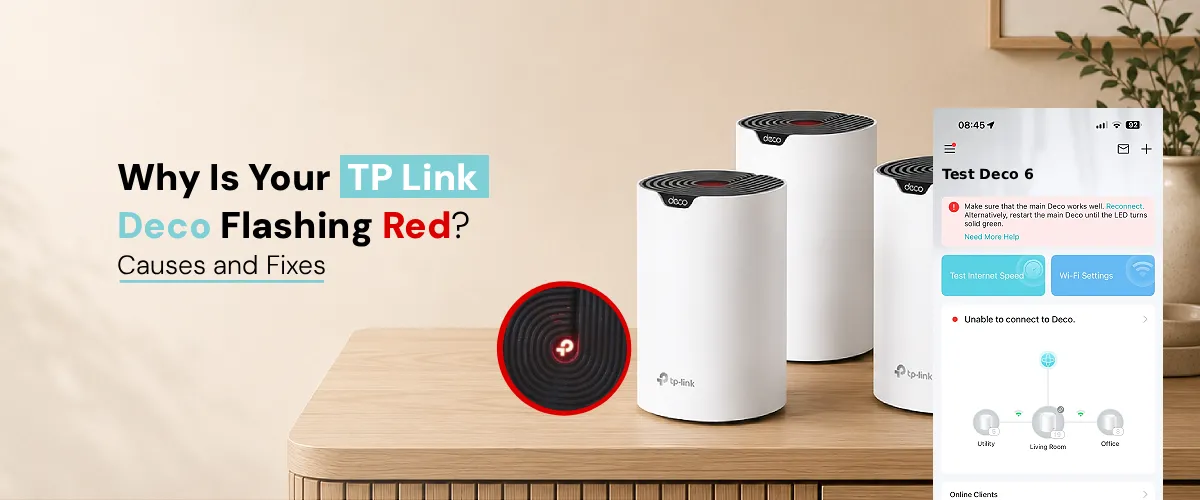
Credit: tplinkdecomeshwifi.com
Immediate Steps To Take When Deco Blinks Red
When you notice the blinking red light, don’t panic. There are steps you can try right away to fix the issue—even if you’re not a tech pro.
- Check Your Internet Connection
- Make sure your modem is online. Try connecting a computer directly to the modem using an Ethernet cable.
- If there’s no internet, the problem is with your ISP, not your Deco.
- Restart Your Devices
- Unplug the Deco and your modem for 30 seconds.
- Plug them back in, starting with the modem, then the Deco.
- Wait for the lights to turn green or blue.
- Check Cables and Power
- Ensure all Ethernet cables are firmly connected.
- Make sure the power adapter is securely plugged in and the outlet works.
- Check Deco Placement
- If you have multiple Deco units, make sure the satellites are not too far from the main unit.
- Check for Updates or App Warnings
- Open the Deco app on your phone.
- Look for error messages, update prompts, or network warnings.
- Reset the Problem Unit
- If one unit stays red while others work, use a paperclip to press the reset button (usually at the bottom or back).
- Hold for 10 seconds until the light turns yellow or blue.
When To Try Each Step
If you see all Decos blinking red, start with the modem and main Deco. If only one satellite blinks red, focus on its location and reset.
Advanced Troubleshooting: When Basic Steps Don’t Work
Sometimes, the basic steps aren’t enough. Here’s what to do if your Deco is still blinking red:
1. Diagnose With The Deco App
The TP-Link Deco app gives detailed status updates. Use it to:
- See which unit is offline or blinking red
- Check error logs or firmware update history
- Run network tests
The app often suggests solutions or walks you through repair steps.
2. Check For Firmware Updates
Outdated firmware can cause bugs and connection loss. In the Deco app:
- Go to the network settings
- Check for available updates
- Apply any updates, and let the device reboot
If the firmware fails to update, try again after restarting the Deco.
3. Inspect For Network Loops Or Double Nat
If you have more than one router, or both your modem and Deco are in router mode, they can fight for control, causing network confusion.
- Check if your ISP modem is also a router. If so, put it in bridge mode, or set your Deco to access point mode.
- Remove any extra switches or routers in your setup.
| Network Setup | Risk of Red Light | Recommended Action |
|---|---|---|
| Single Deco + Modem (Bridge) | Low | Standard setup, usually no issues |
| Multiple Routers (Double NAT) | High | Use only one router, or switch Deco to AP mode |
| Switches or Hubs Between Deco Units | Medium | Connect all Decos directly or via mesh Wi-Fi |
4. Watch For Overheating Or Physical Damage
If your Deco feels hot or has visible damage:
- Move it to a cooler place with good airflow.
- Unplug it for 10 minutes to cool down, then restart.
5. Factory Reset And Reinstall
As a last resort, factory reset your Deco:
- Hold the reset button for 10 seconds until the light turns yellow.
- Set up again in the app as if it’s a new device.
Warning: This erases all settings, so you’ll need your Wi-Fi name and password ready.
Non-obvious Insights That Help
Most guides stop at basic troubleshooting, but here are two practical tips many users miss:
You Can Reassign The Main Deco
If your main Deco fails (blinks red and won’t recover), you don’t need to replace the whole system. Use the app to promote a working satellite Deco to be the new main unit. This can restore your network without new hardware.
Watch Out For Hidden Firmware Bugs
Occasionally, a Deco firmware update contains a bug that causes random red blinking, even if your network is fine. If the problem starts right after an update and you see many complaints online, check TP-Link’s support forums. Sometimes, rolling back to an earlier firmware version (if possible) or waiting for a patch is the best solution.
When To Contact Support
If your Deco is still blinking red after all these steps, it may be time to contact TP-Link support. Here’s when to reach out:
- Hardware failure: If you see signs of damage, burning, or repeated overheating.
- Persistent red light: If the light stays red even after resets and reinstalling.
- Multiple units down: If all Decos fail at once and your ISP confirms internet is working.
Have your device serial number, purchase date, and a description of the steps you’ve tried ready. Support may ask you to send photos or run more tests.
For official help, you can visit the TP-Link Support page.

Credit: www.reddit.com
How To Prevent Future Deco Red Blinking Issues
While some problems are out of your control, you can reduce the chance of seeing the blinking red light again by following these tips:
1. Keep Firmware Updated
Check for updates monthly in the Deco app. Updated firmware fixes bugs and security issues.
2. Use Surge Protectors
Power surges during storms are a common cause of hardware failure. Plug your Deco and modem into a surge protector.
3. Avoid Overheating
Place Deco units in open, ventilated areas. Don’t cover them with books, fabric, or put them inside cabinets.
4. Check Cables Regularly
Every few months, check that Ethernet and power cables are secure and undamaged.
5. Monitor Your Network
Use the Deco app to check connection status, device list, and network quality.
6. Don’t Overload With Too Many Devices
Each Deco unit supports a certain number of devices. If you connect 50+ smart devices to one unit, it may become unstable.
Comparison Of Common Causes And Long-term Solutions
Here’s a side-by-side look at common causes and how to prevent them:
| Cause of Red Blinking | Quick Fix | Prevention |
|---|---|---|
| Internet outage | Restart modem/ISP check | ISP alerts, backup internet |
| Power loss | Reconnect power | Use surge protectors |
| Firmware bug | Update/revert firmware | Update regularly, read release notes |
| Poor placement | Move closer to main unit | Optimal placement planning |
| Network loop | Adjust router/AP setup | Simple network, avoid double NAT |
What If The Problem Returns Frequently?
If your Deco blinks red again and again, even after fixes, something deeper may be wrong. Here’s what experienced users recommend:
- Swap Deco units: Move your main Deco and a satellite to see if the problem follows one device (hardware fault) or the location (signal issue).
- Test with another modem: If you have an extra modem, use it for a few days. Sometimes, modem problems cause repeated Deco errors.
- Check for interference: Nearby devices like microwaves, cordless phones, or baby monitors can disrupt Wi-Fi. Move Deco units away from these devices.
- Try a wired backhaul: If your home has Ethernet wiring, connect Decos with cables for a more stable connection.
Real-world Example: Fixing A Blinking Red Deco
Imagine Sarah, who lives in a two-story house. She notices her upstairs Deco blinking red after a thunderstorm. Here’s how she solved it:
- She checked her modem and found it was online.
- She restarted all Decos and the modem, but the red light stayed.
- Using the Deco app, she saw only the upstairs unit was offline.
- She moved the upstairs Deco closer to the main unit, and the light turned blue, then green.
- She reset the Deco to factory settings and set it up again.
- Now, her internet works everywhere, and the red blinking is gone.
Sarah’s story shows that sometimes, simple actions—like moving a unit—solve the problem.
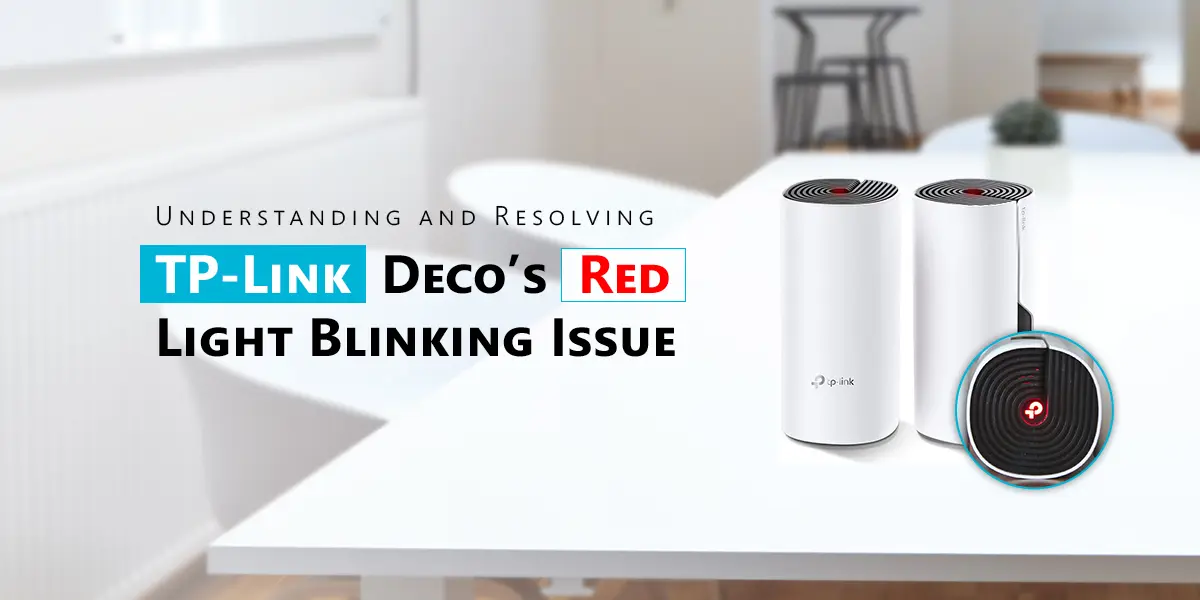
Credit: tplnkdecomesh.com
Frequently Asked Questions
What Does A Blinking Red Light On My Deco Mean?
A blinking red light means your Deco is facing a serious problem. It usually means it lost its connection to the main Deco, can’t reach the internet, or has a hardware or firmware error. Check the Deco app for more details about the specific issue.
Can My Deco Still Work If It’s Blinking Red?
No, a Deco that’s blinking red is not working as a normal Wi-Fi node. It won’t provide internet to your devices until the problem is fixed. You may still have Wi-Fi on other Deco units, but the one with the red light is offline.
How Do I Reset A Deco That Is Blinking Red?
To reset a blinking red Deco, find the small reset button (often at the bottom or back). Use a paperclip to press and hold the button for 10 seconds. The light will change color—often to yellow or blue—showing the reset was successful.
Then, set up the unit again in the Deco app.
Is A Solid Red Light Different From A Blinking Red Light?
Yes, a solid red light means the Deco is powered but cannot connect to the internet. A blinking red light signals a more serious error—like hardware failure, a network loop, or a lost connection to the main Deco. Both need attention, but blinking red is usually more urgent.
Where Can I Get Official Help For Deco Blinking Red Issues?
For expert help, visit the TP-Link Support page. You’ll find troubleshooting guides, firmware updates, and contact information for technical support.
—
A blinking red light on your Deco is stressful, but it’s also a clear message. With the right steps, you can usually fix the problem and get your home Wi-Fi back to normal. By understanding what the red light means, following step-by-step troubleshooting, and using practical tips, you’re better prepared to handle any Deco issue.
And if the problem doesn’t go away, you now know when to call for help and what to expect. With a little patience and the right knowledge, your Deco mesh can deliver reliable internet to every corner of your home.