
When you see the light on your Roku TV blinking, it’s natural to worry. Is it broken? Is there a hidden problem? Should you call for help? The truth is, a blinking light is often a signal from your TV.
It’s trying to tell you something—sometimes important, sometimes simple. But understanding what your Roku TV is saying can save you time, money, and stress.
This article will guide you through the most common reasons for a blinking Roku TV light, explain what each type of blinking means, and help you fix the problem. Whether you’re a casual user or a tech fan, you’ll find clear explanations, practical steps, and expert tips to get your Roku TV back to normal. If you want to avoid guessing and know exactly what’s going on, keep reading.
Understanding The Roku Tv Light Indicators
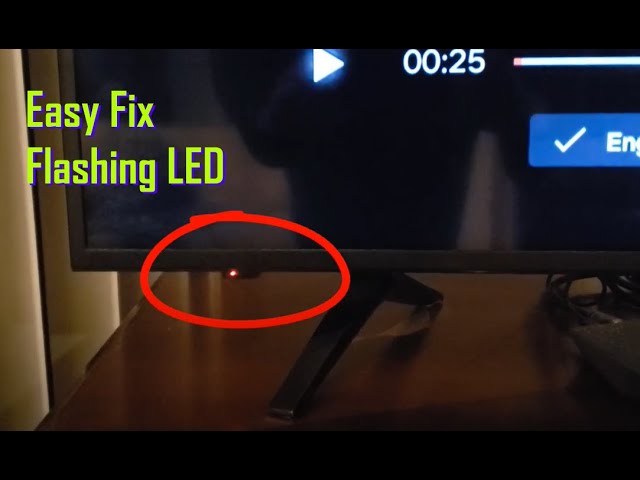
Roku TVs have a small LED light on the front panel. This light isn’t just for show—it’s a status indicator. It helps users (and sometimes technicians) know what’s happening inside the TV without opening menus or running tests.
What The Light Colors And Patterns Mean
The Roku TV light can show different colors and patterns. Each one means something specific:
- Solid white: The TV is powered on and working normally.
- No light: The TV is off, unplugged, or in a deep sleep mode.
- Blinking white: The TV is starting up, processing an update, or has a minor issue.
- Blinking red: There’s a power or hardware problem.
- Blinking purple or blue: Less common, sometimes relates to HDMI or connection issues.
Pattern matters. For example, fast blinking, slow blinking, and a single blink followed by a pause each signal different issues. Always check your TV’s manual for model-specific meanings, as some Roku TVs may use unique signals.
Why Pay Attention To The Blinking Light?
Ignoring a blinking light can lead to more serious problems later. For example, a slow white blink can mean a pending update, but a fast red blink could warn of a failing power supply. Acting early can prevent damage or data loss.
Main Reasons The Light On Your Roku Tv Is Blinking
Let’s break down the main causes behind a blinking Roku TV light, starting from the most common to the less frequent.
1. Power Issues
The number one reason for a blinking light is a problem with the TV’s power source.
- Loose power cable: If the power cord isn’t fully plugged in, the light may blink.
- Faulty power outlet: An unstable or failing outlet can cause the TV to repeatedly lose and regain power.
- Bad power adapter: Some Roku TVs use an external power brick. If this fails, blinking starts.
Tip: Try plugging the TV into a different outlet, or test the outlet with another device.
2. Network Connection Problems
Roku TVs rely on a stable internet connection. If the Wi-Fi drops or the Ethernet cable is loose, you may see the light blink.
- Lost Wi-Fi: If your router is off or too far, the TV may flash a white or purple light.
- Failed connection: After setup, if the TV can’t reach the internet, it might blink during startup.
Non-obvious insight: Some Roku TVs will keep blinking even after the Wi-Fi is back, until you manually reconnect or restart the device.
3. Software Updates Or System Errors
Roku regularly updates its software. During these updates, the TV’s light may blink to show it’s busy.
- During update: Blinking white is normal when updating.
- Update failed: If an update is interrupted, the light may blink non-stop.
Practical example: If your TV was updating and you unplugged it, you may see a constant blinking when turning it back on.
4. Hdmi And External Device Issues
Connecting or disconnecting devices like game consoles or streaming boxes can confuse the TV’s input system, leading to a blinking light.
- Faulty HDMI cable: A bad cable can cause handshake errors (TV and device can’t “talk”).
- Incompatible device: Some older devices may not work well, causing the TV to blink.
- Loose connections: Even a slightly loose HDMI can cause blinking.
Tip: Always insert HDMI cables firmly and check for bent pins.
5. Remote Control Or Pairing Problems
Some Roku TVs blink their front light when trying to pair with a remote.
- Pairing mode: Fast blinking may mean the TV is waiting for a remote to connect.
- Low battery in remote: Sometimes the TV blinks to warn about remote issues.
6. Hardware Failure
A persistent, fast blinking—especially red—can be a sign of hardware trouble.
- Faulty mainboard: Main electronic board issues.
- Broken LED driver: The system that controls the TV’s backlight.
- Other internal failures: Rare, but possible, especially in older TVs.
Expert note: If the light is blinking red and none of the above steps fix it, it’s time to call a technician.
7. Factory Reset Or Recovery Mode
If you’ve recently reset your Roku TV, it may blink as it erases old data or reinstalls the system.
- Normal during reset: Blinking is expected and usually stops after a few minutes.
- Stuck in reset: If blinking continues for over 10 minutes, something went wrong.
Diagnosing The Blinking Light: Step-by-step
Here’s how to figure out what your Roku TV’s blinking light means and what you can do:
Step 1: Check The Power Supply
Start with the basics.
- Unplug the TV.
- Wait 30 seconds.
- Plug it back in firmly.
- Try a different outlet if available.
If the light stops blinking, you’ve found the issue.
Step 2: Test Internet And Connections
- Make sure your Wi-Fi router is on and working.
- Move the TV closer to the router, if possible.
- Reconnect to Wi-Fi in your TV’s settings.
- For wired connections, check the Ethernet cable.
Step 3: Inspect Hdmi And External Devices
- Remove all HDMI and USB devices.
- Turn the TV off, wait 10 seconds, turn it on.
- Plug devices back in one by one.
If the light blinks only when a certain device is connected, that device is likely the cause.
Step 4: Remote And Pairing Check
- Change the remote’s batteries.
- Press and hold the pairing button (often inside the battery compartment) for 5 seconds near the TV.
- If the blinking stops, the remote was the issue.
Step 5: Software And Updates
- Press the Home button on the remote.
- Go to Settings > System > System update.
- Check for updates.
- If stuck during update, unplug the TV for 1 minute and restart.
Step 6: Factory Reset (last Resort)
If none of the steps above work:
- Find the small reset button (often near the HDMI ports).
- Press and hold for 20 seconds with a paperclip.
- The TV will restart and all settings will return to default.
Caution: This erases all apps and settings. Use only if nothing else works.
When To Call For Help
If your Roku TV’s light blinks red or blinks rapidly for hours with no change, it’s time to contact Roku support or a trusted technician. There could be a serious hardware problem.
Table: Blinking Patterns And Their Meanings
Use the table below to quickly identify your Roku TV’s blinking light pattern:
| Blinking Light | Pattern | Possible Meaning | Action |
|---|---|---|---|
| White | Slow blink | Startup, update, or network reconnecting | Wait or check network |
| White | Fast blink | Pairing remote, minor system error | Pair remote, restart TV |
| Red | Rapid blink | Power or hardware failure | Check power, call support |
| Purple/Blue | Intermittent blink | HDMI or external device issue | Check cables/devices |
Credit: www.reddit.com
Common Mistakes When Dealing With A Blinking Roku Tv Light
Many users make simple mistakes that make things worse. Here’s what to avoid:
- Unplugging during updates: Interrupting updates can corrupt the system.
- Ignoring the blinking light: Waiting too long can lead to bigger problems.
- Using wrong power adapters: Always use the Roku-approved adapter.
- Not checking the manual: Each model has small differences.
- Skipping basic troubleshooting: Start with easy steps before calling for help.
Table: Power Supply Troubleshooting Checklist
If you suspect a power problem, use this checklist to avoid missing steps:
| Check | How to Test | Result |
|---|---|---|
| Power cord | Plug in and wiggle gently | Stable light means good connection |
| Outlet | Test with phone charger | Charger works = good outlet |
| Power adapter | Swap with another Roku adapter | Light steady = adapter was bad |
Credit: www.youtube.com
Advanced Issues: When It’s Not So Simple
Sometimes the cause of a blinking light is deeper. Here are two less obvious issues:
Firmware Corruption
If the TV loses power during a system update, the firmware can become corrupted. This can cause endless blinking, and the TV may not boot up.
What to do: Try a factory reset. If that doesn’t work, you’ll need professional repair.
Overheating
Roku TVs can overheat if placed too close to a wall or inside a cabinet with poor airflow. When this happens, the TV may blink a warning before shutting down.
What to do: Move the TV to an open area and let it cool for 30 minutes. Check for dust on vents and clean gently.
Table: Hdmi Troubleshooting Steps
HDMI problems are a frequent cause of blinking lights. Here’s a quick guide:
| Problem | What to Try | Expected Result |
|---|---|---|
| No signal | Switch HDMI cables | Picture returns or light stops blinking |
| Blinking only with device | Test device on another TV | Device works = TV port issue |
| Loose fit | Firmly insert cable | Light steady and input detected |
Real-world Examples
Here are two stories that show how a blinking Roku TV light was solved:
Case 1: The Persistent White Blink
Maria’s Roku TV started blinking white after a thunderstorm. She tried unplugging and waiting, but nothing changed. After moving the TV to a different outlet, the blinking stopped. The original outlet had been damaged by a power surge.
Case 2: The HDMI Puzzle
James noticed his TV blinked only when his game console was connected. By switching the HDMI cable, the blinking stopped immediately. The old cable was damaged inside, even though it looked fine outside.
How To Prevent Future Blinking Problems
Prevention is better than cure. Here’s how to keep your Roku TV happy:
- Use a surge protector: This protects against power spikes.
- Keep software updated: Set your TV to auto-update if possible.
- Place TV for airflow: Avoid blocking vents or putting the TV in tight spaces.
- Check cables regularly: Replace any that are loose or look worn.
- Handle with care: Don’t pull cables by the cord—grip the connector.
When To Replace Your Roku Tv
If your TV is over 5 years old and the blinking light keeps coming back, it may be time for a new one. Repairs can be expensive, and older TVs may not get updates anymore.
Stat: According to industry data, the average lifespan of a modern LED TV is 4–7 years with normal use.
Additional Resources
For official troubleshooting and model-specific guides, visit the Roku Support Center. This site has up-to-date information, manuals, and access to live chat support if you need more help.

Credit: www.reddit.com
Frequently Asked Questions
Why Is My Roku Tv Light Blinking But There Is Sound And No Picture?
This usually means there’s a problem with the display, not the whole TV. It could be a bad backlight, a loose cable inside, or a failing screen. Try restarting the TV and checking all external connections. If the issue remains, contact a technician.
My Roku Tv Light Blinks Only When I Press The Remote—what Does That Mean?
A blinking light when you use the remote often means the TV is receiving signals correctly. If the TV doesn’t respond, the remote batteries may be low or the remote may need to be re-paired.
How Long Should I Wait If My Tv Is Blinking During An Update?
A typical Roku TV update takes 5–10 minutes. If the light blinks for more than 20 minutes with no progress, try unplugging the TV for 1 minute and plugging it back in. If it’s still stuck, a factory reset may be needed.
Can A Blinking Roku Tv Light Damage The Tv?
The blinking light itself does not cause damage. It’s a warning, not a problem. However, ignoring the blinking may allow bigger problems (like power or hardware issues) to get worse.
Is It Safe To Keep Using My Roku Tv If The Light Keeps Blinking?
If the TV works normally (picture and sound are fine), it’s usually safe in the short term. However, you should fix the cause soon—especially if the blinking is red or rapid, which can signal a serious fault.
A blinking light on your Roku TV doesn’t have to mean stress or confusion. By understanding what the light is telling you and following the right steps, you can solve most problems yourself. Remember, always start with simple fixes, use the official support if needed, and don’t hesitate to get expert help for persistent or serious issues.
With the right approach, your Roku TV will be back to working perfectly in no time.