
If your AT&T modem is blinking white, you might feel worried or confused. Internet problems can disrupt your work, entertainment, or daily life. This blinking light is more than just a signal; it’s a message from your modem. Understanding what a blinking white light means, how to fix it, and when to call for help can save you time and stress. Let’s break down what’s happening and guide you step by step to get your connection back.
What Does The At&t Modem Blinking White Mean?
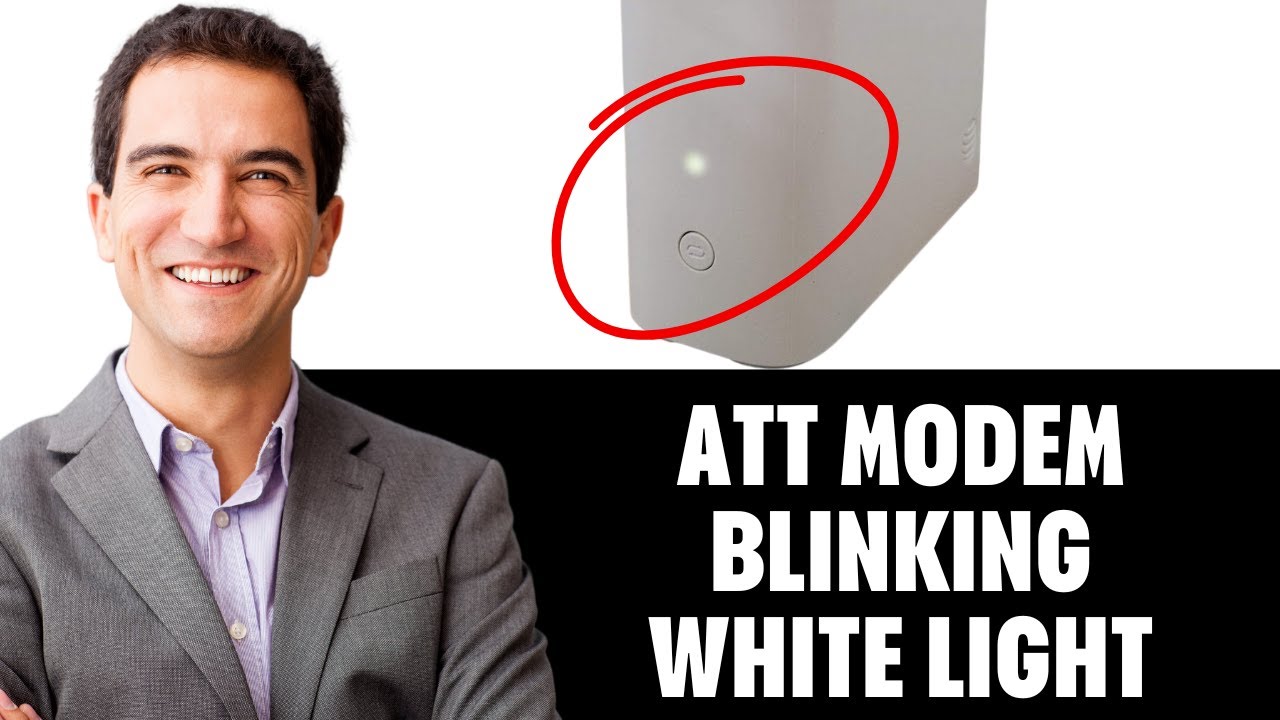
The blinking white light on your AT&T modem usually signals that your device is trying to connect to the internet. It’s not fully online yet, but it’s not offline either. The modem is in transition—like waiting for someone to answer the phone after dialing.
AT&T modems use different colored lights to show their status:
- Solid white: Connected, working normally.
- Blinking white: Trying to connect, not yet online.
- Red or amber: Error, no internet.
- Blue or green: Other operational states (depends on model).
If your modem’s white light keeps blinking for more than 5–10 minutes, something is wrong. It could be a minor issue or something bigger.
Key Reasons Why Your At&t Modem Blinks White
Understanding the cause helps you fix the problem faster. Here are the most common reasons:
- Booting up: When you first turn on the modem, it blinks white while starting.
- Firmware update: Sometimes, the modem updates itself. During updates, the white light blinks.
- Internet line issues: Problems with your cables or outside network can cause the modem to lose connection.
- Incorrect setup: If the modem isn’t set up properly, it may fail to connect.
- Service outage: AT&T may have an outage in your area.
- Damaged cables: Broken or loose cables interrupt the connection.
- Device malfunction: Rarely, the modem itself may be faulty.

Credit: help.sonic.com
How To Fix At&t Modem Blinking White: Step-by-step
Let’s solve the blinking white light problem. Follow these steps in order, and you’ll cover most situations.
1. Wait For 5–10 Minutes
When you restart or install your modem, it’s normal for the white light to blink for a few minutes. Give it time. If after 10 minutes the blinking continues, move to the next step.
2. Check For Service Outages
Many times, the issue is not your modem, but AT&T’s network. You can check for outages:
- Visit AT&T’s official outage page.
- Use the AT&T app.
- Search online for “AT&T outage” and your zip code.
If there’s an outage, you have to wait for AT&T to fix it. This step saves you time troubleshooting your own equipment.
3. Inspect All Cables
Loose or damaged cables are a common problem. Carefully check:
- Power cable: Make sure it’s plugged in firmly.
- Ethernet cable: Should click tightly into the modem and router.
- Fiber or DSL line: Look for cuts, bends, or loose connectors.
Replace any damaged cables. Even a tiny break can cause connection issues.
4. Restart Your Modem
A simple restart fixes many modem issues.
- Unplug the modem from the power outlet.
- Wait 30 seconds.
- Plug it back in.
- Wait for the lights to stabilize.
This refreshes the system and clears minor glitches.
5. Check Modem Placement
Modems need to be in open spaces, away from metal objects, microwaves, or cordless phones. Poor placement can cause interference. Put your modem on a table or shelf—not on the floor or inside a cabinet.
6. Review Setup And Connections
If you recently installed or moved your modem, double-check:
- The correct port is used (fiber, DSL, or coaxial).
- All cables are connected as shown in the setup guide.
- You’re using the right power adapter.
Incorrect setup is a common beginner mistake.
7. Factory Reset (advanced Step)
If nothing works, try a factory reset:
- Find the reset button (usually on the back).
- Use a paperclip to press and hold for 10 seconds.
- Wait for the modem to restart.
Warning: This erases custom settings (Wi-Fi name, password, etc.). Only do this if you’re comfortable reconfiguring your network.
8. Contact At&t Support
If you still see the blinking white light after these steps, contact AT&T. There could be a deeper issue with your line or modem. AT&T can run remote diagnostics and may send a technician.
At&t Modem Light Guide: What Each Color Means
Understanding your modem’s lights helps you diagnose problems quickly. Here’s a comparison table showing what each light means for most AT&T models.
| Light Color | Status | What It Means |
|---|---|---|
| Solid White | Online | Normal operation, internet is working. |
| Blinking White | Connecting | Modem is trying to connect to internet. |
| Red | Error | No internet, possible line or modem problem. |
| Amber/Yellow | Warning | Possible connection issue, check cables. |
| Blinking Blue | WPS Setup | Device is pairing with Wi-Fi. |
Knowing these light patterns lets you act faster and more confidently.
Common At&t Modem Models And Their Light Behaviors
Not all AT&T modems are the same. Models like BGW210, 5268AC, and NVG589 have slightly different light codes. Here’s a quick comparison.
| Model | White Light Behavior | Other Key Indicators |
|---|---|---|
| BGW210 | Blinks during boot, solid when online | Red = error, amber = line issue |
| 5268AC | Blinks when connecting, solid when online | Solid green = online, red = error |
| NVG589 | Blinks when booting, solid when online | Red = error, blinking green = activity |
If you know your model, check its user manual for detailed light meanings. Manuals are often available on AT&T’s website.
At&t Modem Setup: Tips For A Smooth Start
Setting up your modem correctly prevents blinking white light issues. Here are tips for beginners:
- Use only the cables included with your modem.
- Connect to the correct wall port (fiber, DSL, or cable).
- Plug the modem directly into a wall outlet, not a power strip (for stable power).
- Follow the instructions step by step—don’t skip any part.
Many beginners skip the step of connecting the backup battery (if included). This can cause connection problems during power interruptions.
At&t Modem Firmware Updates
Your modem may update its firmware automatically. During updates, the white light blinks. Most updates finish in 5–10 minutes. Don’t unplug or restart your modem during this time. Interrupting updates can cause longer problems.
Sometimes, updates fail because of power loss or poor connection. If your modem blinks white for more than 30 minutes after a power outage, it might be stuck. Restarting the modem usually solves this.
Hidden Causes Beginners Often Miss
There are a few less obvious reasons your AT&T modem might blink white.
- Power fluctuations: If your home has unstable electricity, the modem may fail to connect. Try plugging it into a different outlet.
- Old splitters or phone filters: If you use DSL, old or faulty splitters can block the signal. Replace them if possible.
- Network congestion: If many devices connect at once, the modem may struggle to assign IP addresses. Disconnect a few devices and restart the modem.
These hidden issues are easy to overlook but can cause hours of frustration.
How At&t Fiber And Dsl Modems Differ
AT&T offers both fiber and DSL internet. Their modems have different behaviors and requirements.
| Type | Connection Method | White Light Issue Causes |
|---|---|---|
| Fiber | Optical cable | Loose fiber cable, service outage, failed update |
| DSL | Phone line | Damaged phone line, old filters, splitter issues |
Fiber is generally more stable but sensitive to cable placement. DSL is more affected by phone line quality.
When To Replace Your At&t Modem
Sometimes, the modem itself is faulty. Signs you need a replacement:
- The white light blinks for hours, even after resets.
- You see random reboots or overheating.
- AT&T support confirms a hardware problem.
Modems last 4–7 years on average. If yours is older, consider upgrading.
Credit: www.youtube.com
How To Prevent Modem Problems
Prevention is better than fixing. Here’s how to keep your modem healthy:
- Keep it in a cool, dry place.
- Clean dust from vents every few months.
- Update firmware when prompted.
- Check cables regularly for wear.
- Use surge protectors if your area has power spikes.
Avoid stacking devices on top of the modem—heat buildup can cause malfunctions.
At&t Support: What To Expect
If you call AT&T support, they usually ask:
- Your modem model and serial number.
- The status of lights (color, blinking or solid).
- Whether you’ve restarted the device.
- If you’ve checked cables and setup.
They may run remote tests. If needed, they send a technician. Be ready to answer questions—they help diagnose faster.
You can also chat with support online or use the AT&T app.
Practical Troubleshooting Checklist
If your AT&T modem is blinking white, run through this practical checklist:
- Wait 10 minutes after restart.
- Check for AT&T outages.
- Inspect all cables.
- Restart the modem.
- Move modem to open space.
- Double-check setup steps.
- Factory reset (if comfortable).
- Contact support if needed.
This sequence covers 90% of blinking white light cases.
Real-life Example: Solving A Blinking White Light
Let’s say you installed a new BGW210 modem. The white light keeps blinking after setup.
- You wait 10 minutes—still blinking.
- You check AT&T’s outage page—no outage.
- You inspect cables and find the fiber cable is loose. After reconnecting, the light turns solid white.
- Internet works!
This shows how small issues can cause big headaches.
How A Blinking White Light Affects Your Internet
When your modem blinks white, your internet is either slow, unstable, or completely offline. You might:
- Fail to load webpages.
- Lose connection during video calls.
- Experience buffering on streaming apps.
- Get “no internet” messages on devices.
If your modem is blinking white, do not ignore it. The problem usually gets worse over time.
Comparing At&t Modem Problems With Other Providers
AT&T modems use blinking white as a connection signal. Other providers use different codes:
- Xfinity: Blinking blue or green means connecting.
- Spectrum: Red or blinking blue signals trouble.
- Verizon: Blinking white is used during setup.
So, if you switch providers, learn the new light codes.
Advanced Solutions: For Persistent Problems
If you’re tech-savvy and have persistent problems:
- Update your modem’s firmware manually (instructions on AT&T’s site).
- Use a UPS (uninterruptible power supply) for stable power.
- Check your home’s wiring for faults.
- Replace old splitters or filters.
These steps go beyond basic troubleshooting.
Why You Should Act Quickly
Delaying fixes can cause:
- Lost work time.
- Missed meetings.
- Frustration for your household.
Quick action prevents bigger problems and helps you stay connected.

Credit: www.reddit.com
Frequently Asked Questions
Why Does My At&t Modem Blink White After A Power Outage?
After a power outage, the modem may reboot and try to reconnect. If it blinks white for more than 10–15 minutes, check cables and restart the device. Sometimes, firmware updates start after outages and cause longer blinking. If the blinking continues, contact AT&T.
Can I Use Third-party Cables With My At&t Modem?
It’s best to use the cables supplied by AT&T. Third-party cables may not fit securely or may lack proper shielding, causing connection issues. If you must use a replacement, buy high-quality cables rated for internet use.
How Long Should The White Light Blink During Setup?
Normally, the white light blinks for 5–10 minutes during initial setup or after a restart. If it lasts longer, check for incorrect setup, loose cables, or service outages. The modem should turn solid white when fully online.
What Should I Do If The White Light Blinks And Then Turns Red?
This usually means the modem tried to connect but failed. Check for damaged cables, service outages, or incorrect setup. Restart the modem and check again. If the problem repeats, contact AT&T support.
Is It Safe To Factory Reset My At&t Modem?
Yes, but all custom settings (Wi-Fi name, password, etc. ) Will be erased. After a reset, you need to reconfigure your network. Only reset if you are comfortable setting up your modem from scratch.
Final Thoughts
If you need official troubleshooting steps, visit the AT&T Support page.
Solving the AT&T modem blinking white issue is about patience, careful checks, and knowing when to ask for help. With these steps, you’re ready to fix most problems and enjoy a stable connection.